Focara Kitchen - User Tutorial
Up to date with app version 1.6.0 · Last updated
The complete guide to Focara Kitchen for iOS and Android — from your first imported recipe to versions, Cook Mode, kitchen timers, shopping lists, meal timelines, and sharing with the people you love.
Getting Started
Focara Kitchen is your family's recipe box: a warm, personal home for the recipes you actually cook. Bring them in from websites, photos, screenshots — even handwritten cards — then make each one your own, cook from it hands-free, and share it with the people you love.
The app is organized into five tabs along the bottom of the screen:
- Home - your kitchen at a glance: search, favorites, your recipes, and today's plan
- Discover - one search across your own box and the Focara inspiration library
- Add - the five ways to bring a recipe in
- Plan - meals on a timeline, with start times worked out for you
- Me - your profile, favorites, collections, archive, shared recipes, and Settings
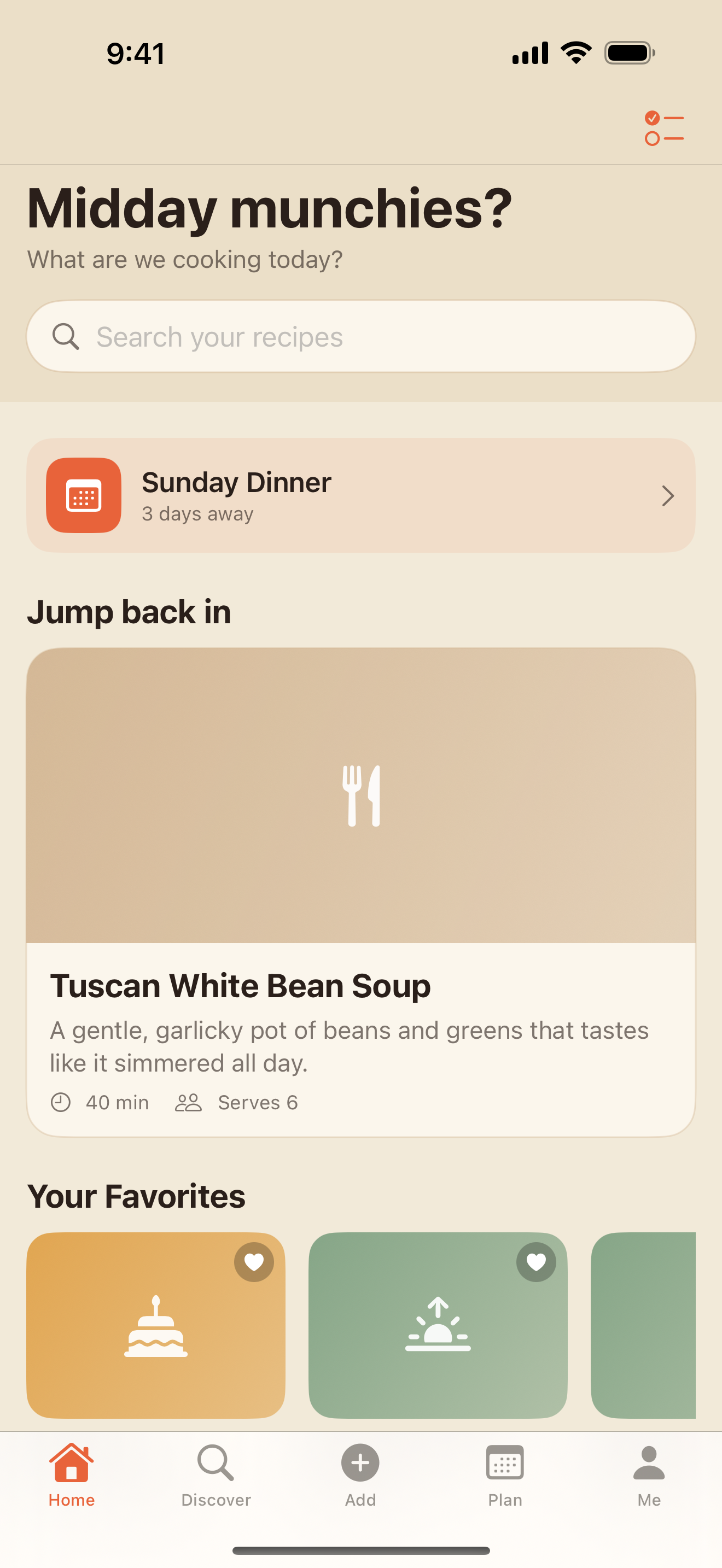
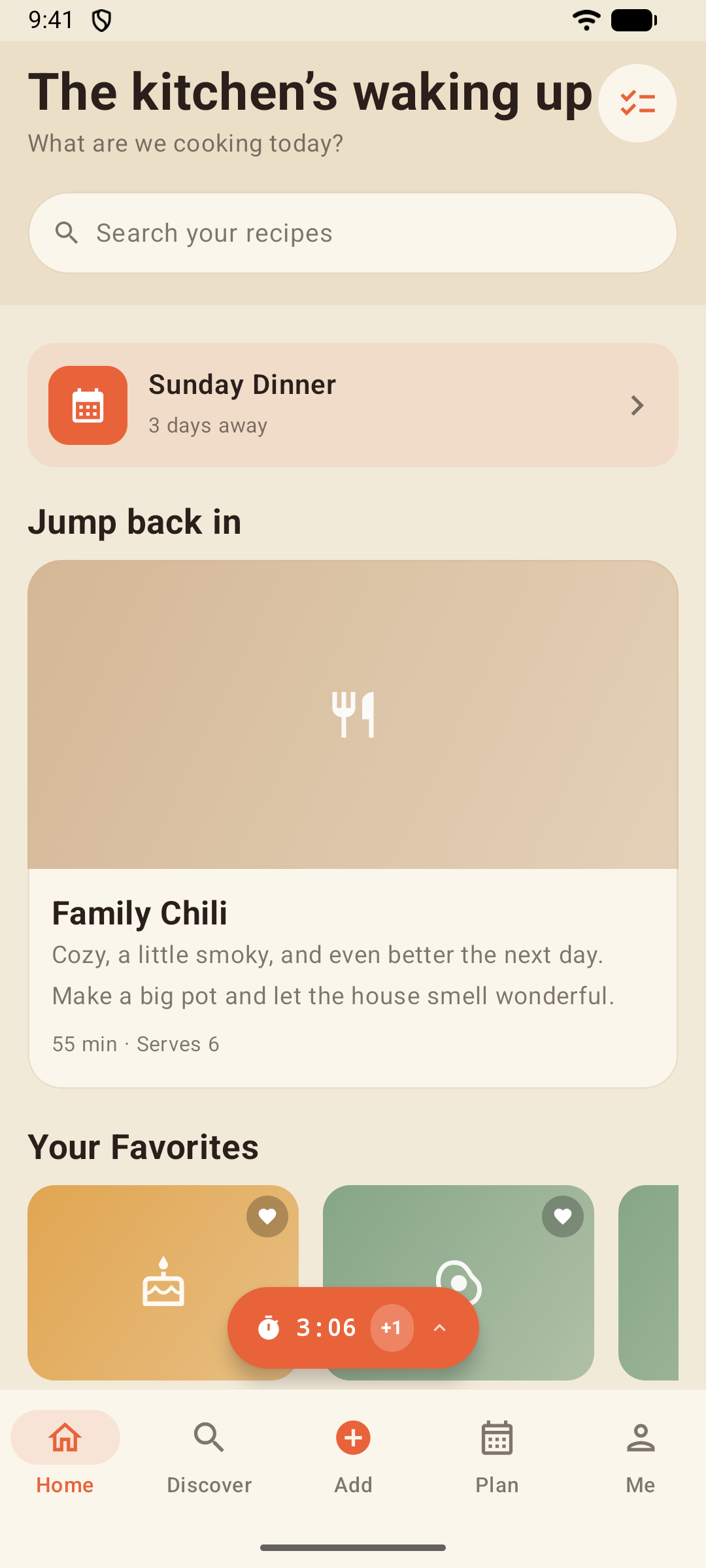
A few of the recipes above come with the app — warm, universally loved dishes so your box is never empty on day one. Archive or delete them whenever you like.
Free vs Pro
- Free: everything in this tutorial — the ads on browsing screens are what keep it free
- Pro: exactly the same features with every ad removed
Ads never appear while you cook, plan, or shop - see Focara Pro.
Adding a Recipe by Hand
Tap the Add tab and Focara offers five doors into your box. The last one, Type it in, is the classic way: you and the family recipe that lives in your head.
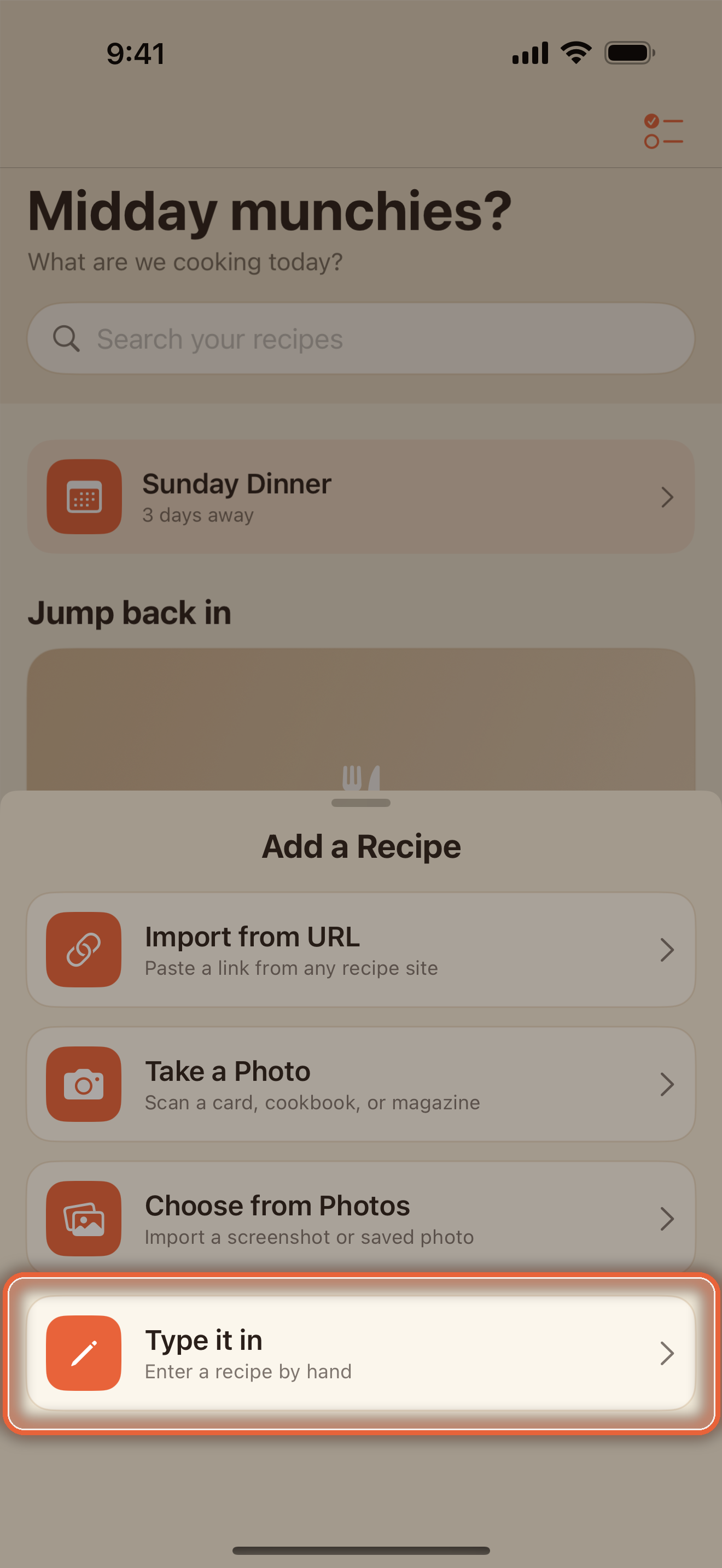
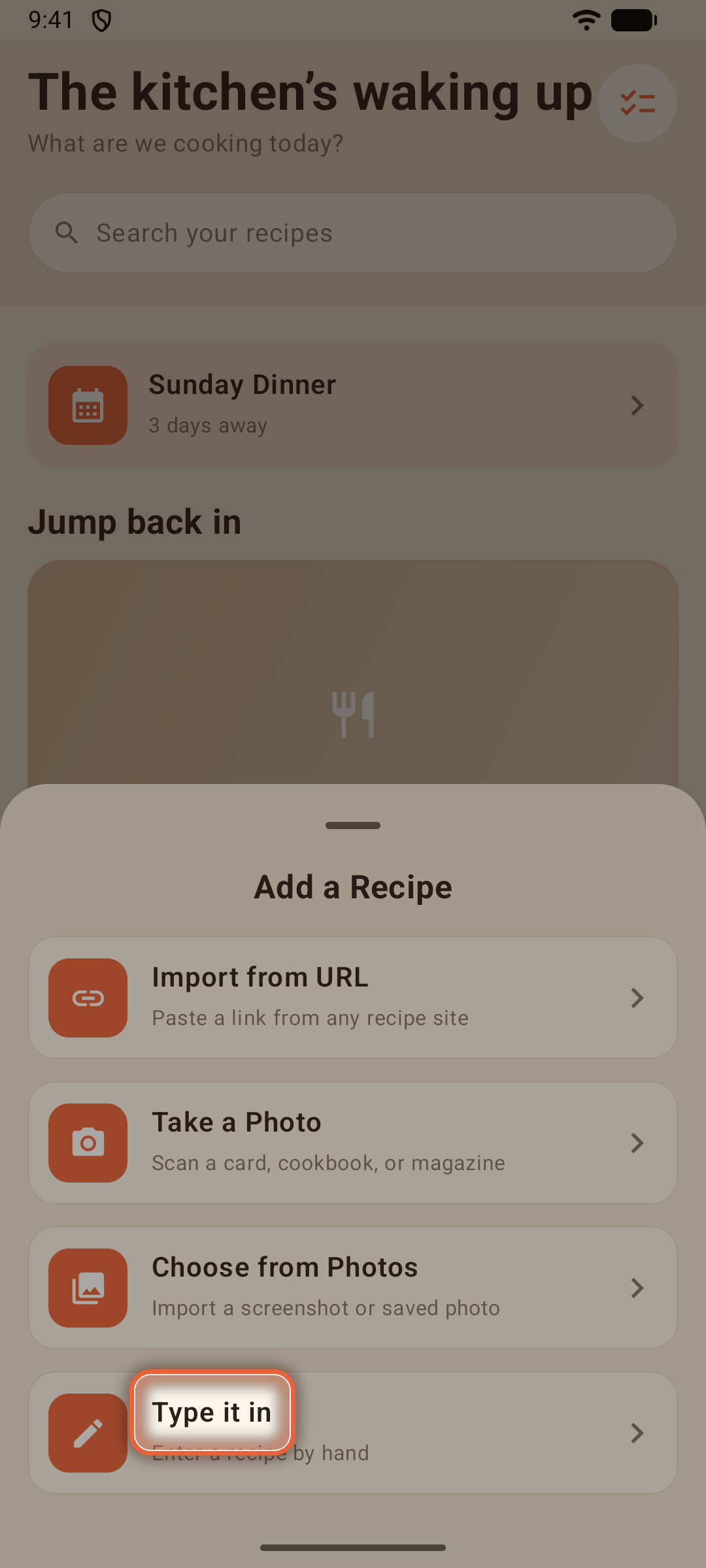
The editor is built from structured rows, so the recipe comes out clean every time:
- The recipe's name wraps onto a second line when it needs one, and stops at 60 characters
- One ingredient per row — tap Add Ingredient for the next one
- Return moves you straight to the next row — type, return, type — and pasting a whole list splits it into rows, one per line
- Type fractions the easy way — 1/2 turns into ½ as soon as you move on
- Got the order wrong? Tap Reorder above the ingredients and drag rows where they belong
- Add Section Label groups ingredients the way the recipe thinks ("For the sauce")
- Steps get their own rows too; Focara numbers them for you
- Type the exact prep and cook minutes and the servings, or nudge them with − and + (the minutes land on the nearest five), then add an optional meal type, cuisine, or season
- Dietary Labels marks the recipes that fit a way of eating — ten fixed labels like Vegetarian, Gluten Free, and Nut Free (more in Discover)
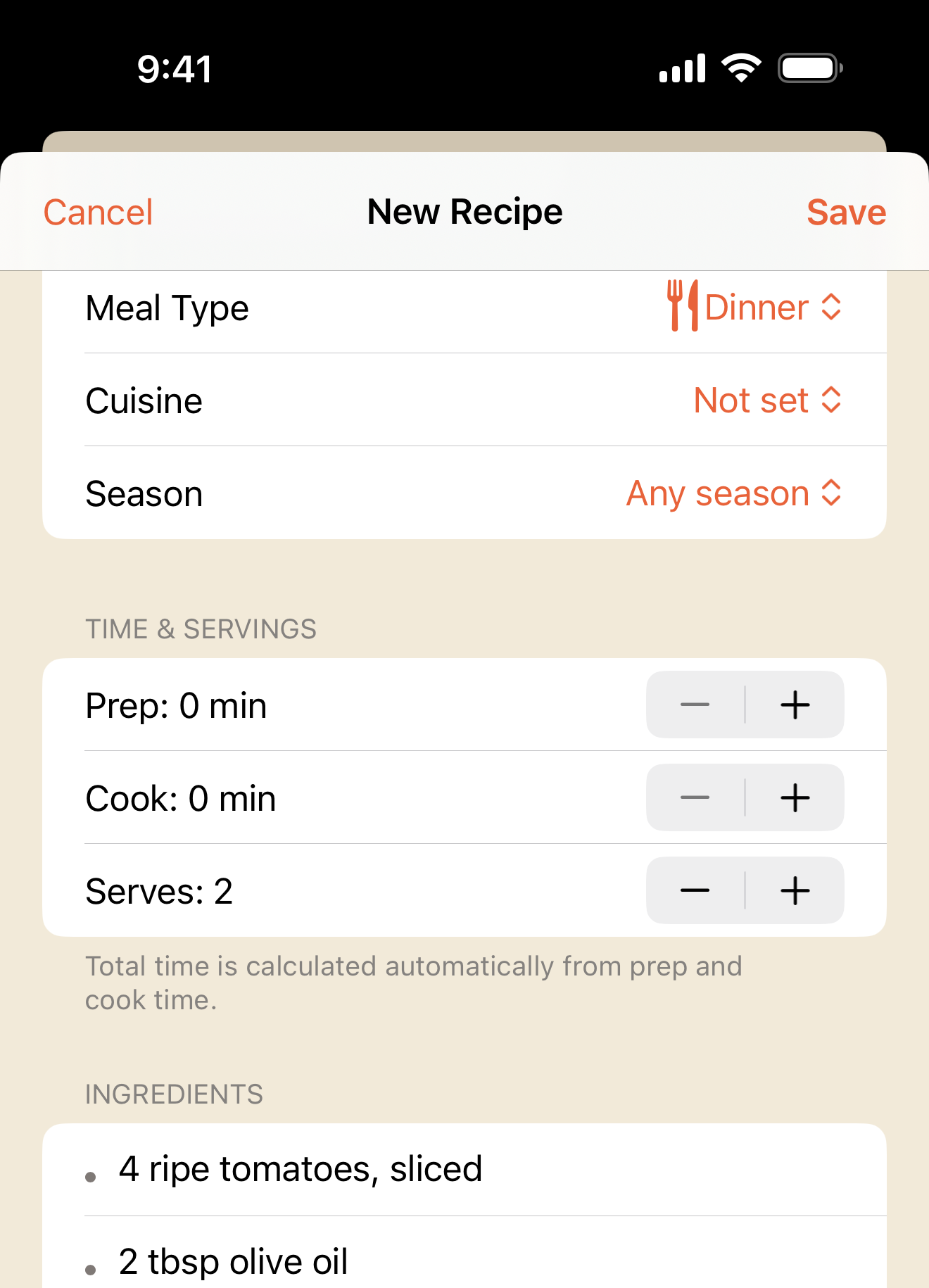
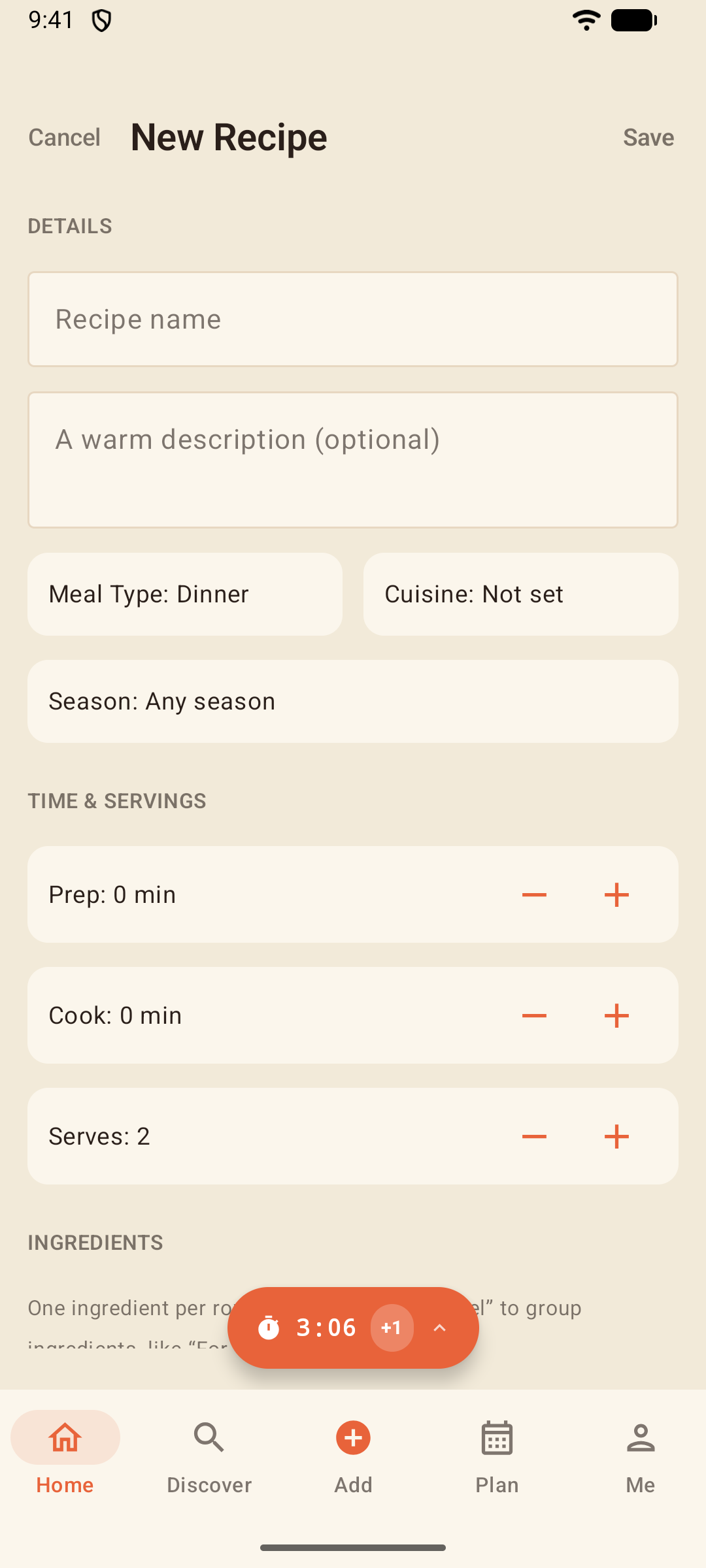
Tap Save and your new recipe opens on its own page, ready to cook from — whichever door it came in through. Going back from there returns you to wherever you started.
Importing from a Website
Found a recipe online? Choose Import from URL and paste the link.
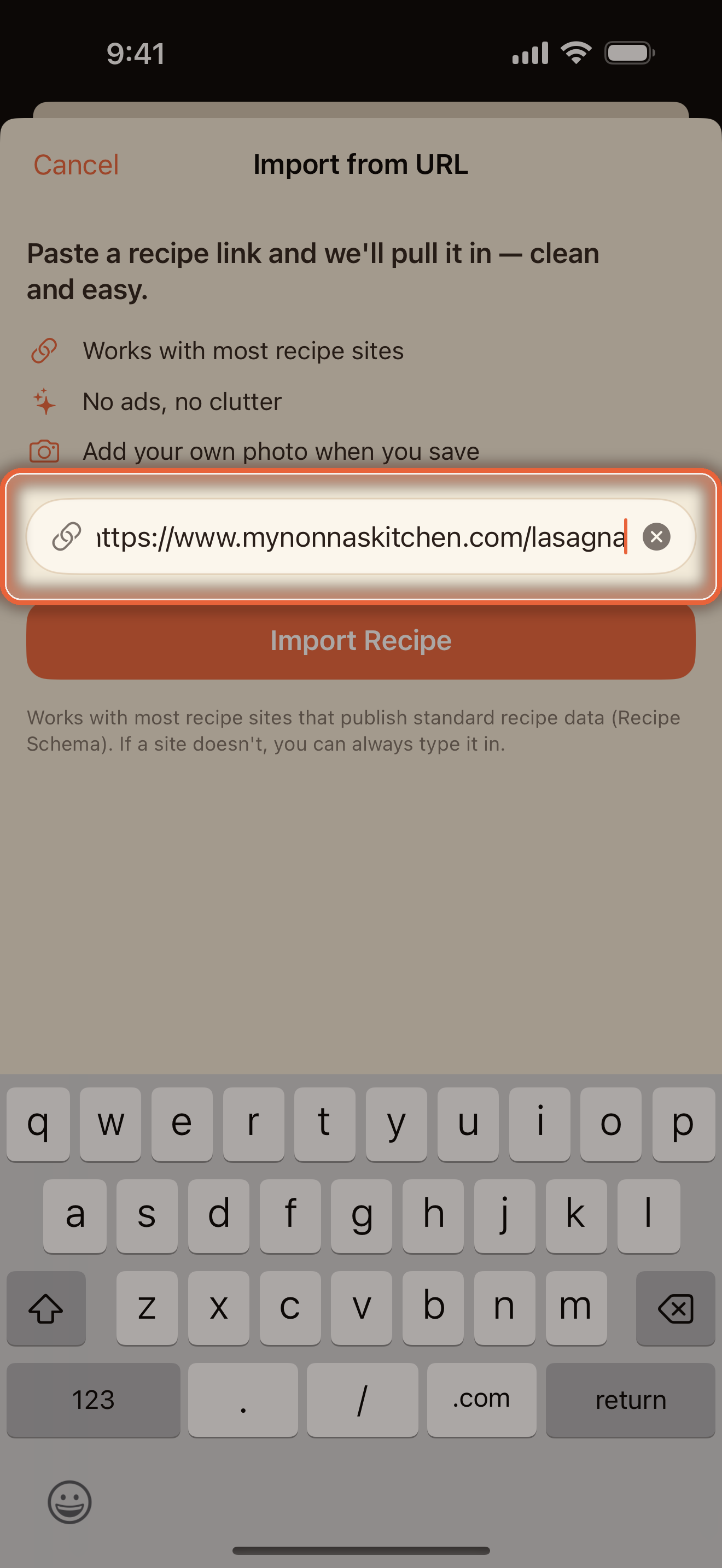
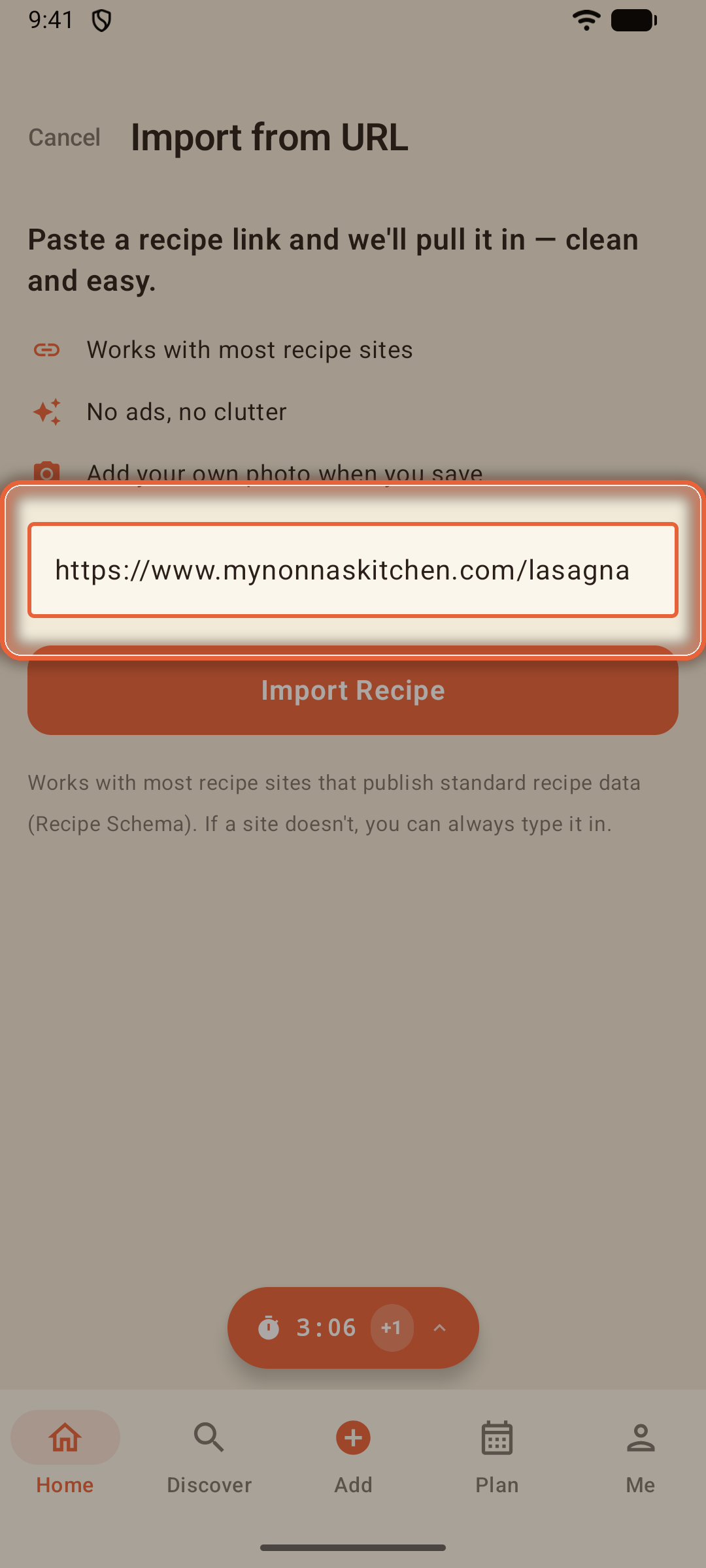
Focara reads the recipe itself — title, ingredients, steps, times, servings — and skips the life story and the ads. You review everything on a confirm screen before it's saved, so nothing lands in your box sight unseen.
- Works with most recipe sites and food blogs
- The source website is remembered in Notes & Tips, so credit stays with the recipe
- If a site can't be read, Focara says so plainly and offers to let you type it in instead
Pasting Recipe Text
A recipe sitting in your Notes, a text thread, or an email? Copy it there, choose Paste Text, and paste each part into its labeled box — ingredients in one, directions in another. Focara sorts what you pasted into clean rows, and, as with every door, you review the result before anything is saved.
- Pasted lines keep their meaning — "or substitute honey" stays right where the author put it
- Headings get the same tidy-up as a scan: SALAD or DRESSING on its own line becomes a section label, and a course word on top, like "Dessert", can fill in the Meal Type
- Give the recipe a name if the text didn't bring one, then save
- Everything happens on your device — nothing you paste is sent anywhere
Scanning Photos & Recipe Cards
The most magical door: Take a Photo or Choose from Photos turns a cookbook page, a screenshot, or Grandma's handwritten card into a real, editable recipe.
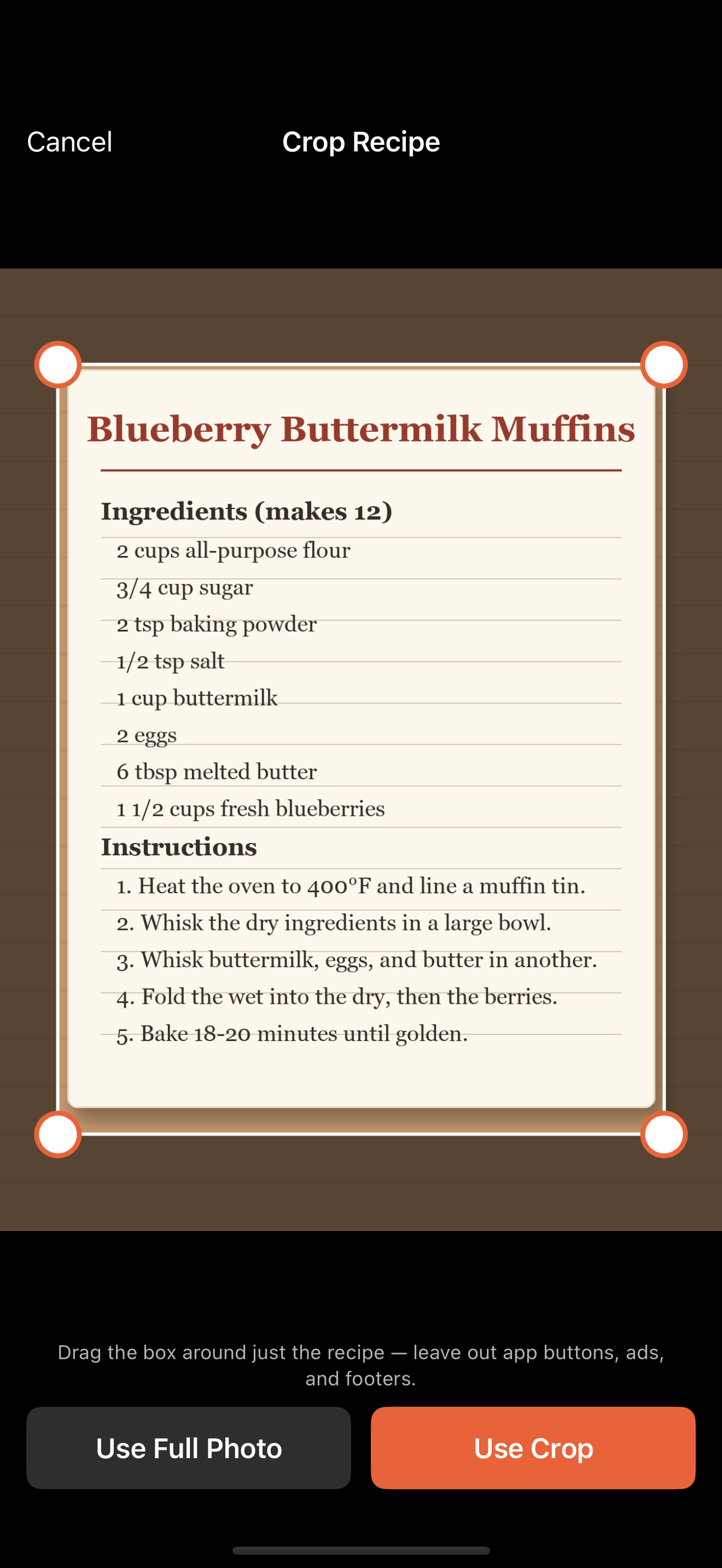
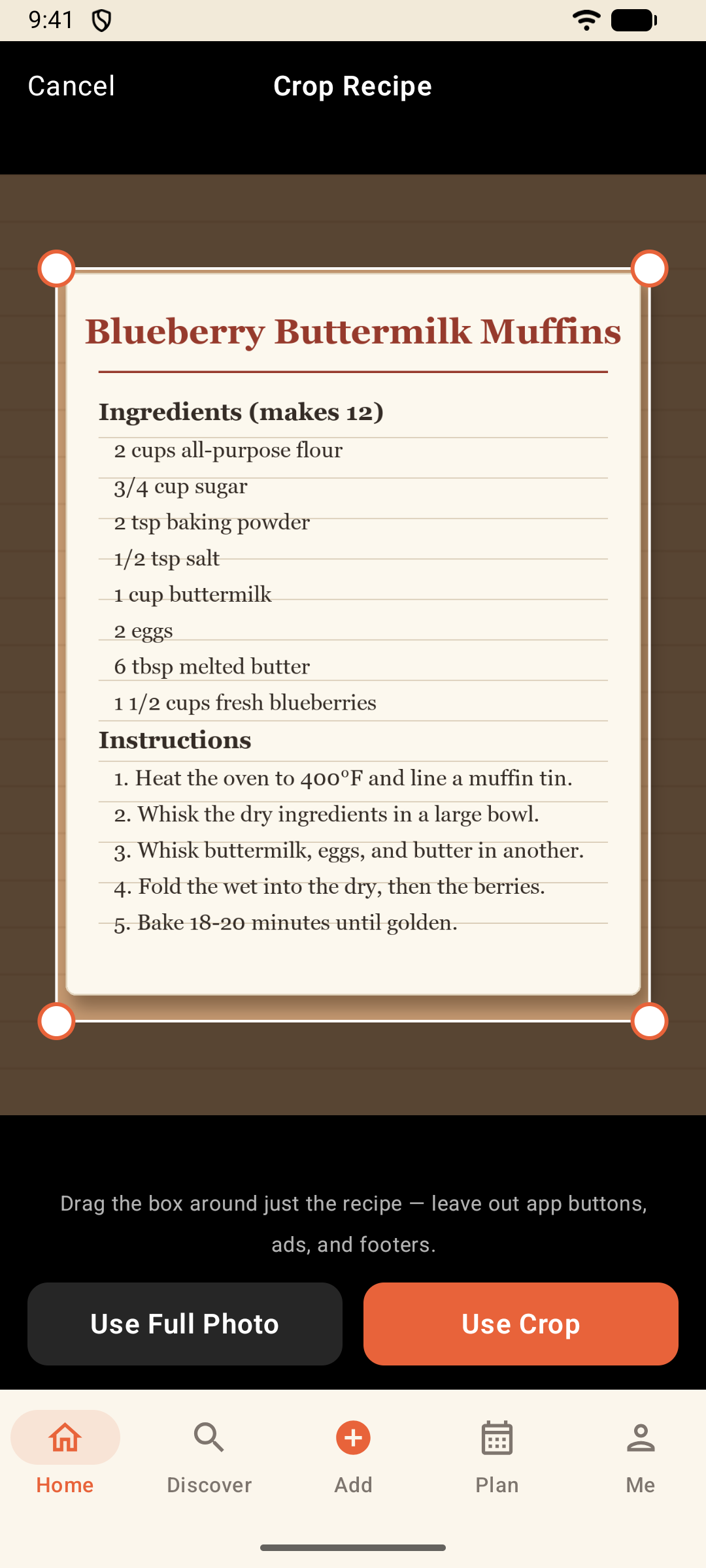
Step 1: Crop to the recipe
Drag the box around just the recipe — leave out app buttons, ads, and footers. The cleaner the crop, the cleaner the import.
Step 2: Let Focara read it
Focara reads the text on your device, splits it into title, ingredients, steps, and notes, repairs common misreads, routes times and servings into their fields, and quietly drops watermarks and other photo clutter.
A course banner at the top of a card — "Dessert", "Appetizer" — is set aside instead of being taken for the recipe's name, and it can fill in the Meal Type for you. Headings on their own line, like SALAD and DRESSING, arrive as section labels over the ingredients they head.
Step 3: Review and save
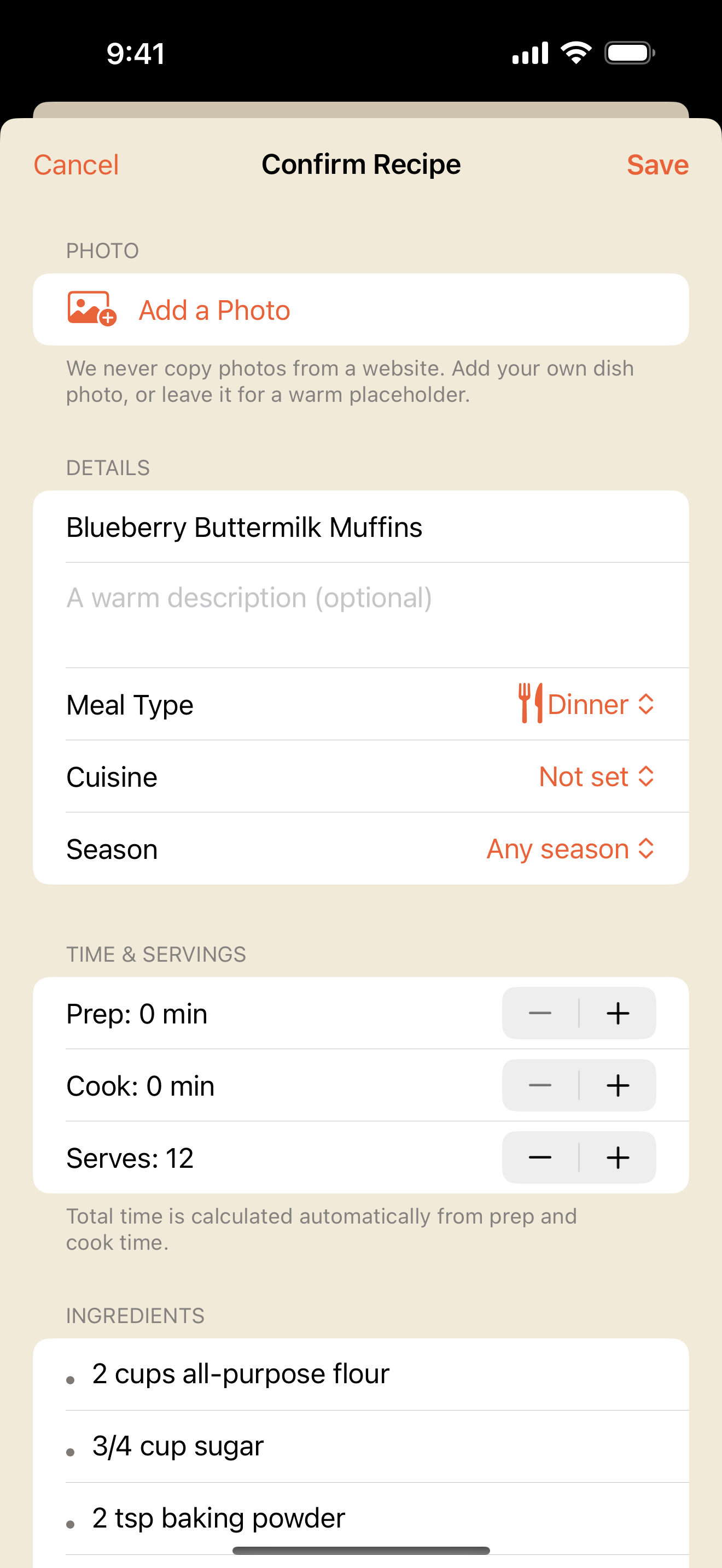
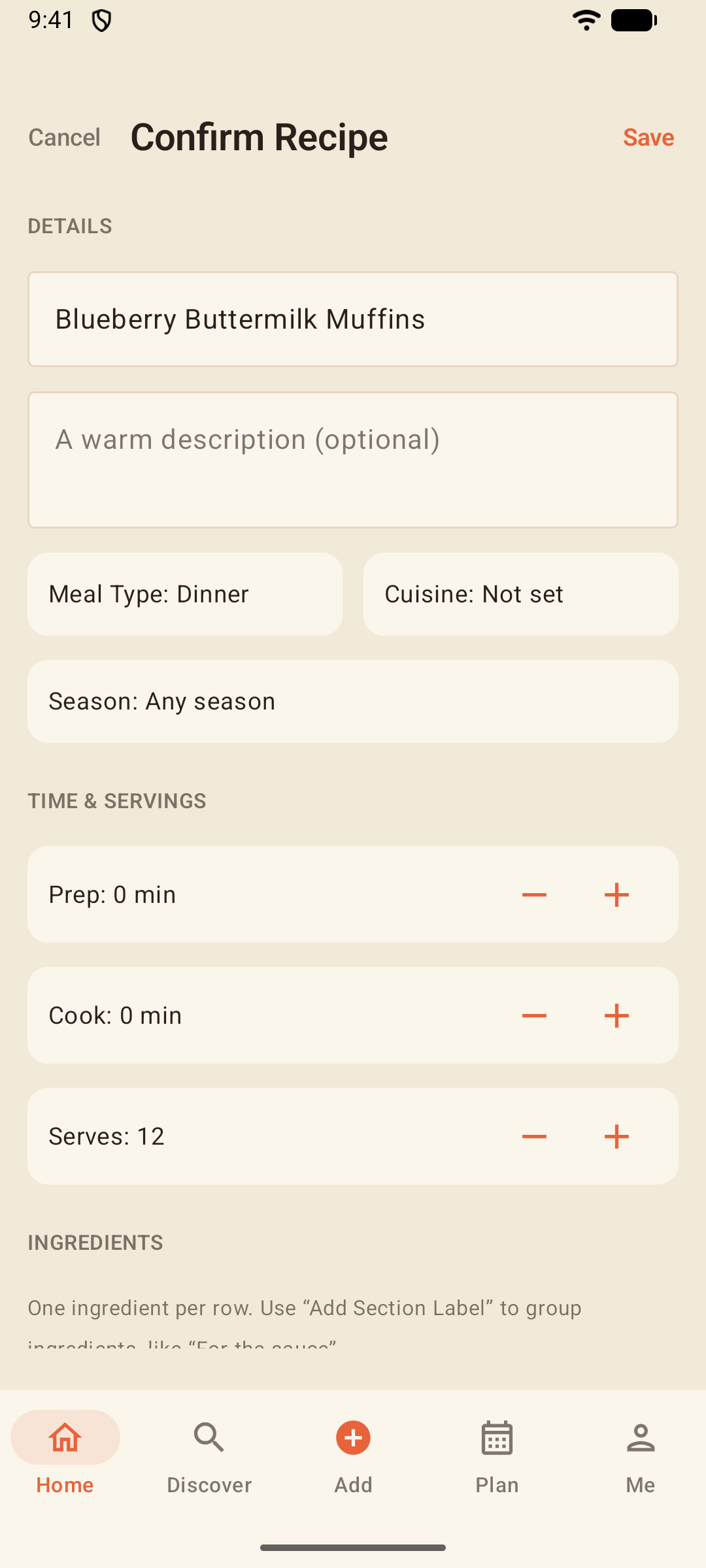
Anything Focara wasn't sure about — a smudged fraction, a guessed unit — gets a soft orange dot so you can double-check it. Edit any row, then save.
If the recipe as a whole looks off — amounts that came apart from their ingredients, say — a note at the top of the ingredients asks you to take a closer look before you save. And a name longer than 60 characters arrives whole, marked so you can shorten it.
Tip: A long recipe spread across several screenshots? Select up to 6 photos at once — they're stitched, in order, into one recipe.
Note: Photo scanning works in the languages your device can read. For a few scripts the device can't, Focara tells you up front — typing in and website import always work.
The Recipe Page
Tap any recipe to open its page — photo up top, the story underneath.
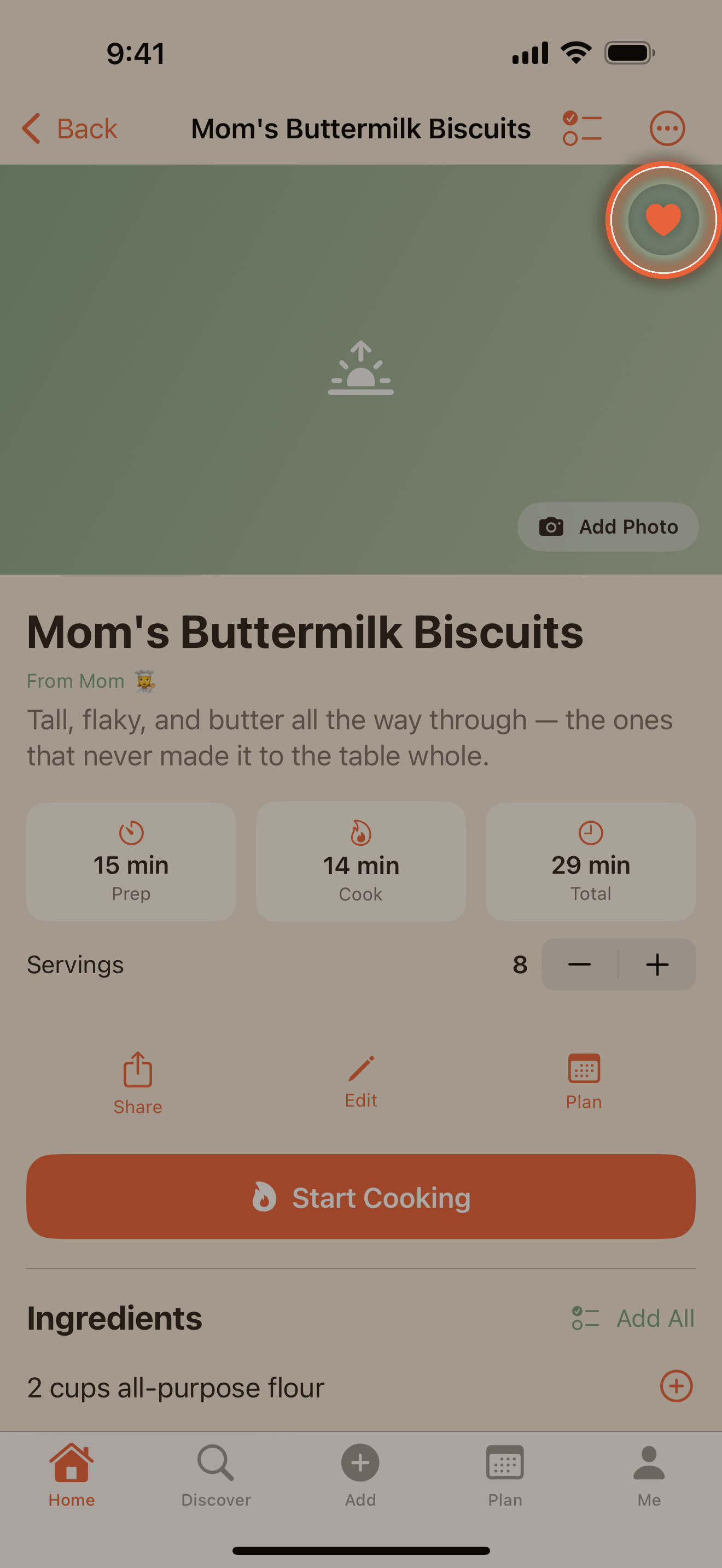
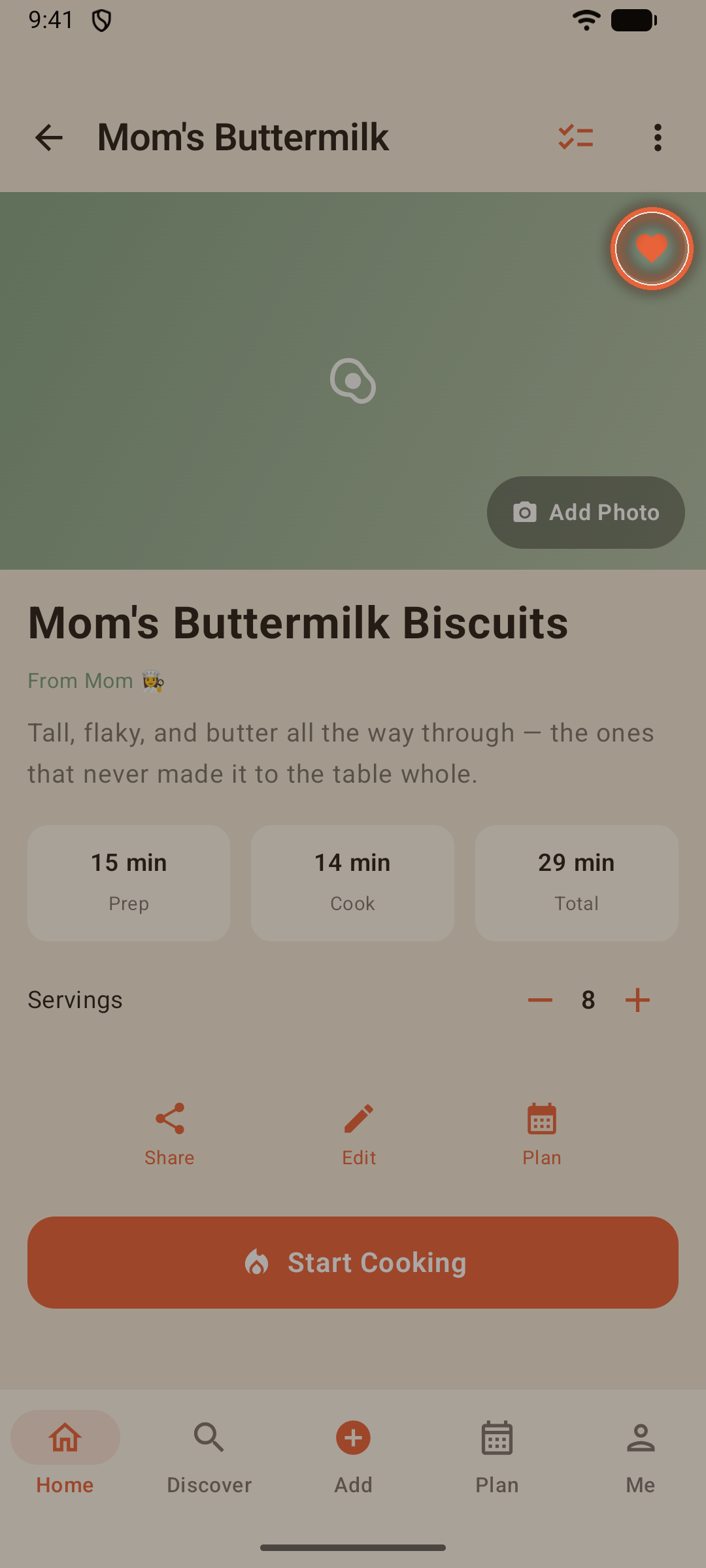
- Tap the heart on the photo to make it a favorite
- Recipes carry their story: *"From Mom's Kitchen 👩🍳"* on a shared recipe, the source site on an import — and once you've made it yours, *"Adapted from Mom"*
- The cuisine and any dietary labels sit as small chips under the title — tap a dietary label for a gentle reminder that labels are worth double-checking
- Prep / Cook / Total times sit right under the title
- Share, Edit, and Plan are one tap away
- The ⋯ menu holds Add to Collection…, Print, Show in, Duplicate, Archive, and Delete
- Tap the photo to view it full screen, or add your own with Add Photo
- A photo saved a little off-center? Edit the recipe and choose Reposition in the photo's menu — you can re-frame a saved photo any time
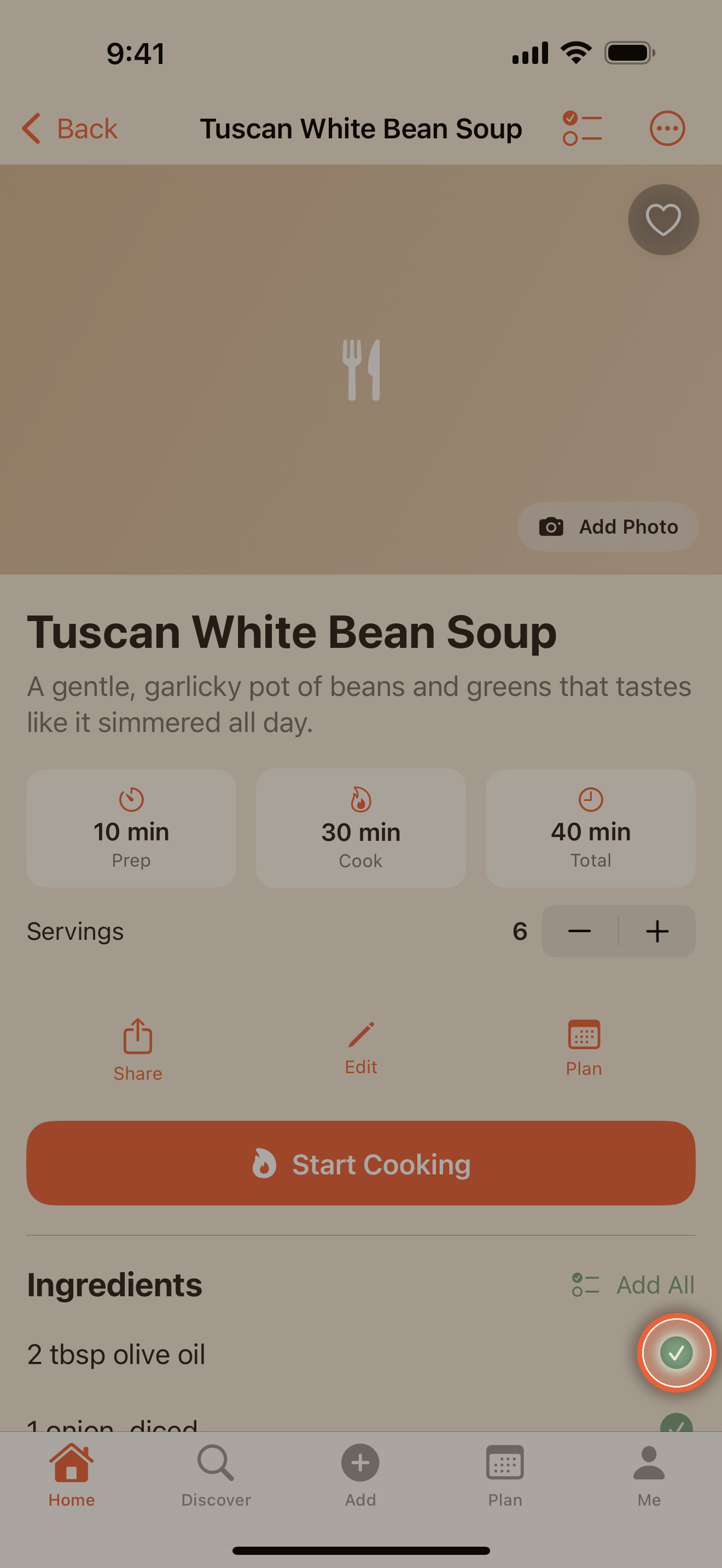
Below the times, the ingredient list is a working surface, not just a list:
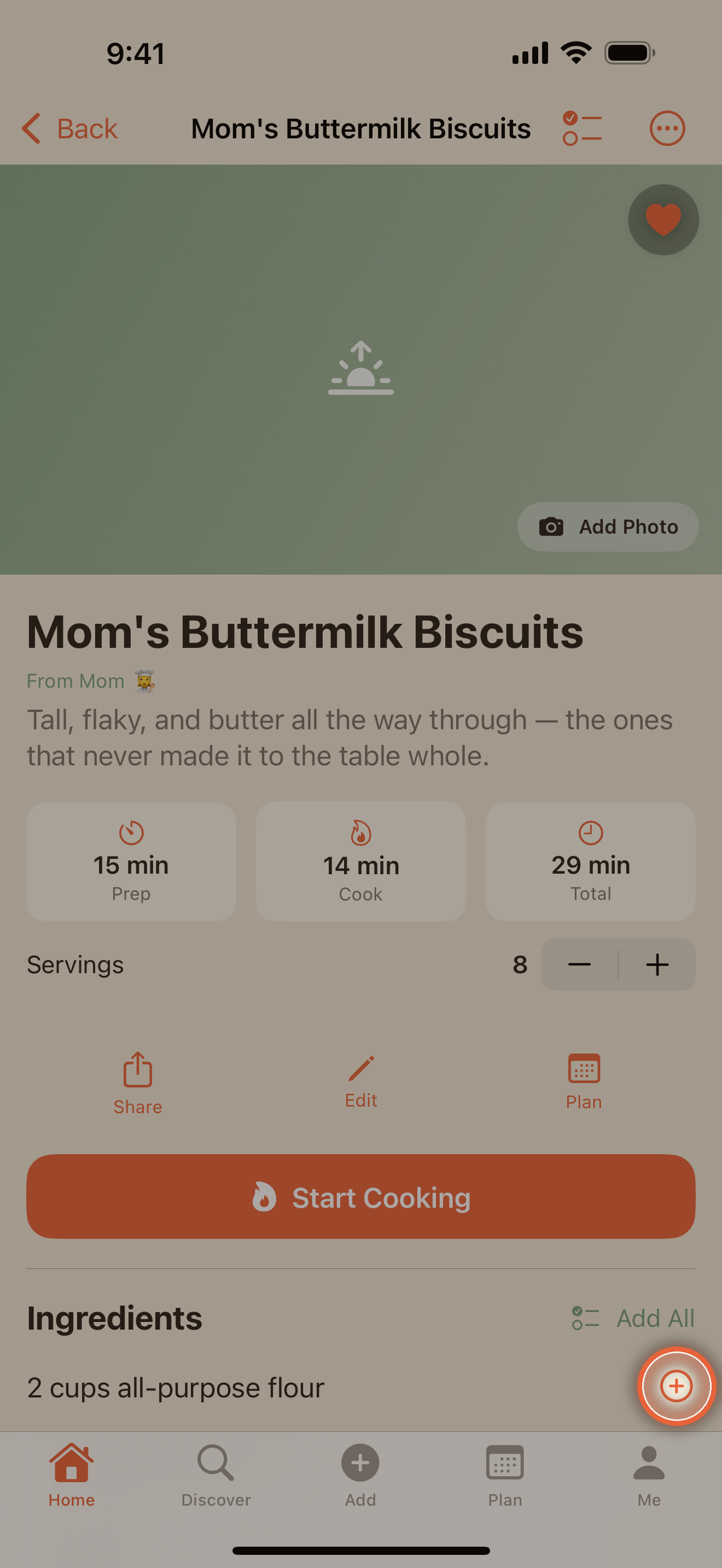
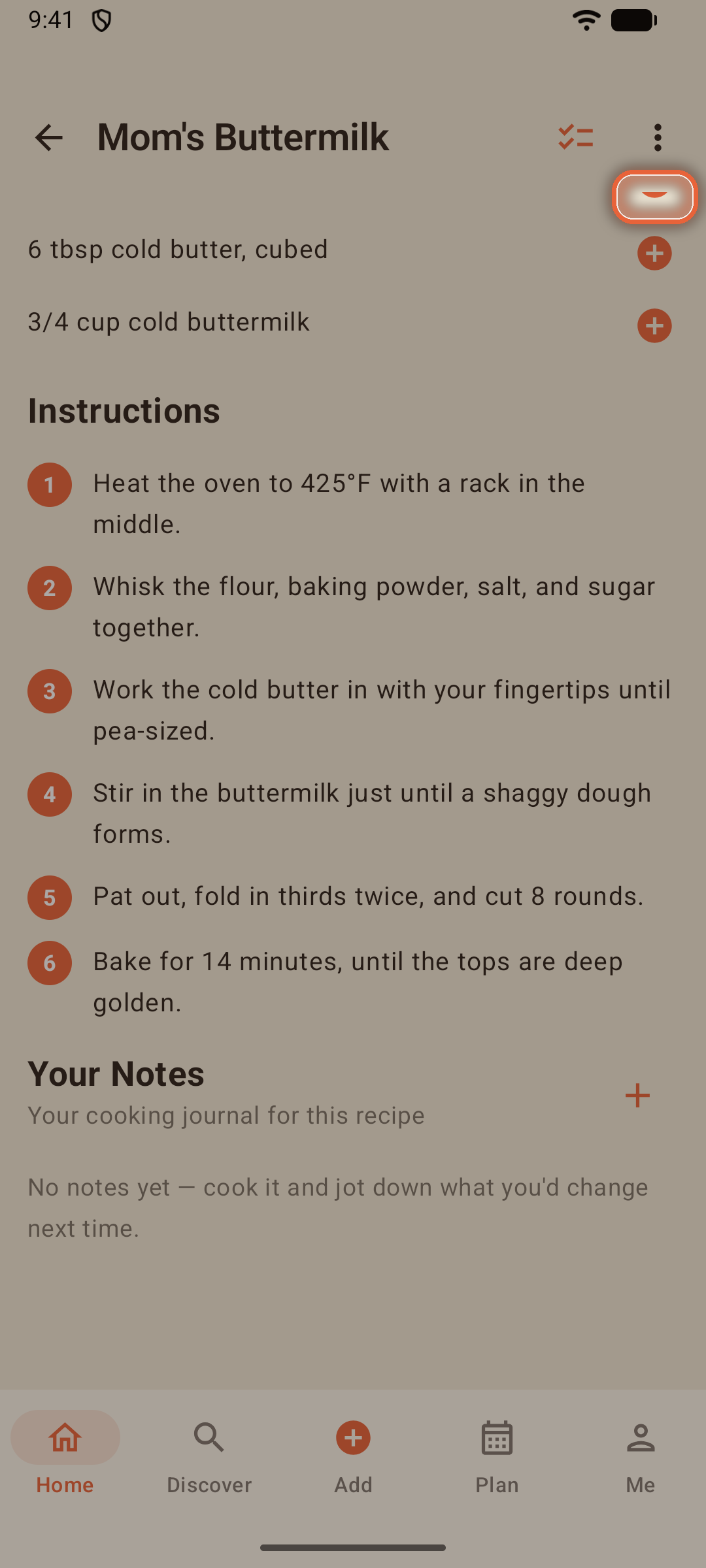
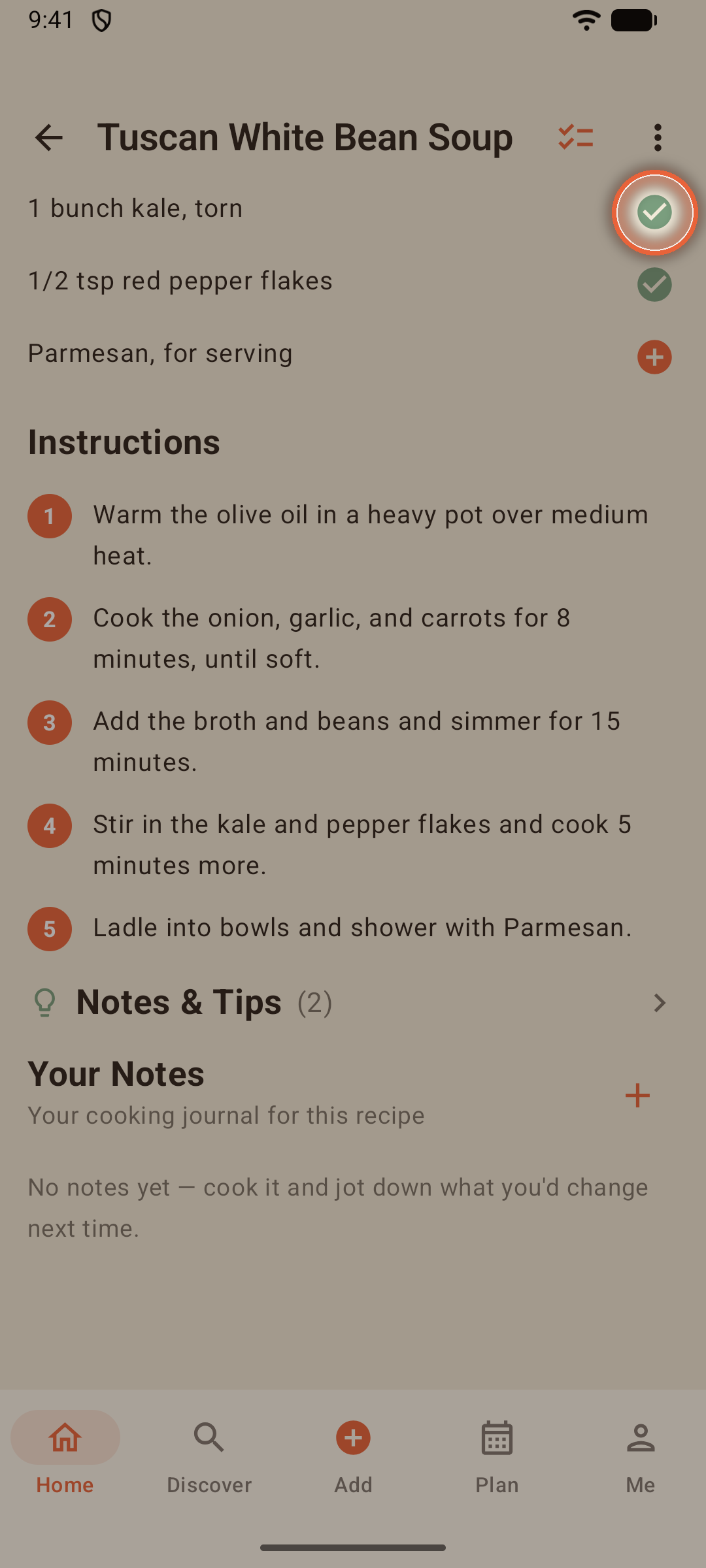
- Tap the ⊕ at the end of any row to send that ingredient to the shopping list — tap again to take it back
- Add All sends the whole recipe at once
- The recipe remembers what's already on the list, even after you close the app
Nutrition
Know a recipe's numbers? Give them a home. The Nutrition section holds up to seven per-serving figures — calories, protein, carbs, fat, fiber, sugar, and sodium. Fill in what you know and skip the rest; only the filled tiles show.
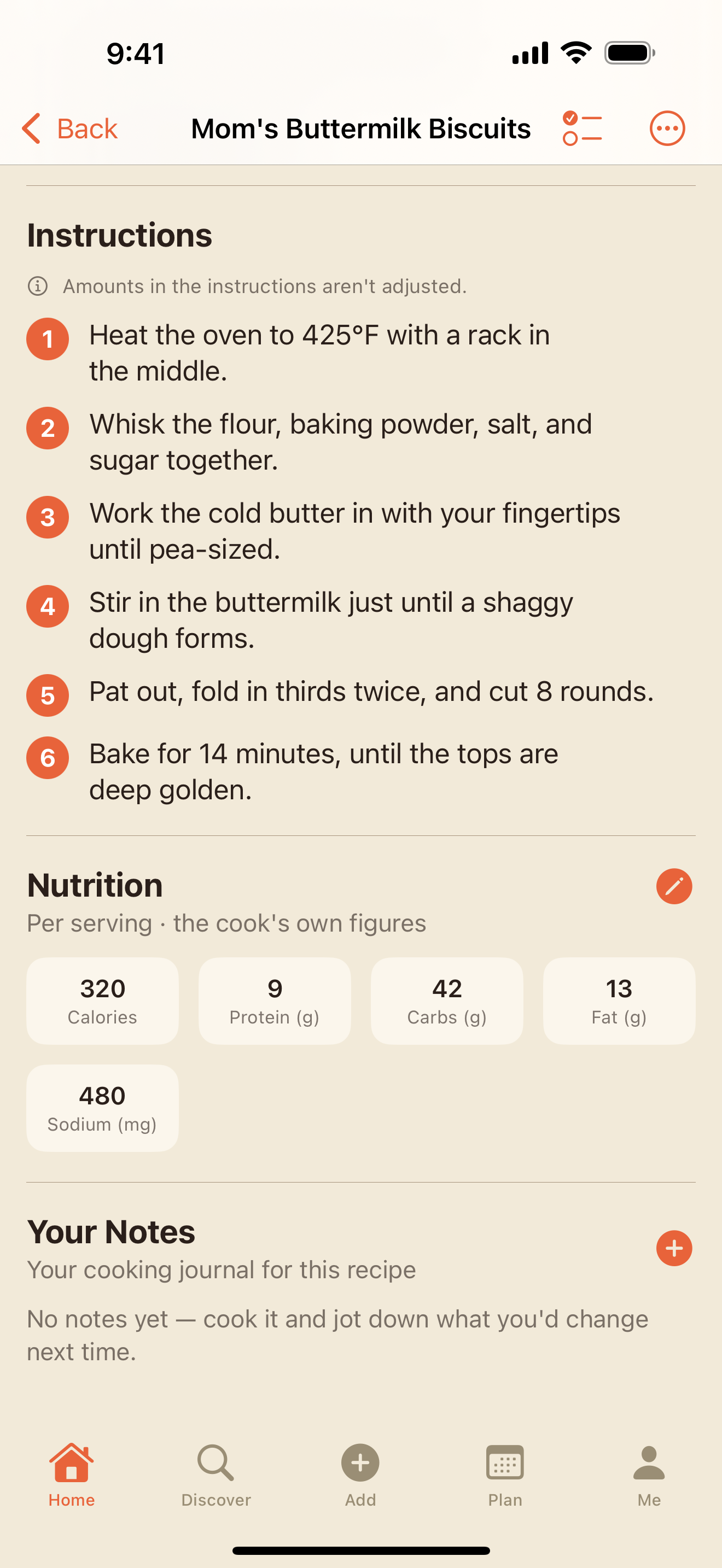
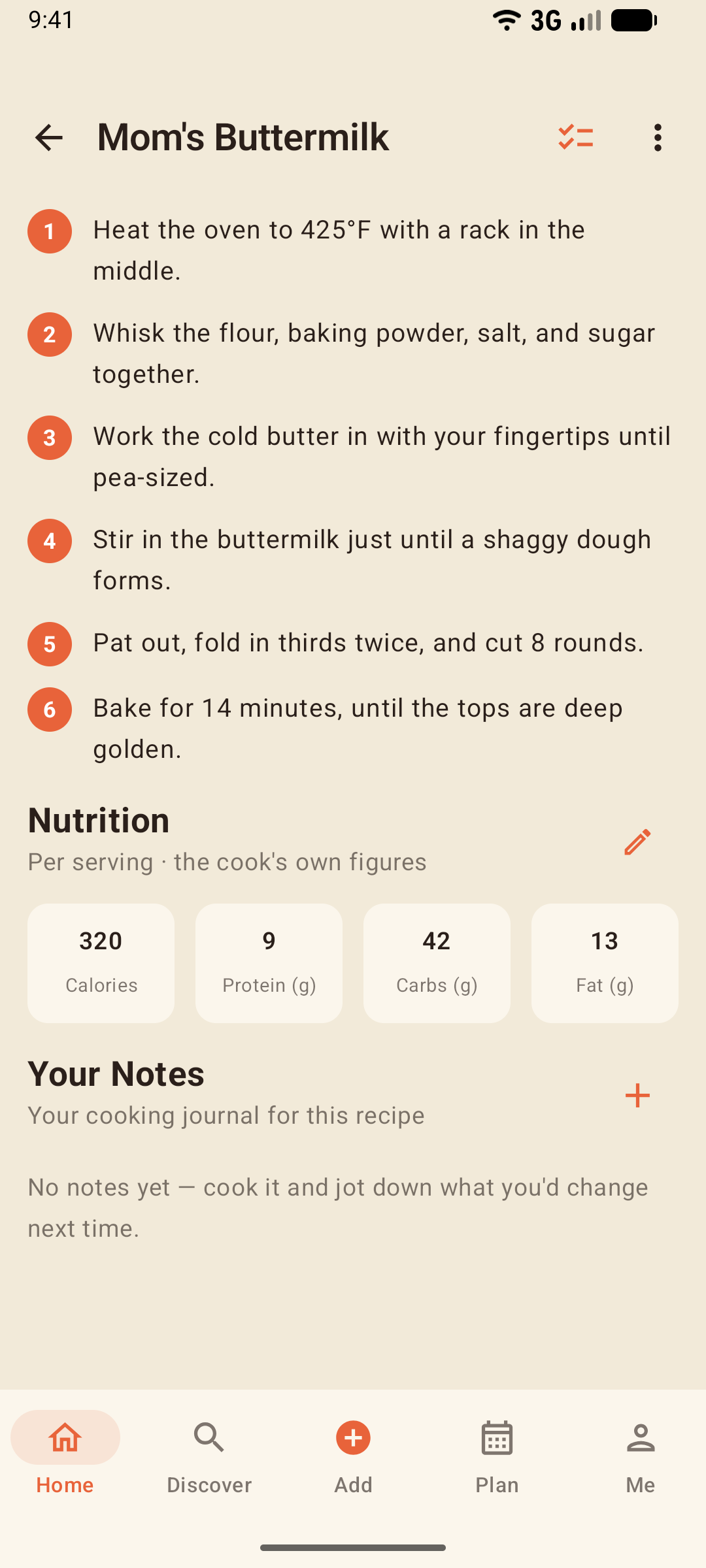
- Add nutrition waits quietly below the steps until a recipe has figures; after that, the pencil on the section header edits them — and the same fields live in the recipe editor
- The figures are yours, per serving, exactly as entered — Focara never calculates or verifies them, and the section says so right on its label
- Every version keeps its own figures, so a lightened Version 2 never wears the original's numbers
- If the ingredients change after you've entered figures, a small orange dot appears beside the section header — tap it for the why, and once you've checked the numbers, re-saving them clears it
Previous Photos
Replacing a recipe's photo never throws the old one away. Focara keeps your last three in Previous Photos — edit the recipe and look in the photo's menu, right beside Reposition (on Android, tap the photo on the recipe page and look in its menu). Tap a kept photo to make it the recipe photo again; the outgoing one slips into the list in its place, so a change of heart is always allowed. And the moment you replace a photo, a brief Undo appears — for slips of the thumb.
Scaling Servings
Cooking for eight instead of four? Step the Servings up or down and every parseable quantity rescales in kitchen-friendly fractions — 1½ cups, not 1.5000.
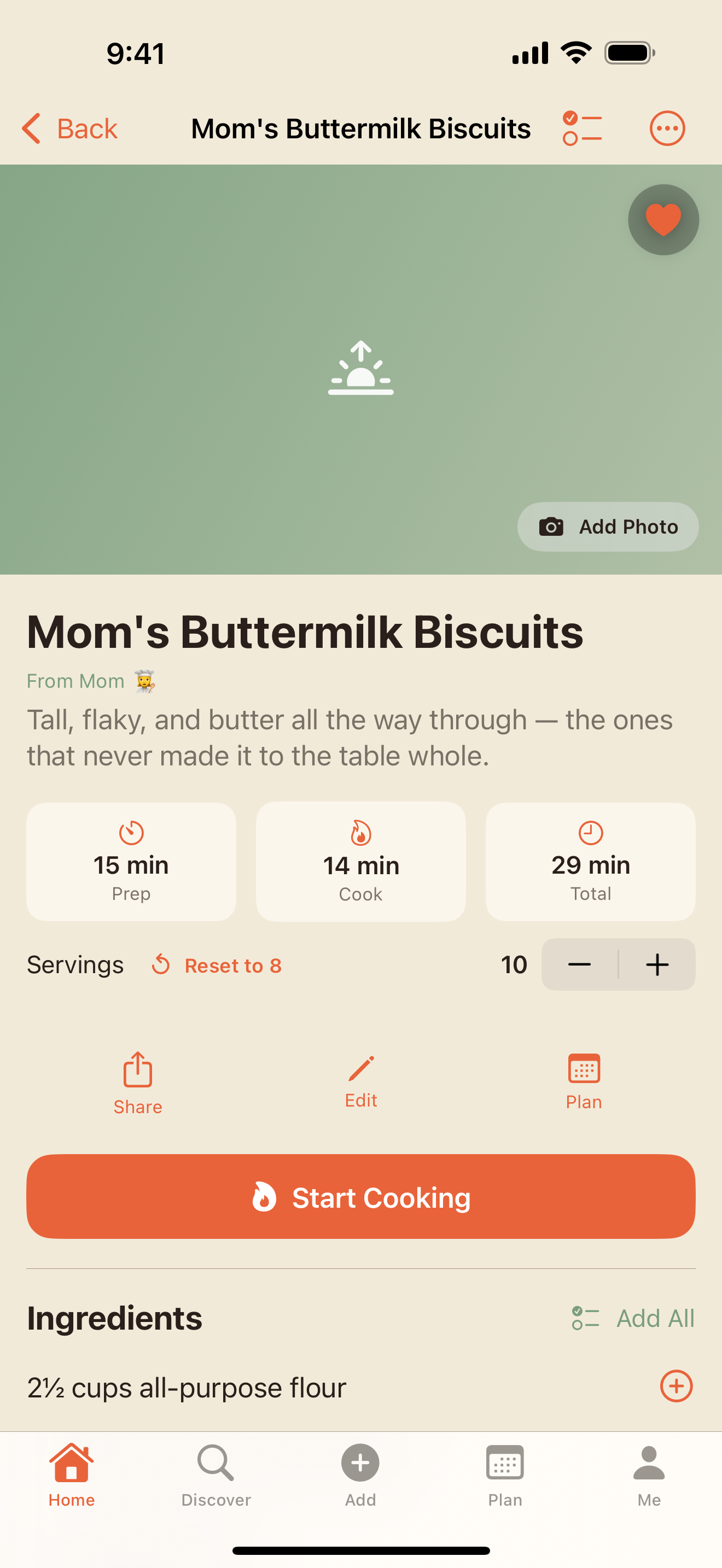
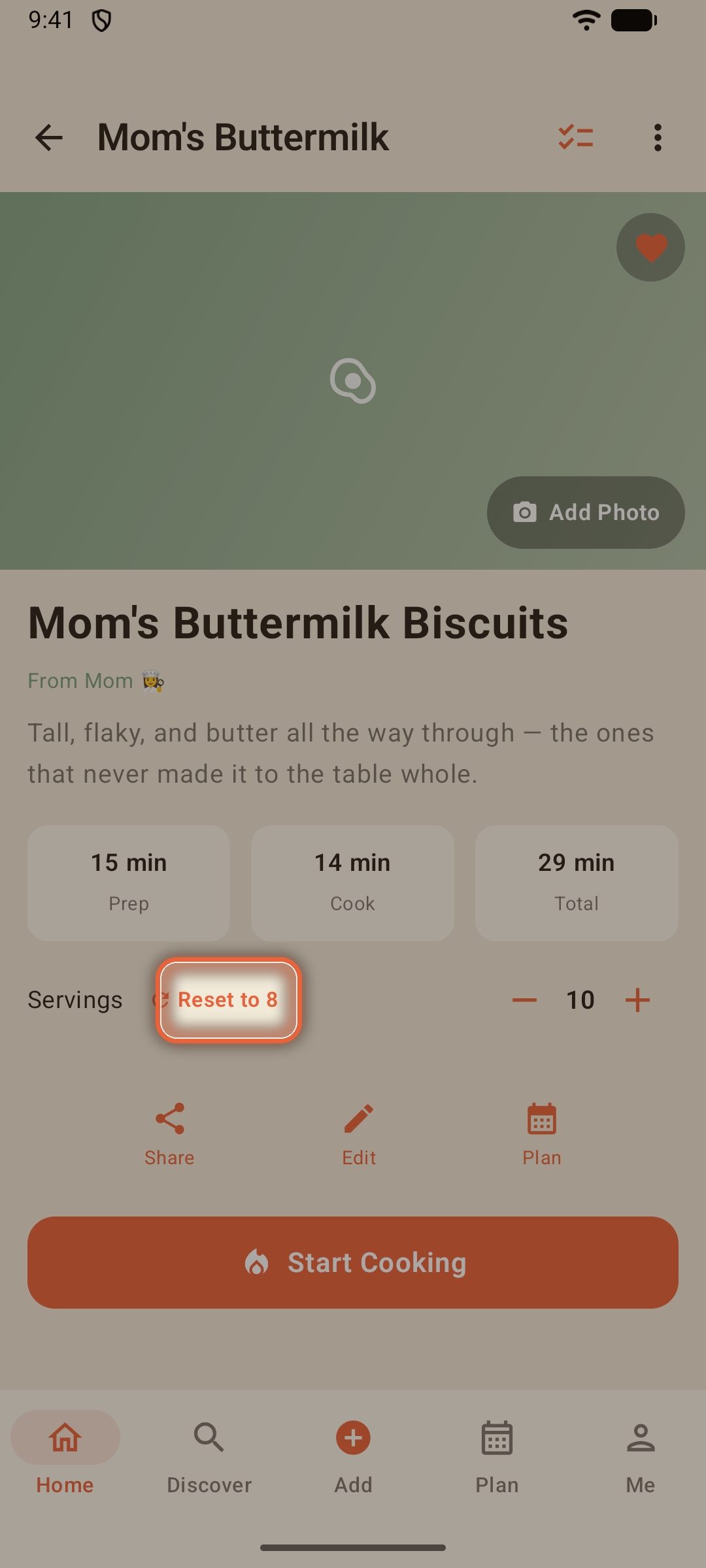
- A Reset to N button appears whenever you've wandered from the original — one tap back to known ground
- A line Focara can't scale ("a splash", "2-3 cloves") is never silently wrong: it's marked not adjusted so you can eyeball it
- Prefer metric or US units? Settings → Measurements sets how the recipes you type in (and the ones you save from Discover) are shown — °F to °C in the steps, ounces to grams in the list — while the recipe itself stays untouched
- Imported recipes show exactly as written, in their author's units. When a recipe could be shown in yours, a link under Servings offers it — Show in US units or Show in metric — and Show as written takes you back. The same choice lives in the ⋯ menu under Show in
- A line that already gives both units — "400°F (205°C)" or "1 cup (120 g)" — is never converted
Notes & Tips
The author's advice — the "trust me, brown the butter" material — lives in its own Notes & Tips section between the ingredients and your own notes. Collapsed until you want it, lightbulb-marked when you do.
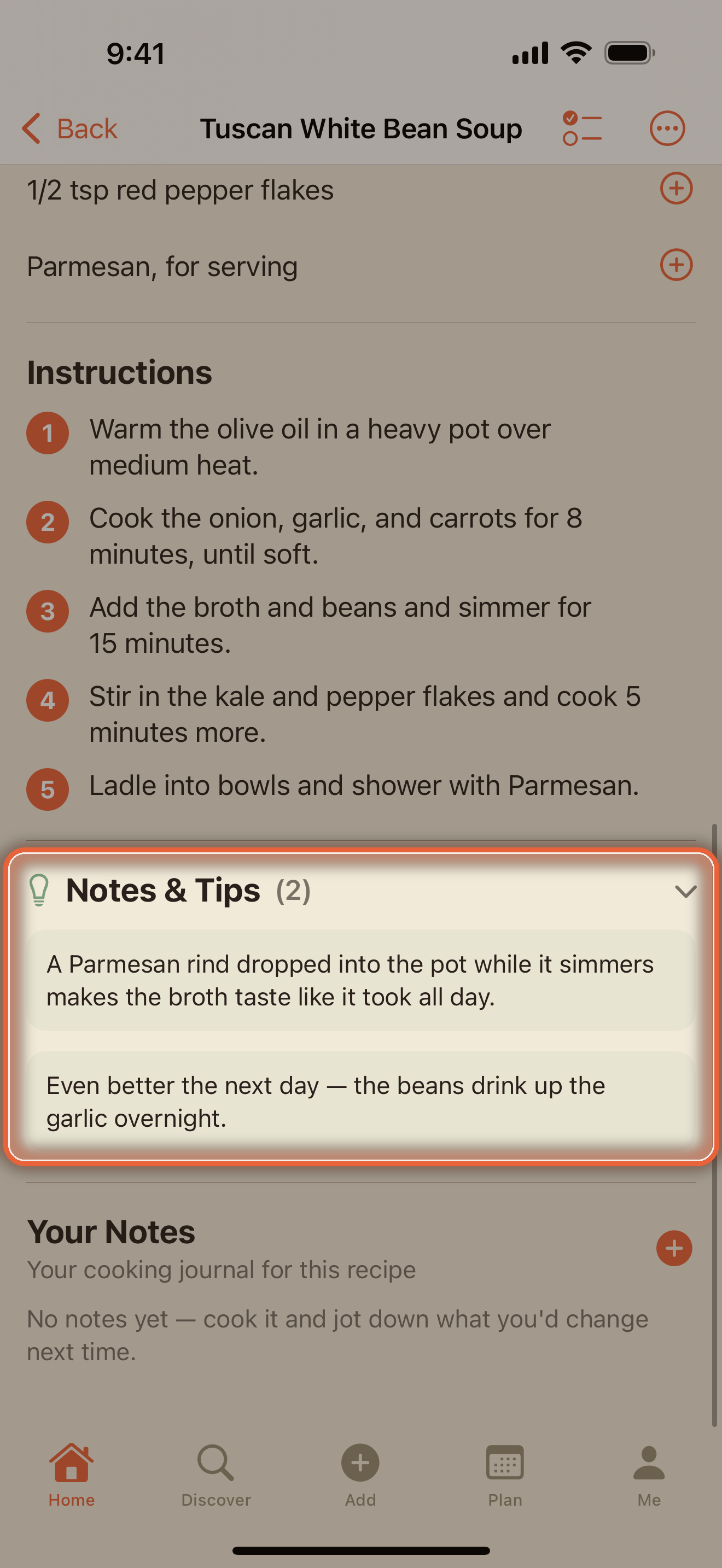
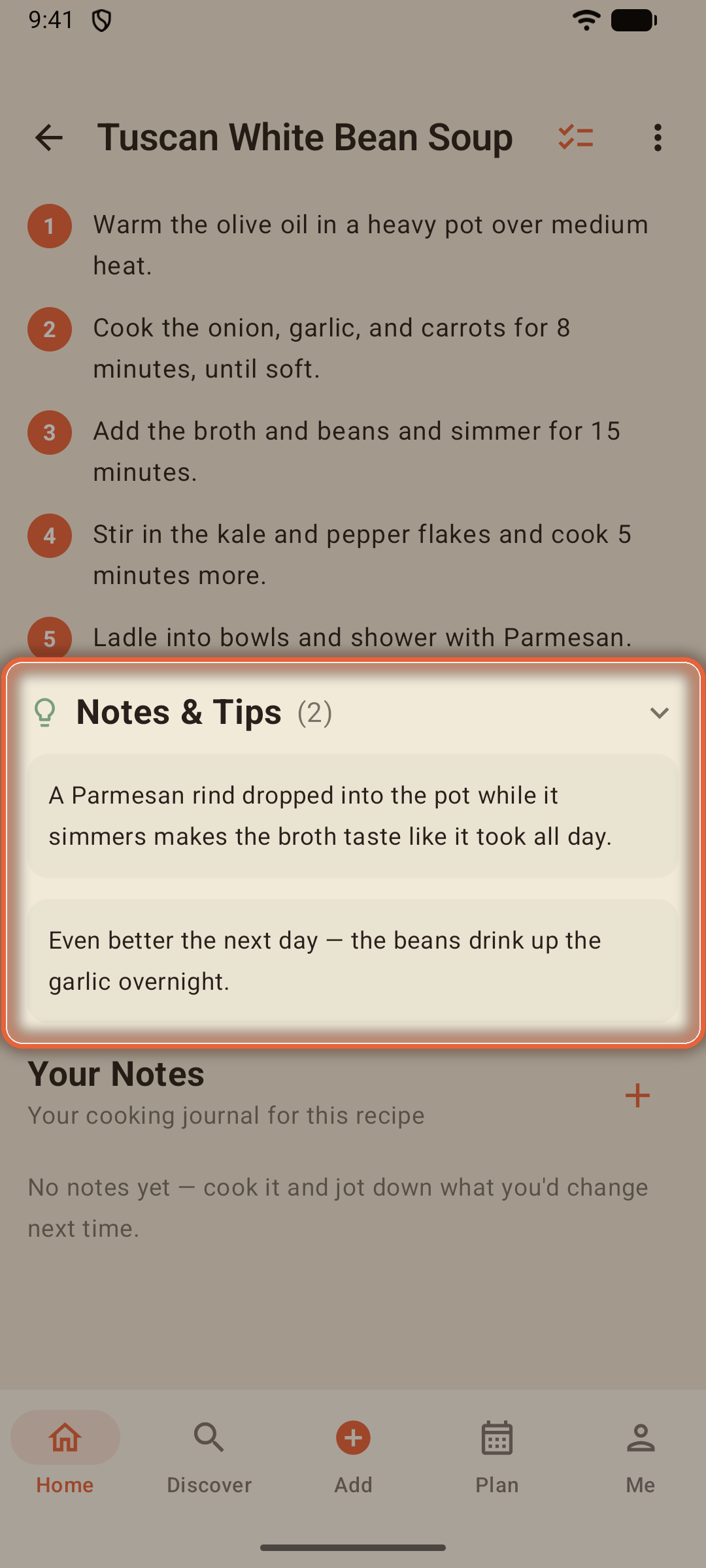
On imported recipes, the original source link lives here too.
Versions: Make It Your Own
Focara's quiet superpower. Edit a recipe and, when you save, you choose:
- Update the Original - for typo fixes
- Save as Version 2 - for the night you halved the chile and doubled the garlic
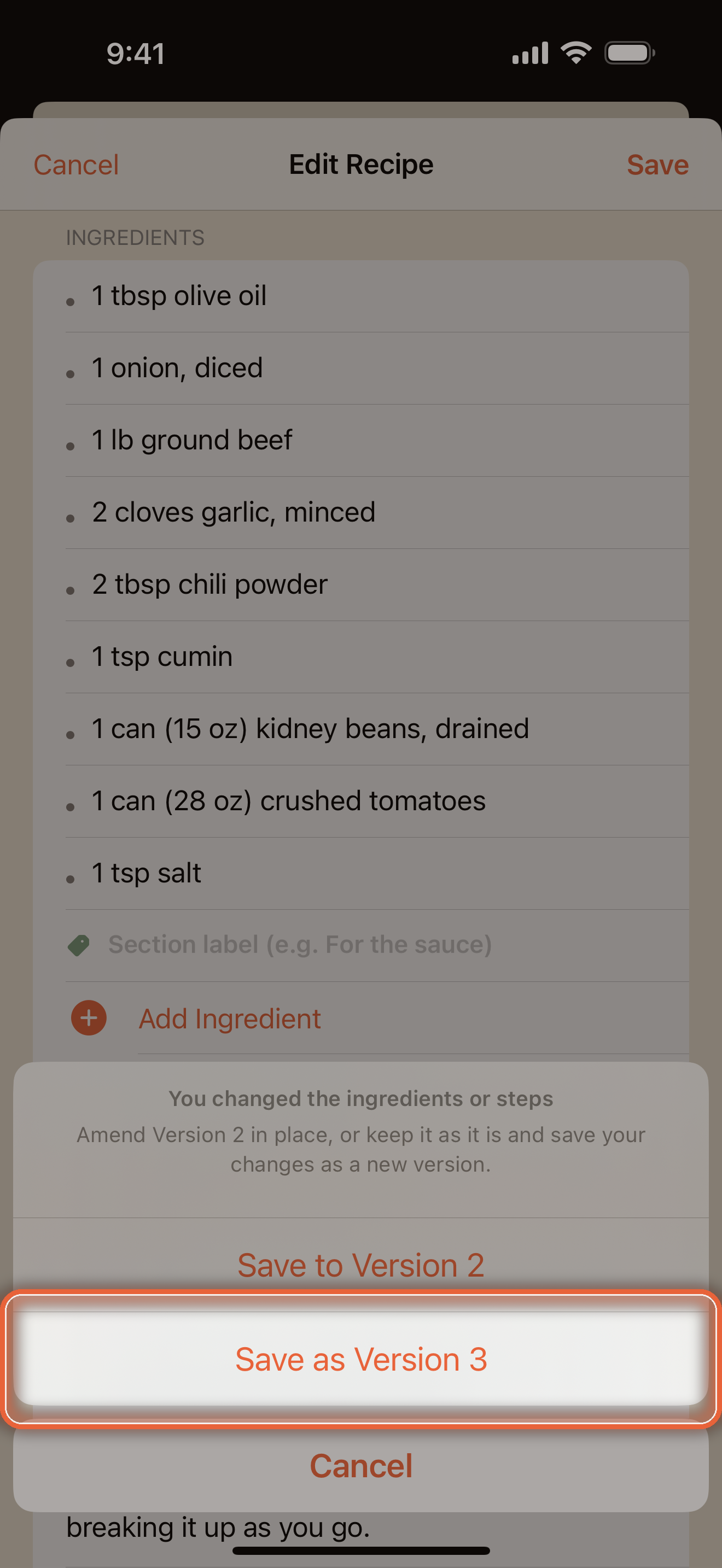
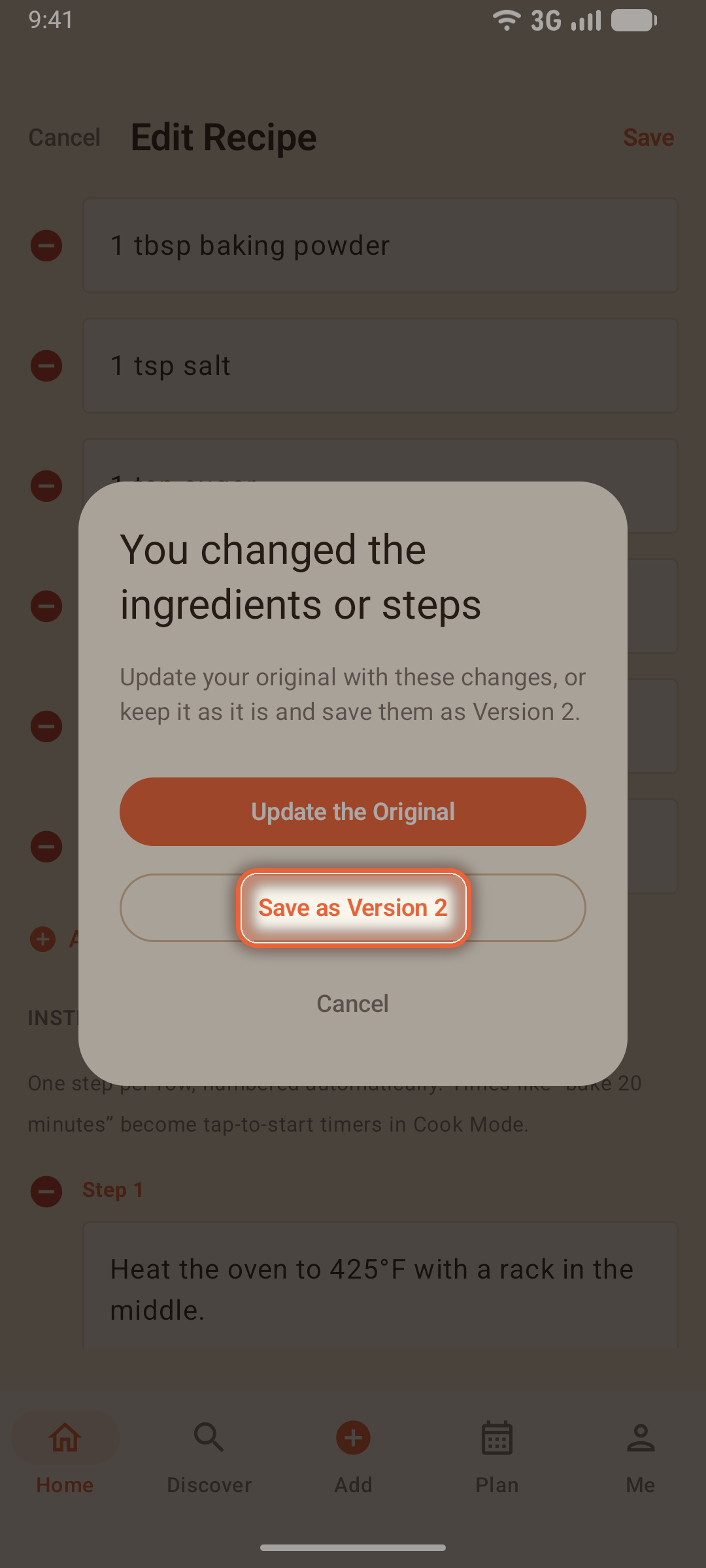
The original is never overwritten. Every version stays in the version picker with its own label and note, and the newest version becomes "the recipe" everywhere — cards, search, Cook Mode, the meal planner.
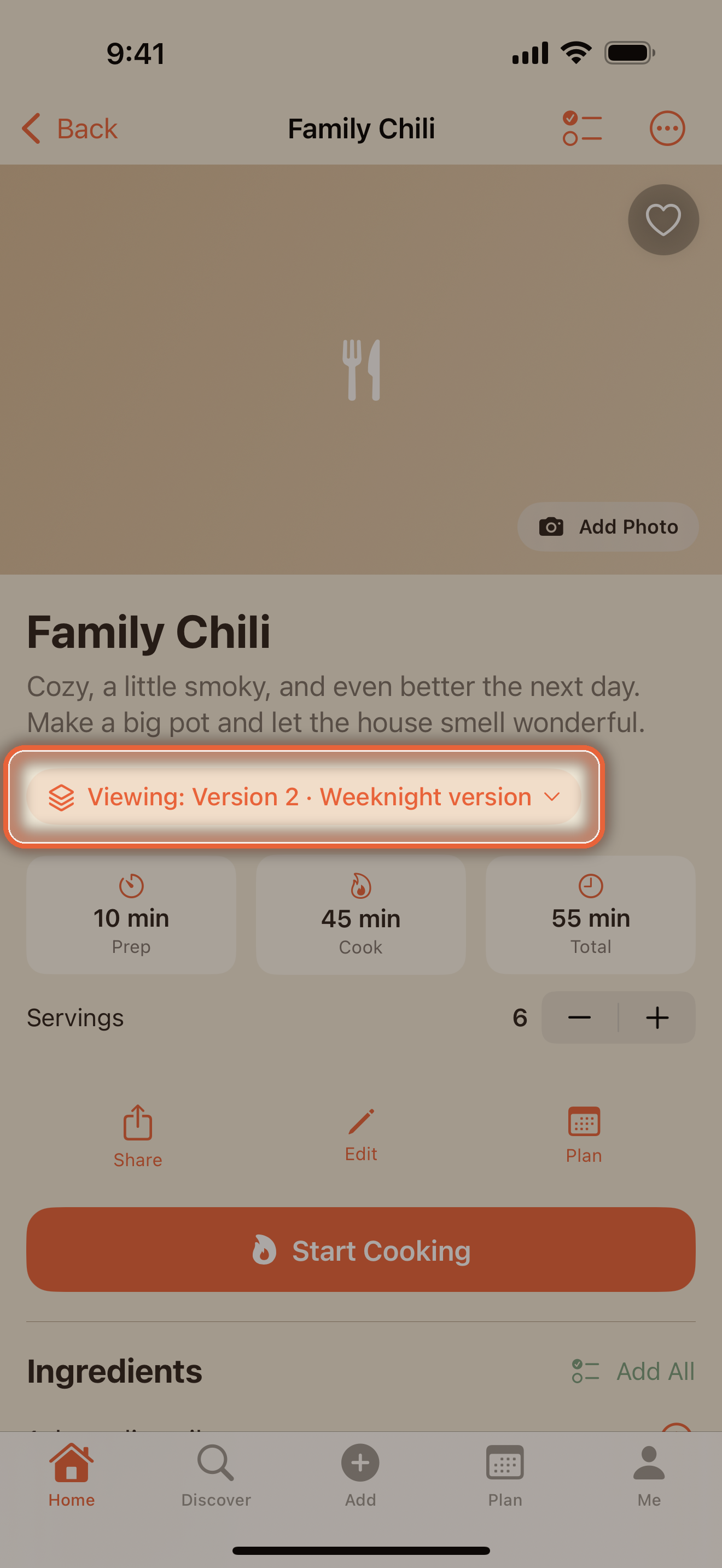
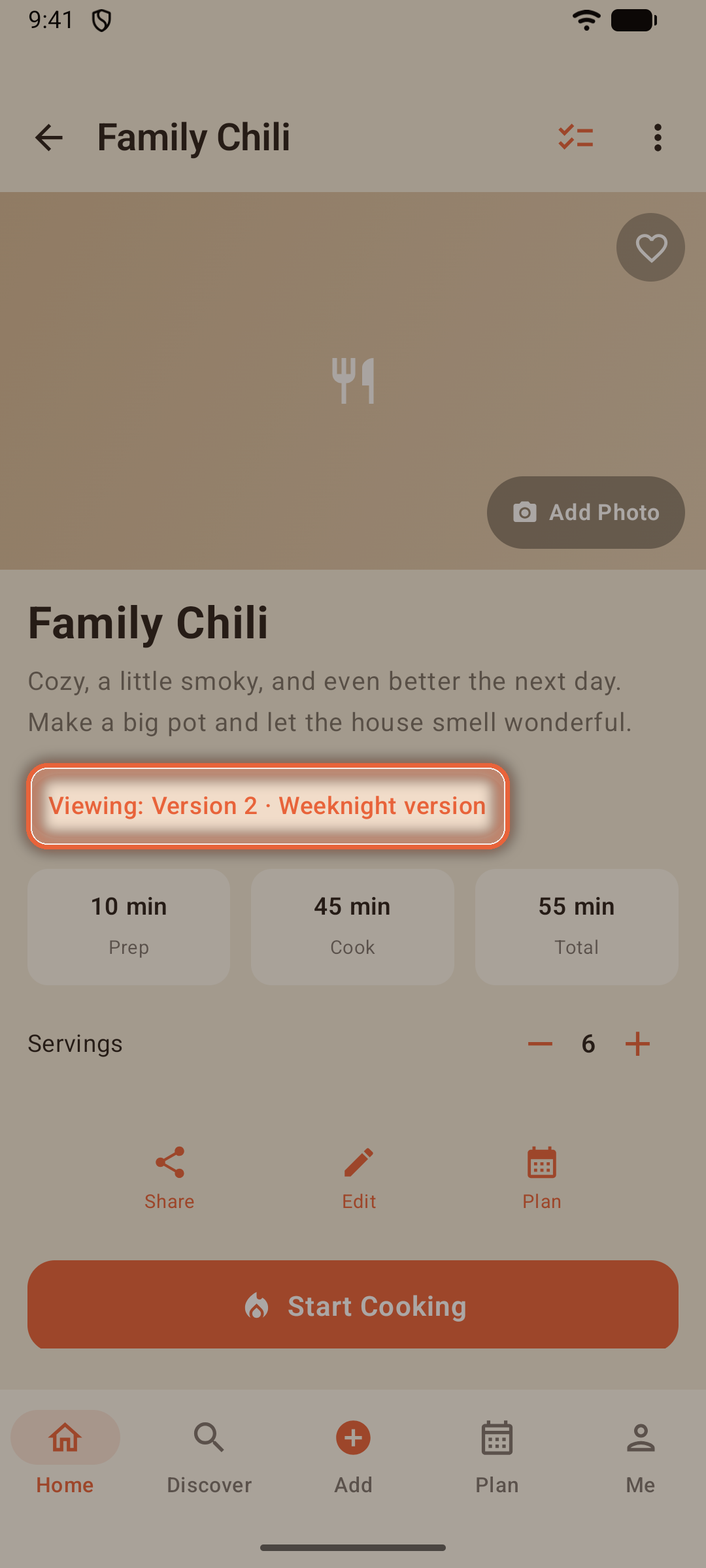
Tip: Versions can each carry their own photo. A version without one gracefully shows the photo it inherited, until you shoot your own.
Your Cooking Journal
Every recipe keeps a journal under Your Notes. After you finish cooking, Focara gently asks how it went — the reminder names the dish, "How did Family Chili turn out?" — so you can rate it and jot what you'd change.
You can also add a photo of how it turned out — the finished-dish gallery builds itself.
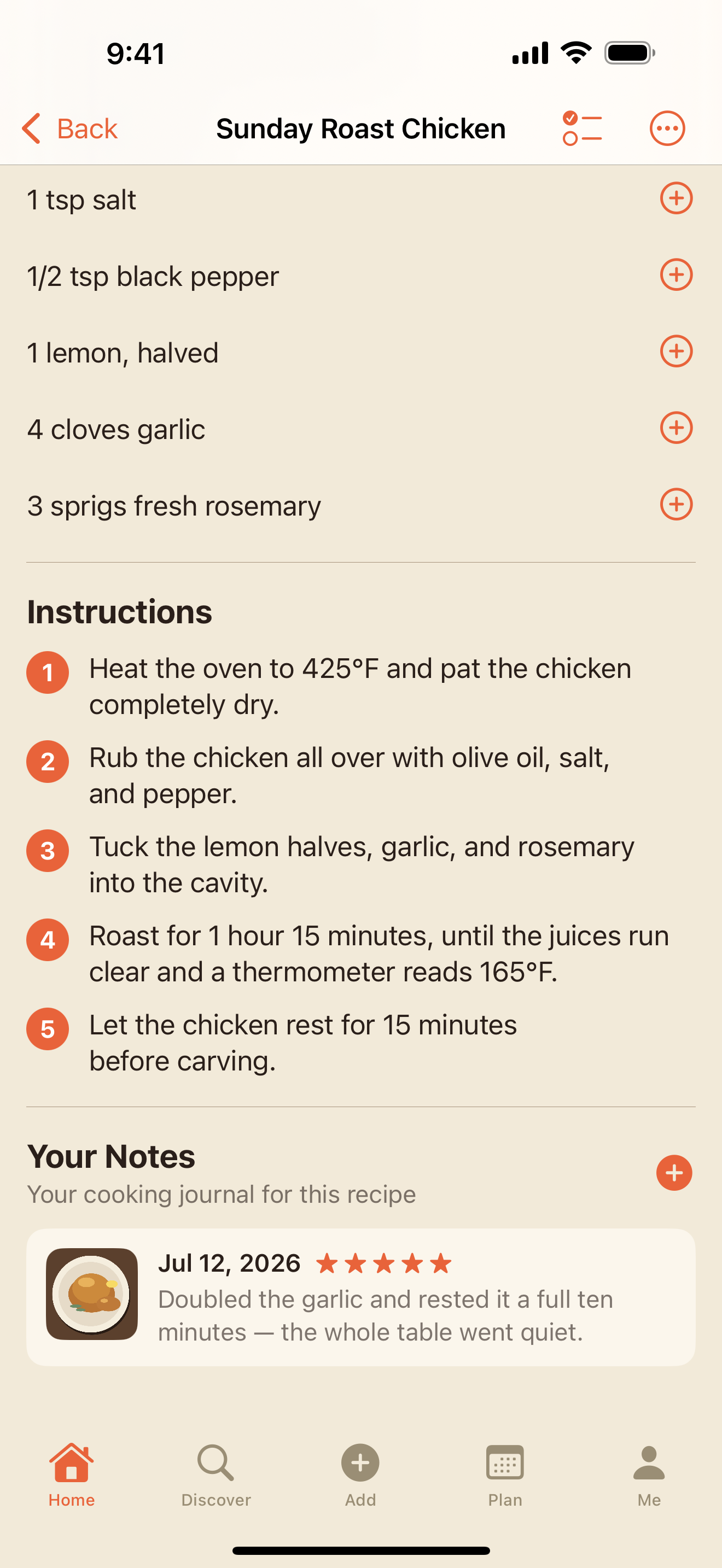
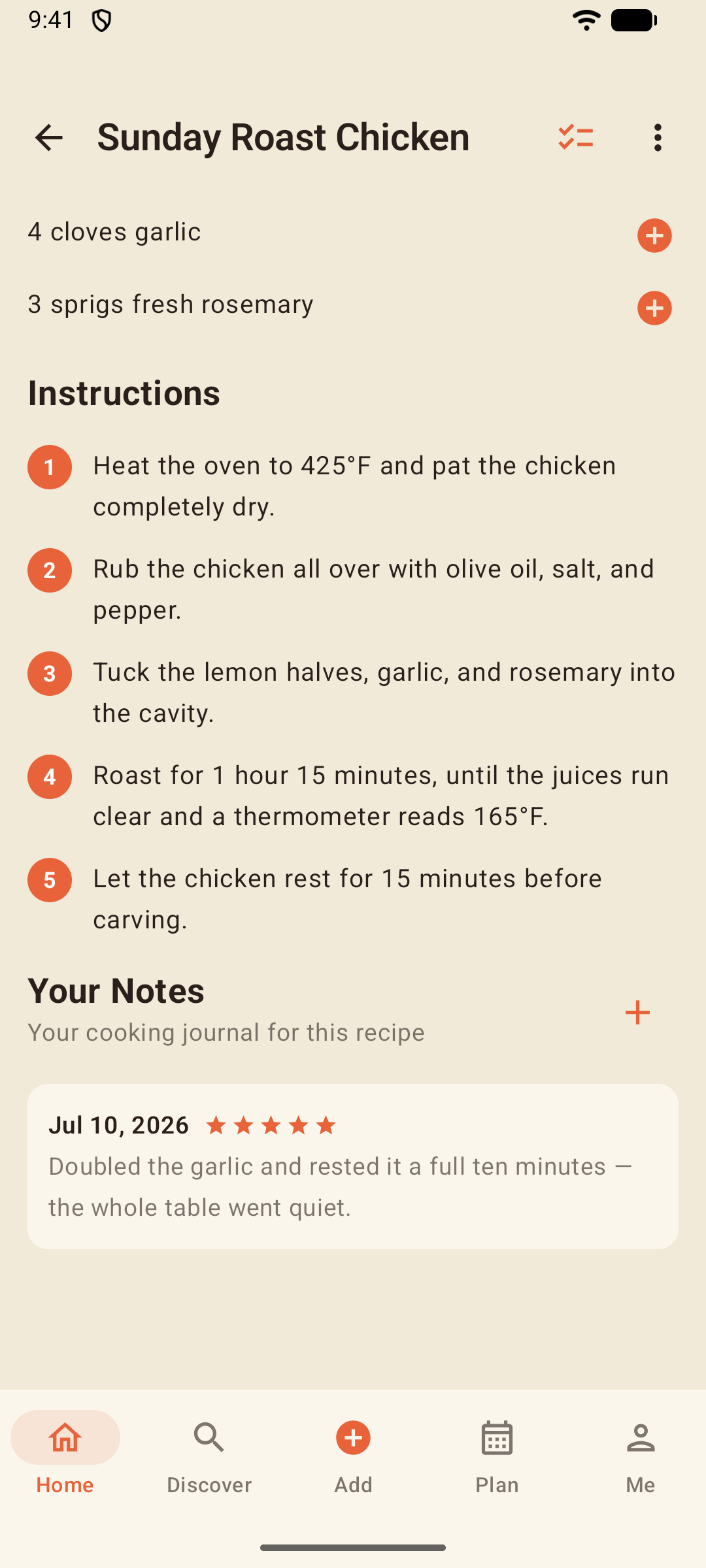
Struck gold with tonight's photo? Open the journal entry and choose Use as Recipe Photo — or Replace Recipe Photo if the recipe already has one — and it becomes the face of the recipe itself. The journal keeps its copy either way, and if that photo already *is* the recipe's, you'll see a quiet Current recipe photo. instead.
Editing an entry covers its photo too: tap the photo while editing to change it, promote it, or remove it — and an entry that never had one offers Add a Photo.
Entries are dated and kept with the recipe, so next Thanksgiving you'll know exactly what last Thanksgiving taught you.
Collections
Some recipes belong together — the holiday baking, the weeknight standbys, Grandma's cards. A collection gathers them in one place. A recipe can sit in as many collections as you like and is never copied: it's still the one recipe in your box.
- Open Me → Collections and tap New Collection. Your first one suggests "Holiday" — keep it, or type your own name of up to 30 characters
- Tap Add Recipes, tick the recipes that belong — search, or ride the A-Z rail — and tap Save
- Or start from a recipe: Add to Collection… in its ⋯ menu puts it into any collection with one tap, or makes a new collection with the recipe already inside
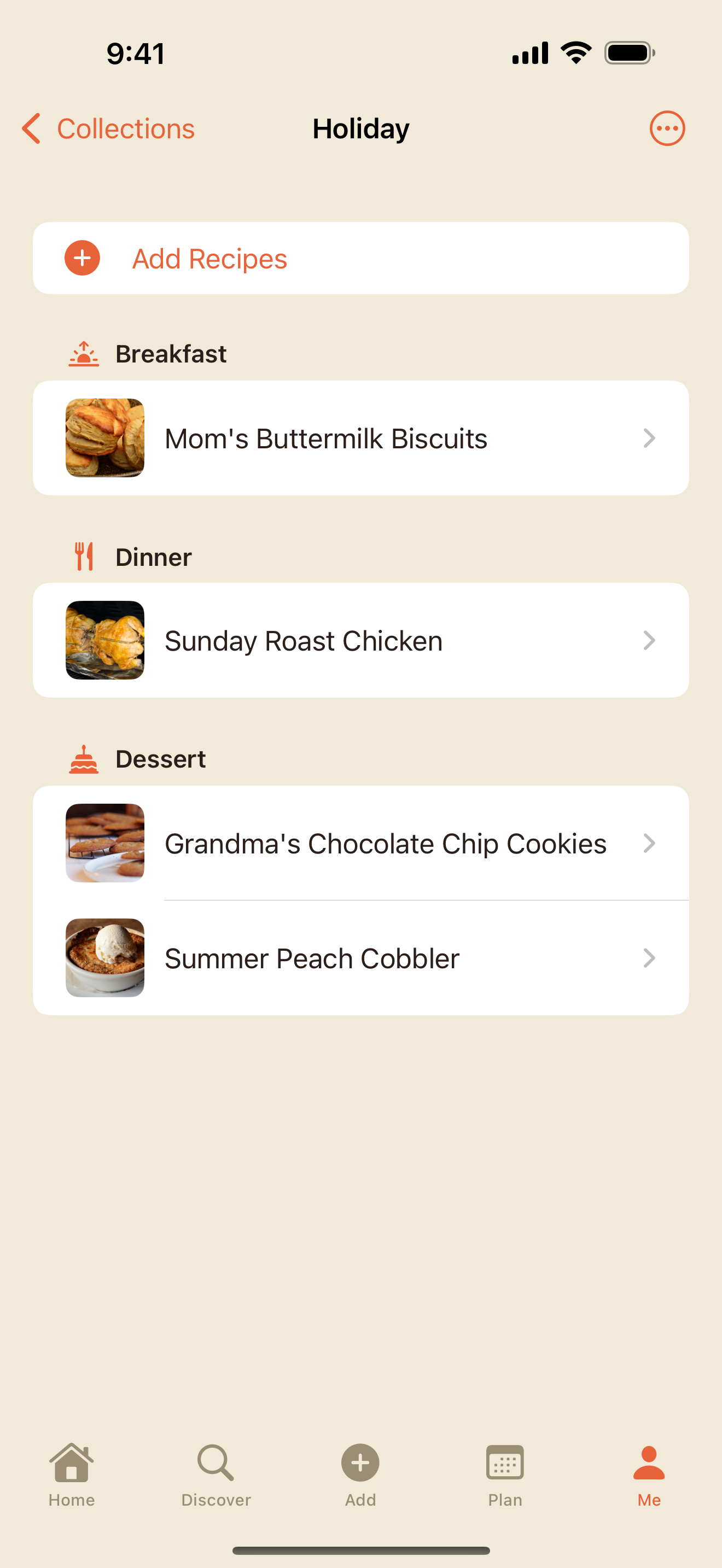
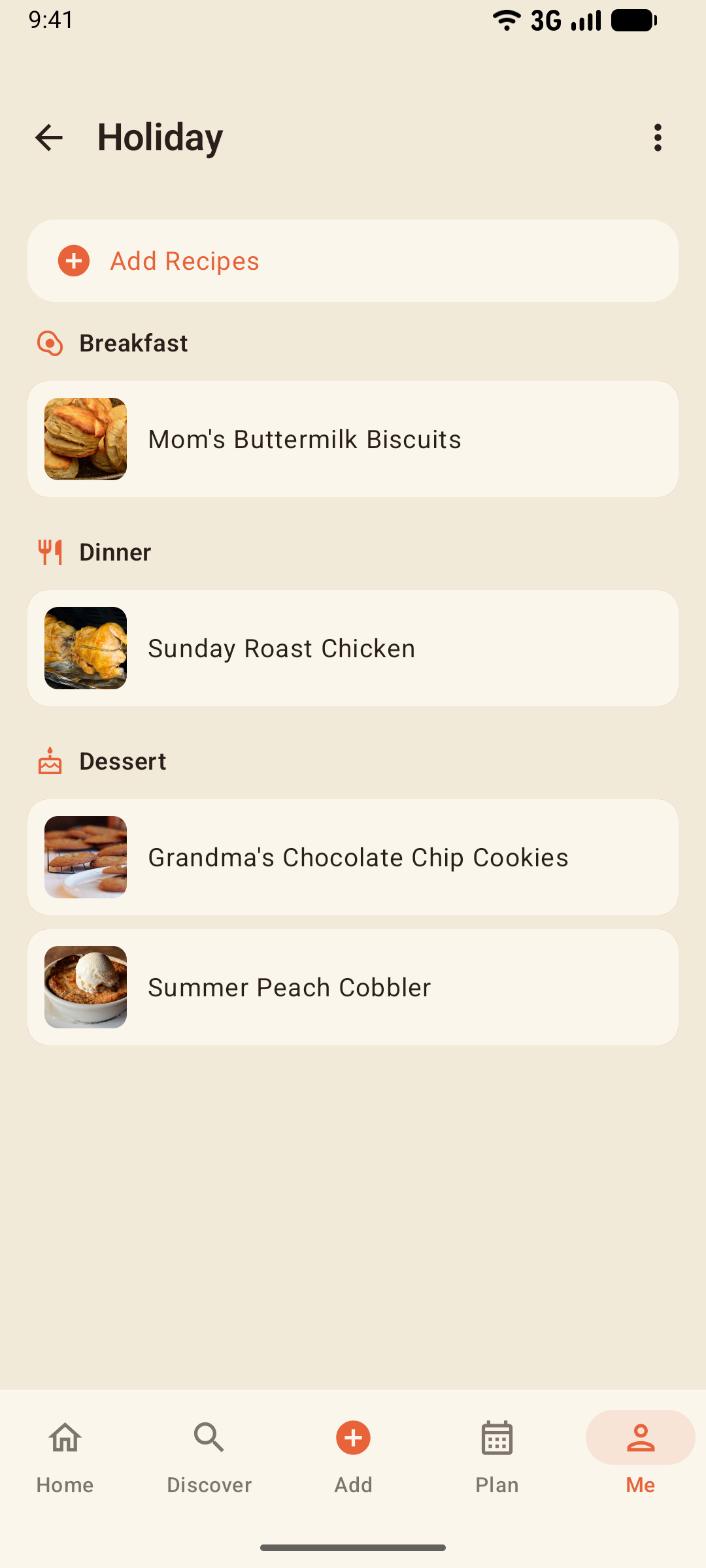
- A collection's page lists its recipes A to Z, grouped under their meal type once there's more than one — Breakfast, Dinner, Dessert
- Swipe a recipe to Remove it from the collection; it stays in your box and in any other collection
- Rename or delete a collection from the menu on its page — deleting a collection never deletes a recipe
- Archived recipes step out of sight until you unarchive them, and a duplicated recipe joins the same collections
- Your box holds up to 50 collections
Note: Collections are yours alone — sharing a recipe never sends the collections it's in. A backup keeps them (see Me & Settings).
Cook Mode
Tap Start Cooking on any recipe page and the kitchen takes over: big text, no clutter, and the screen stays awake — no more elbowing your phone with flour on your hands.
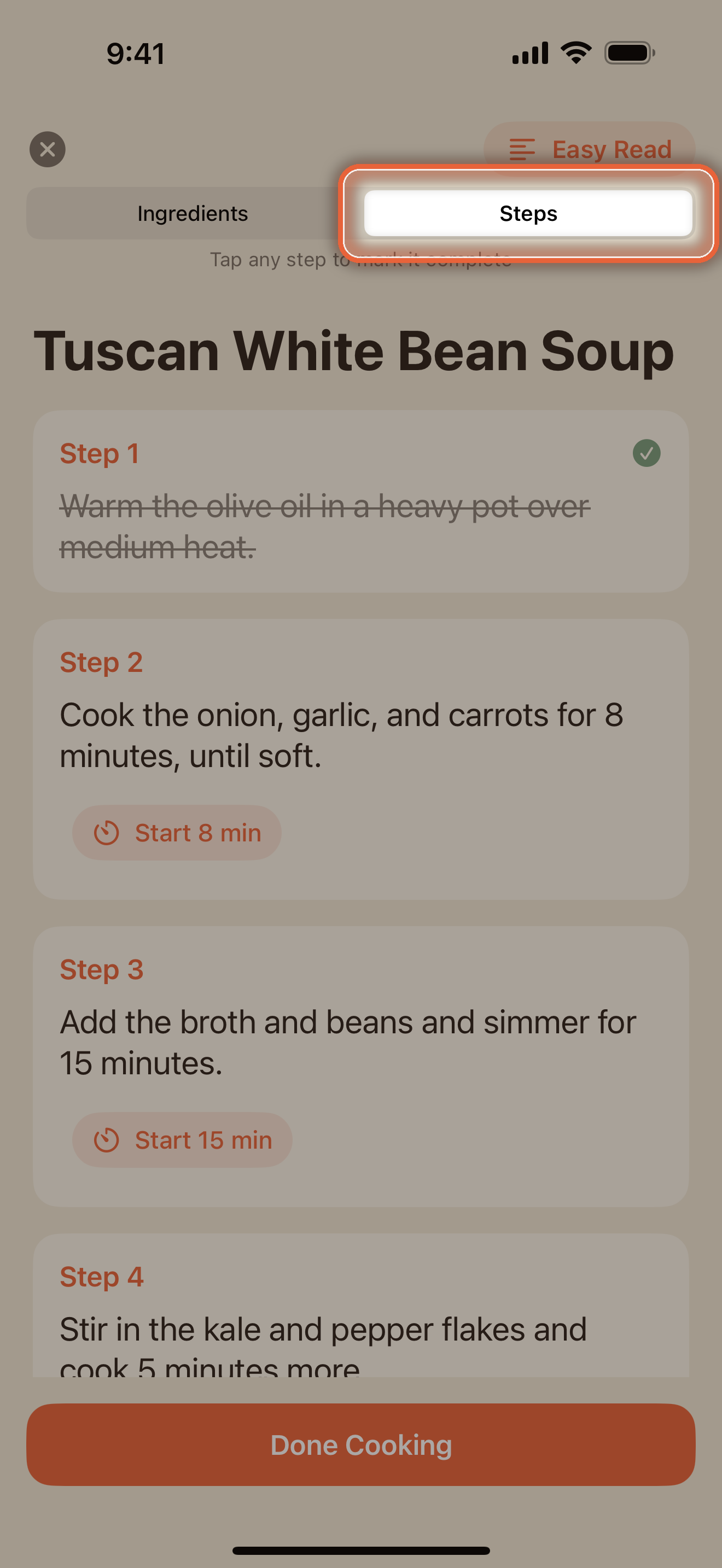
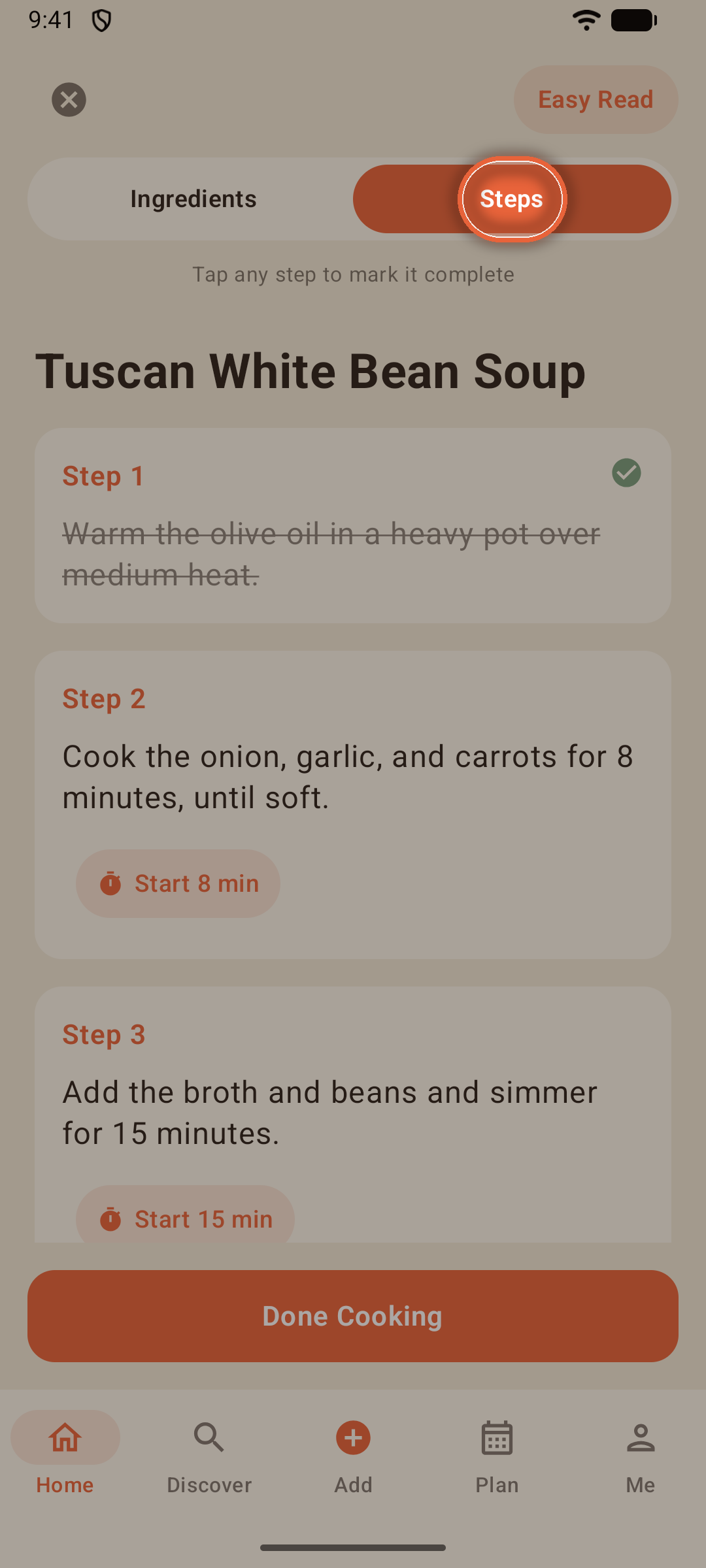
- The Ingredients / Steps pill up top flips between gathering and cooking
- Tap a step to strike it through when it's done; tap again to un-do it
- If you scaled the servings, Cook Mode shows the scaled amounts
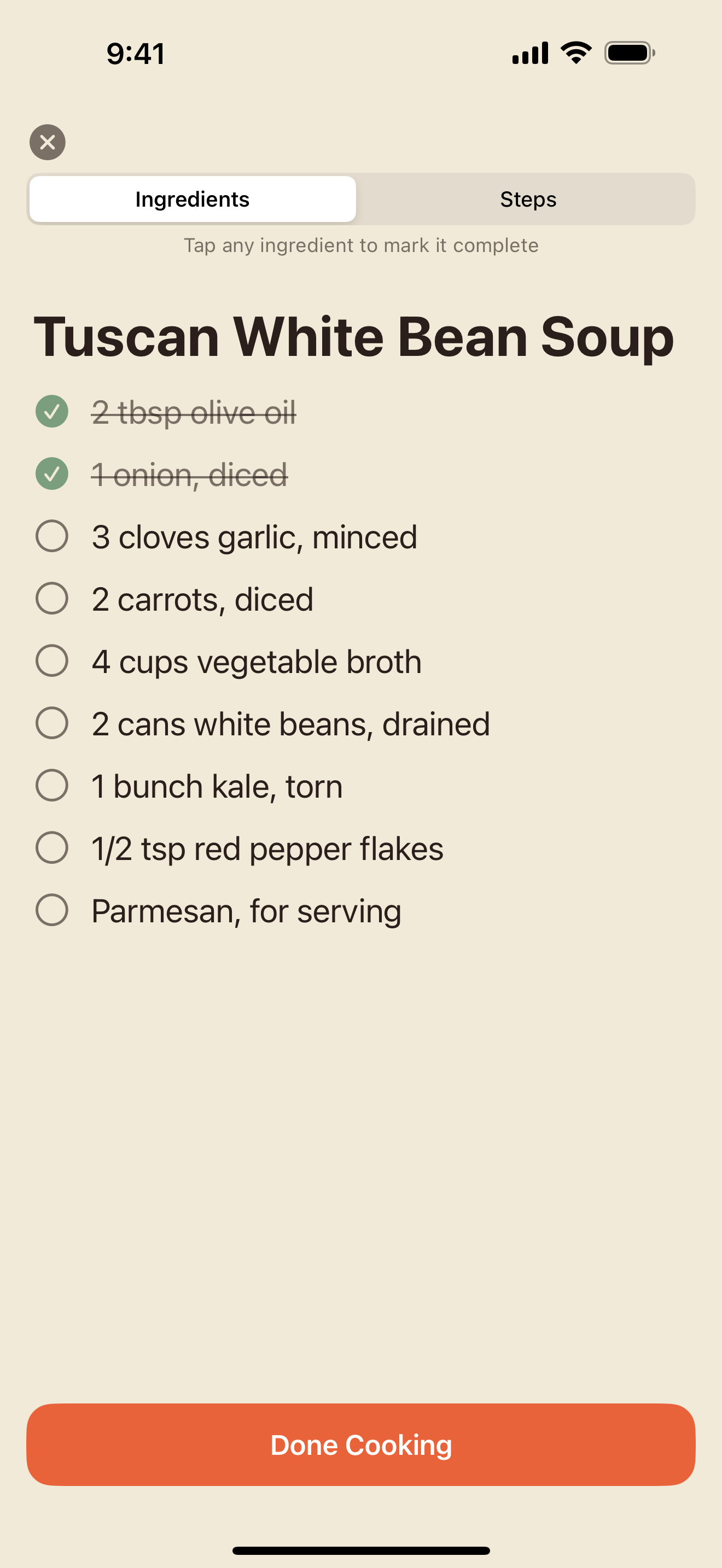
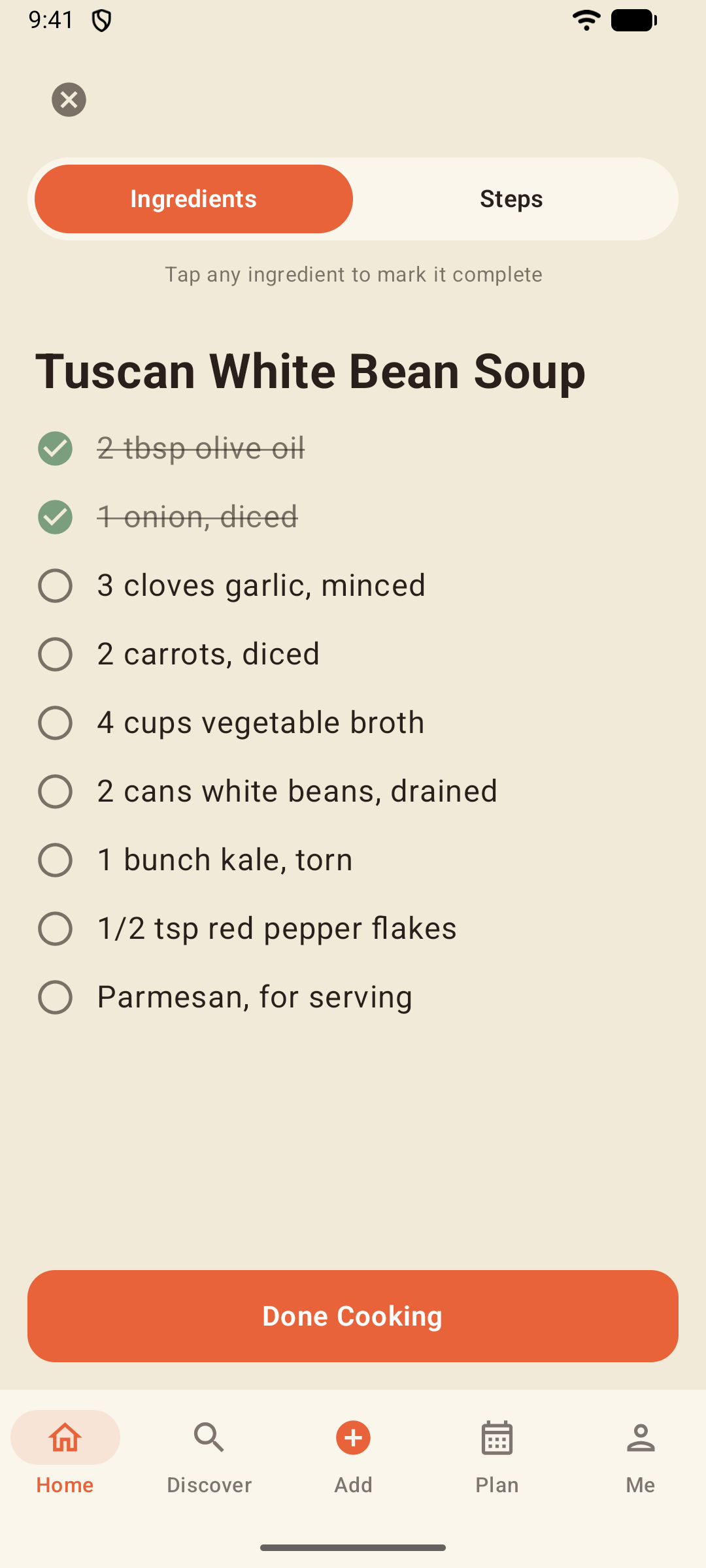
Tap ingredients as you gather them — the strikethrough is your mise en place checklist.
Note: Focara never shows an ad in Cook Mode, on the cooking timeline, or in the timers. The moments your hands are busy stay clean.
Easy Read
The Easy Read toggle highlights every ingredient right inside the step text and underlines the action words — so a glance mid-stir tells you *what* and *how much* without re-reading the paragraph.
Easy Read works in every language the app speaks, whatever language the recipe is written in.
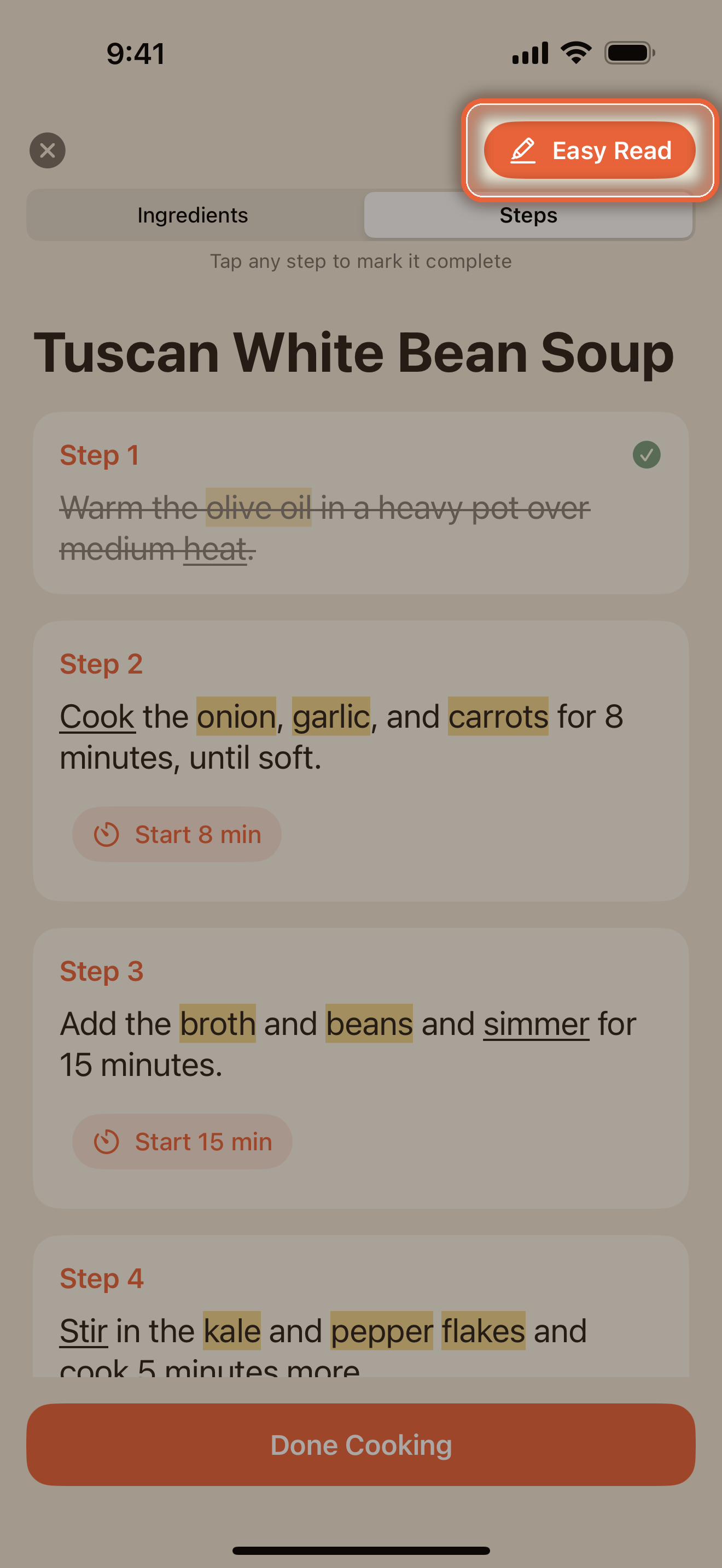
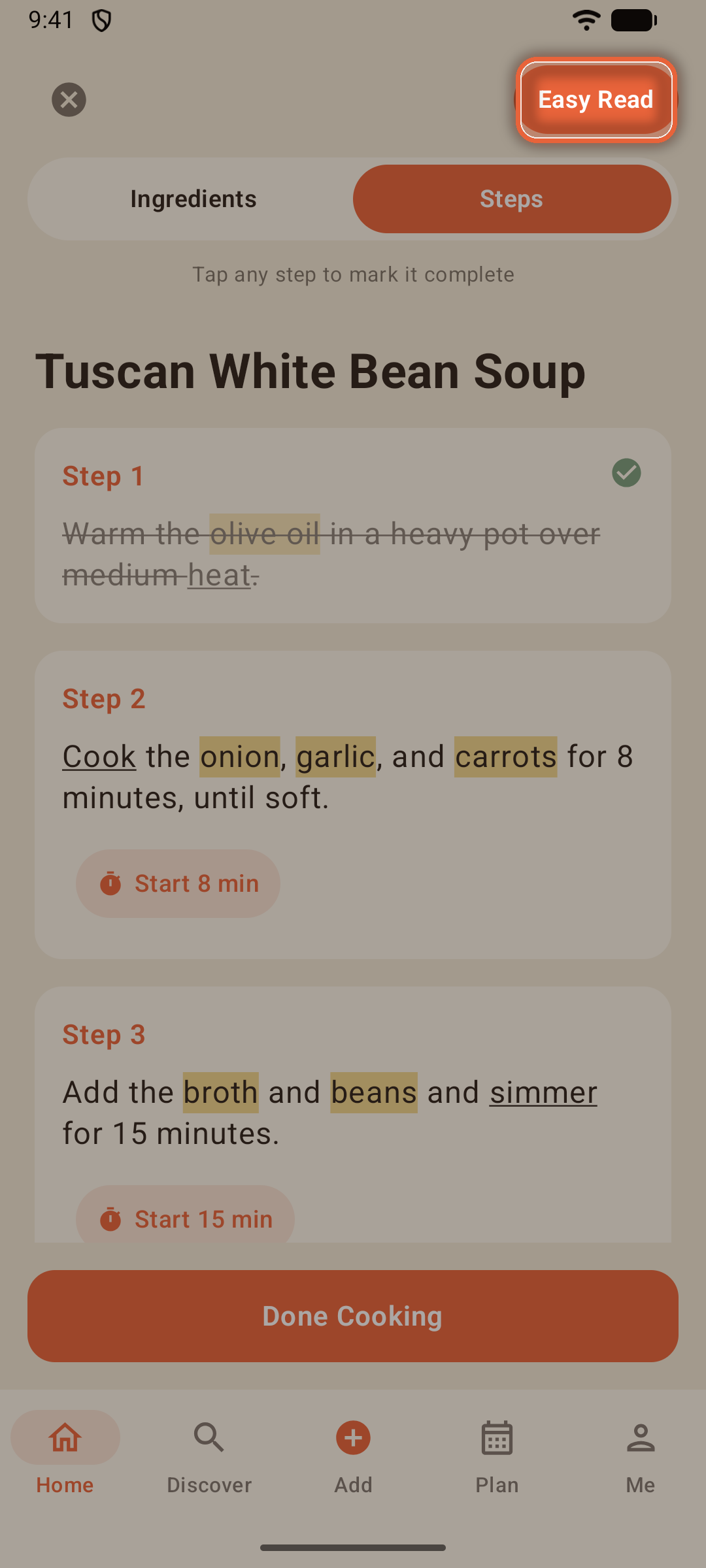
Pick your highlight color (and whether Easy Read starts on) in Settings → Cook Mode.
Kitchen Timers
Focara reads the times out of your steps, in any of the app's languages: "simmer for 15 minutes" becomes a Start 15 min button right inside the step.
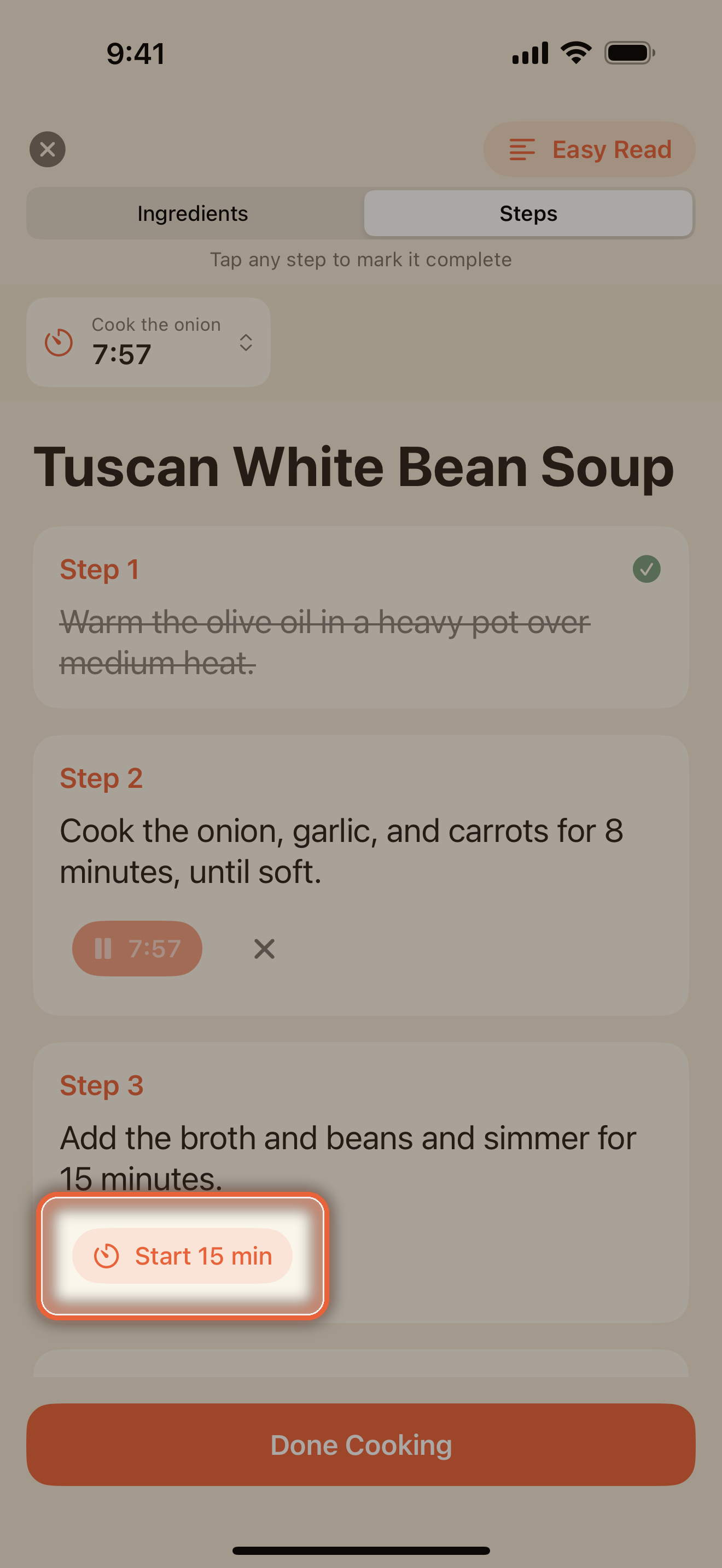
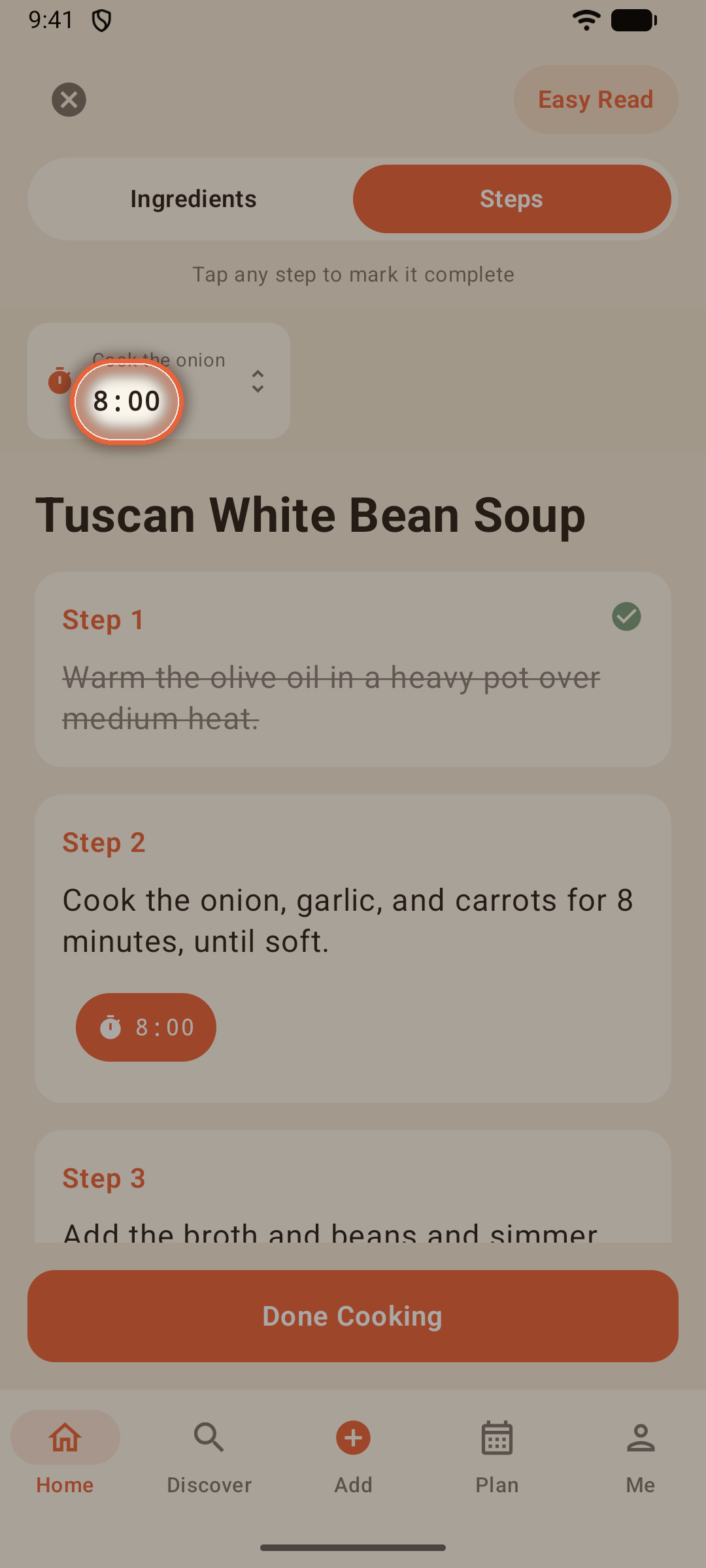
- Tap the running countdown to pause it; tap again to resume. While paused, a small ✕ appears beside it to cancel — hidden while the timer runs, so you never stop one by accident.
- Timers are named for what they do — "Warm the olive oil", not "Timer 3" — in the tray and in the notification that finds you in the living room
- Striking a step never stops its timer — a timer stops only when you pause it and tap the ✕
The timer tray
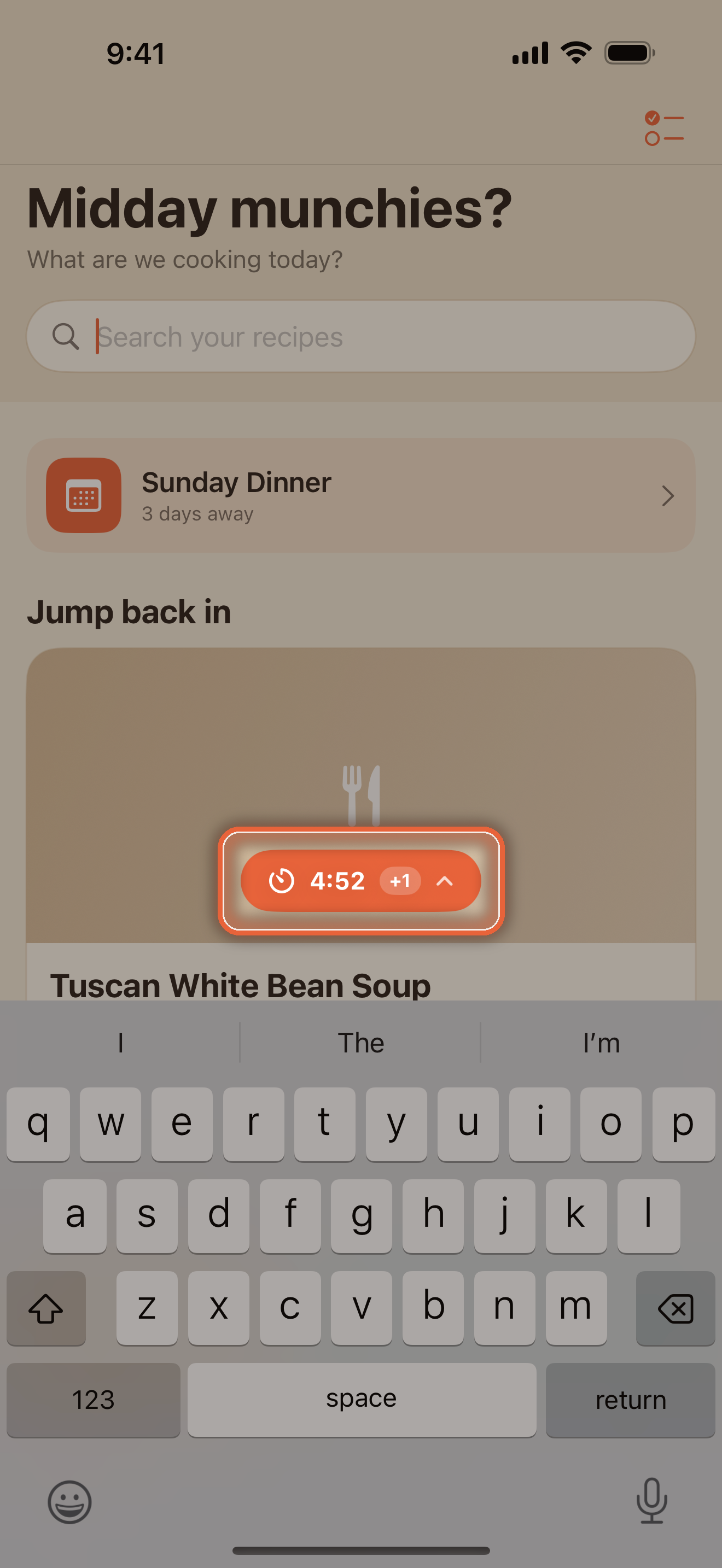
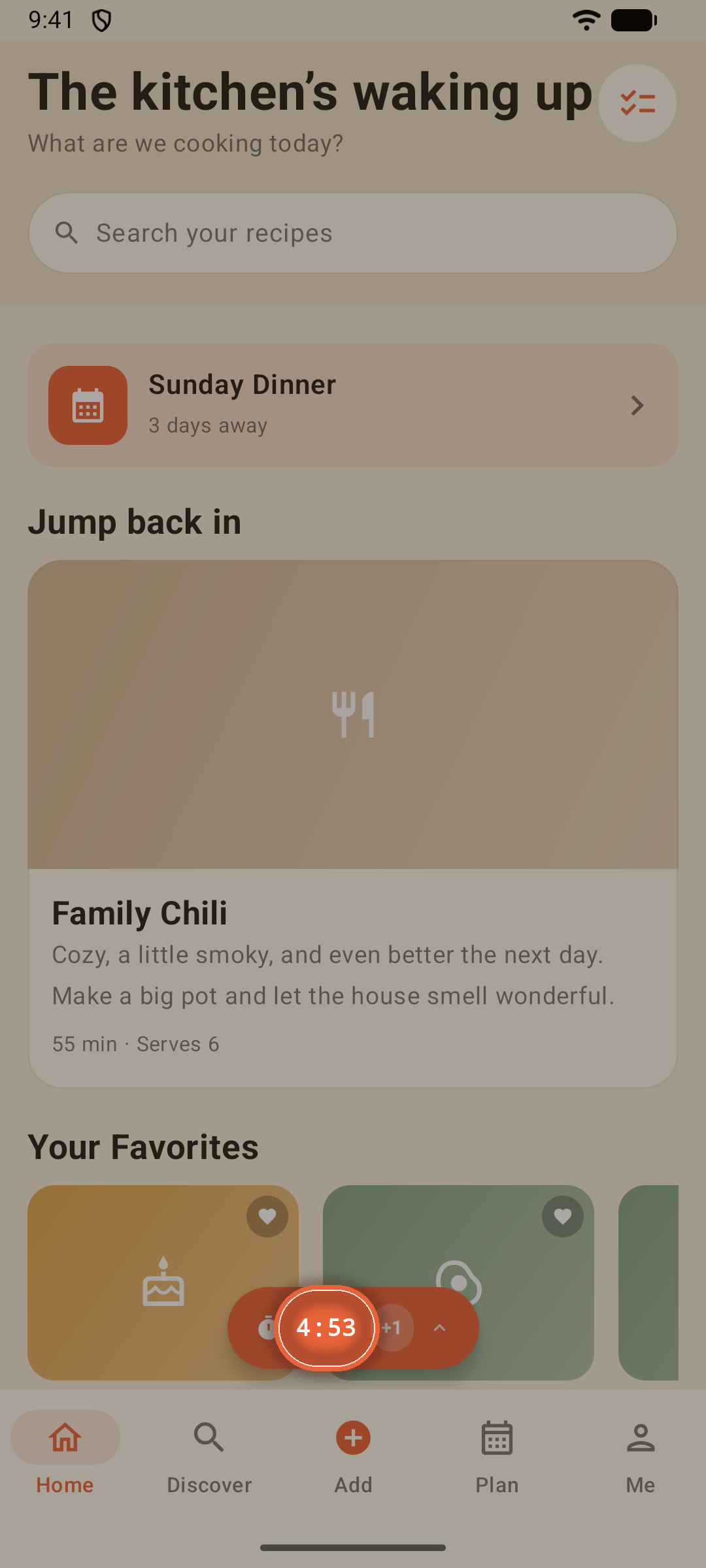
Tap any running timer (or the floating pill on Home) to open the tray — every timer across every recipe, with pause and stop controls.
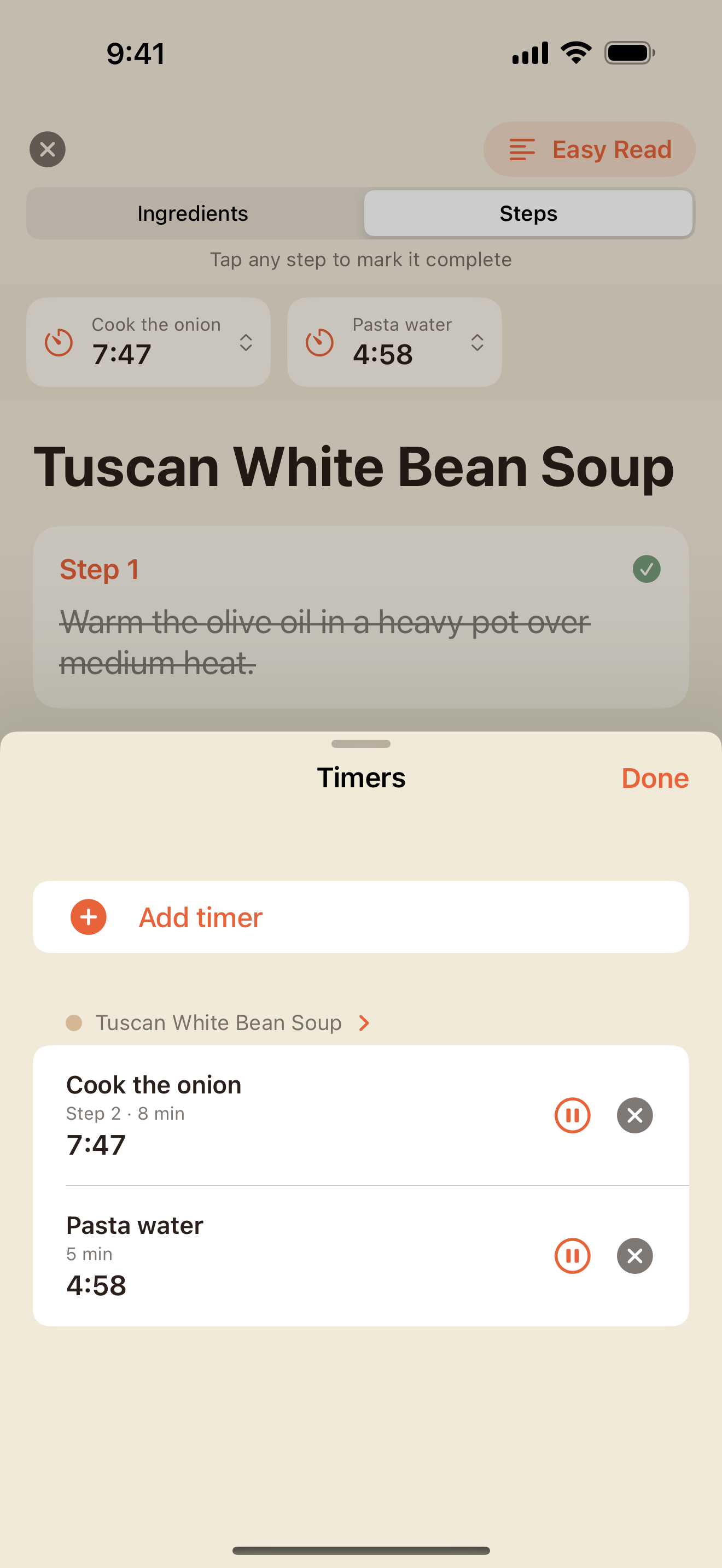
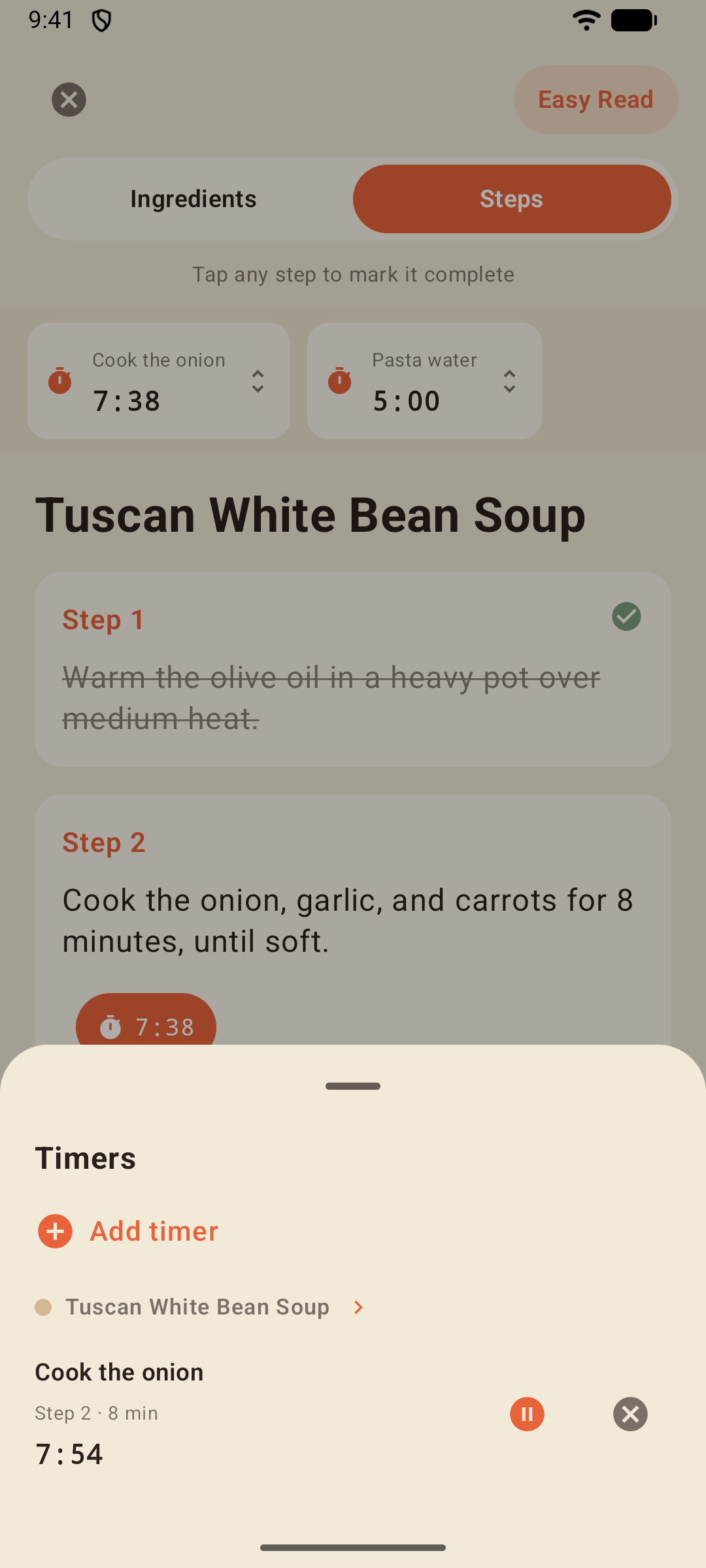
Finished timers wait in the tray until you sweep them out with Clear done — the button is always there, just grayed until something's finished, so it's never a hunt.
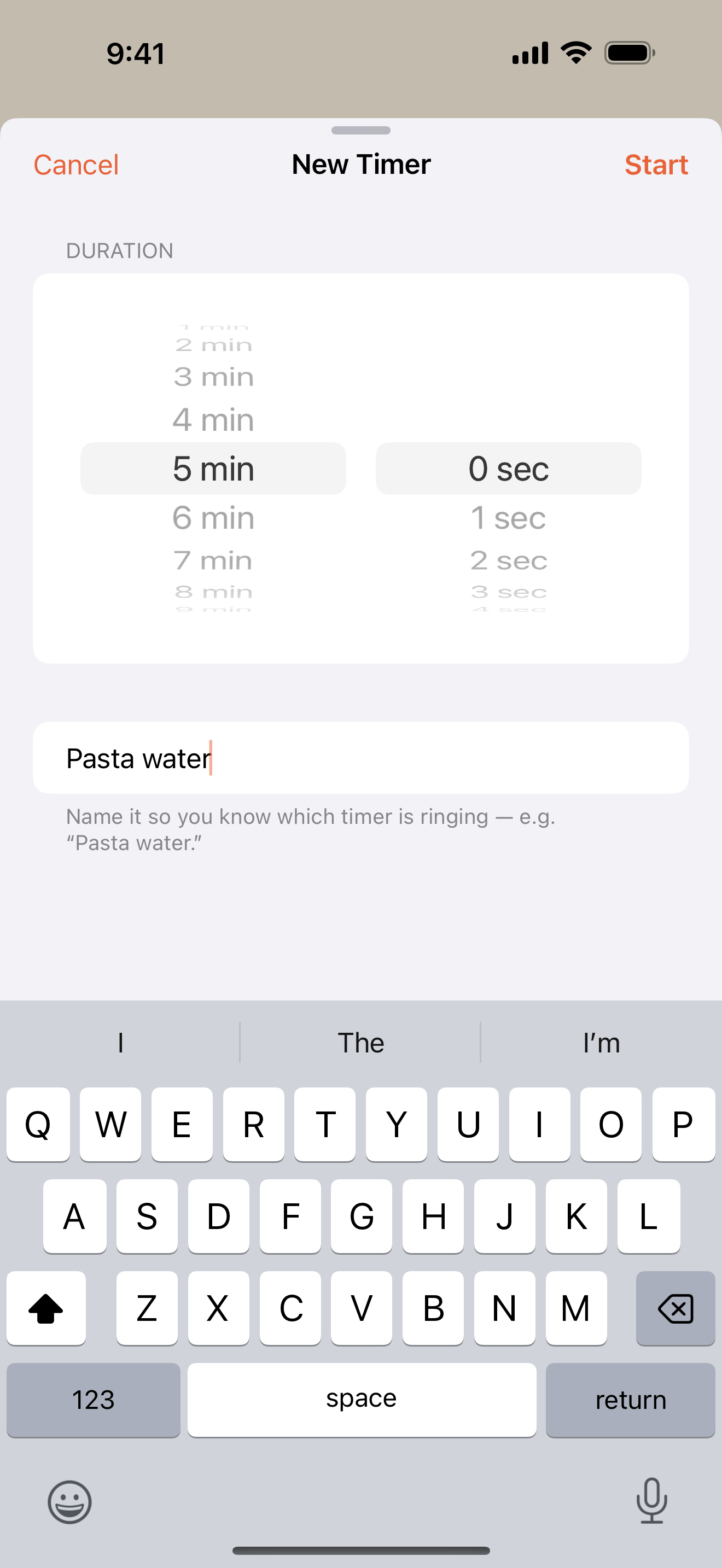
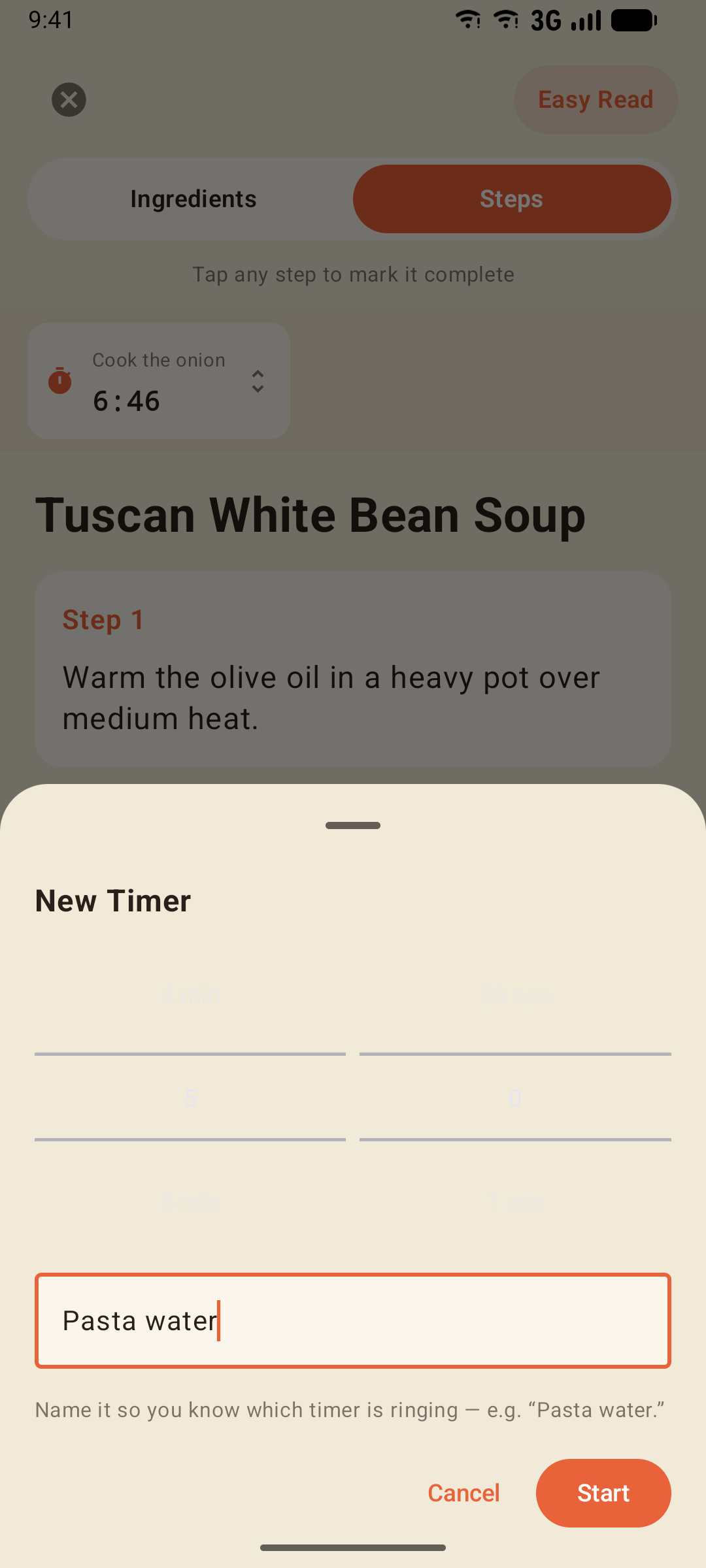
+ Add timer creates a free-standing kitchen timer — minutes, seconds, and an optional label like "Pasta water".
Timers follow you
Leave the recipe, browse Discover, even close the app — timers keep running, and a compact pill above the tab bar keeps the countdown in sight.
Tip: Pick your timer chime in Settings → Timer Sound — five options, from a gentle ding to one that cuts through a noisy kitchen.
The Shopping List
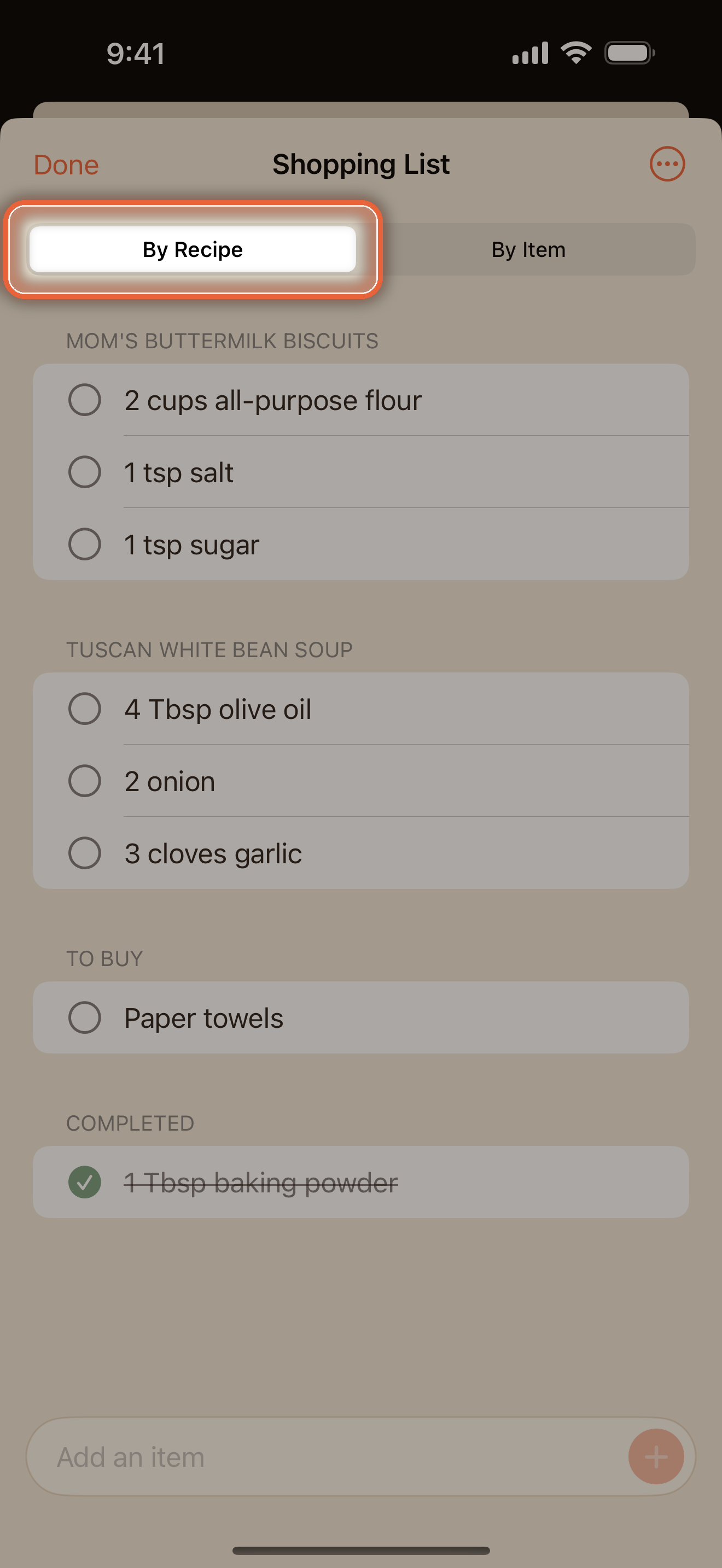
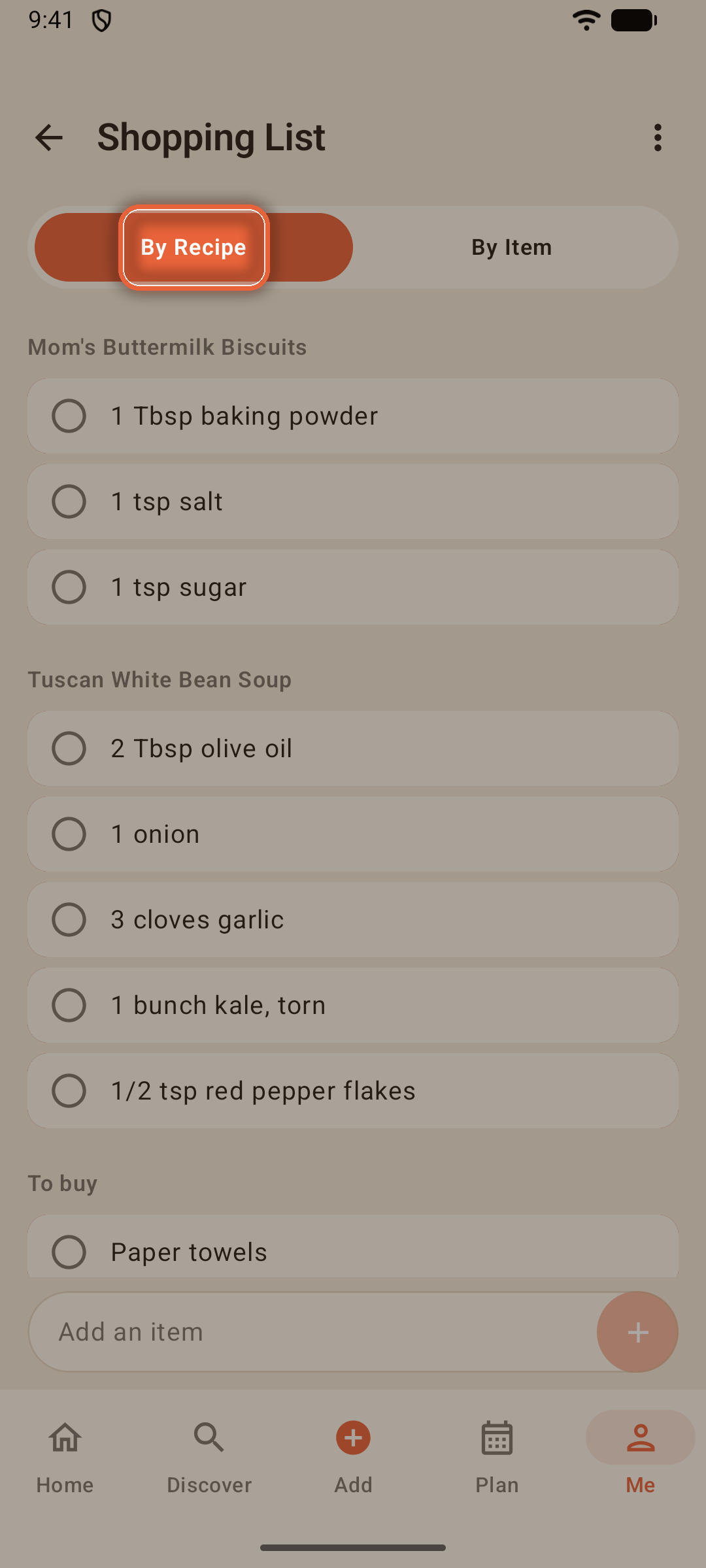
One list for everything, fed from your recipes. Send ingredients over with the ⊕ on any recipe page (or Add All), and the checklist icon in the top corner of Home is always one tap from the list itself.
The list works like a good paper one, only smarter:
- Items group under the recipe they're for; things you type yourself gather under To buy
- Tap the circle to check something off — it drops into Completed
- The add field keeps the keyboard up, so "eggs, return, butter, return" flies
- Swipe left to delete; the ⋯ menu prints, copies, shares, or clears the list
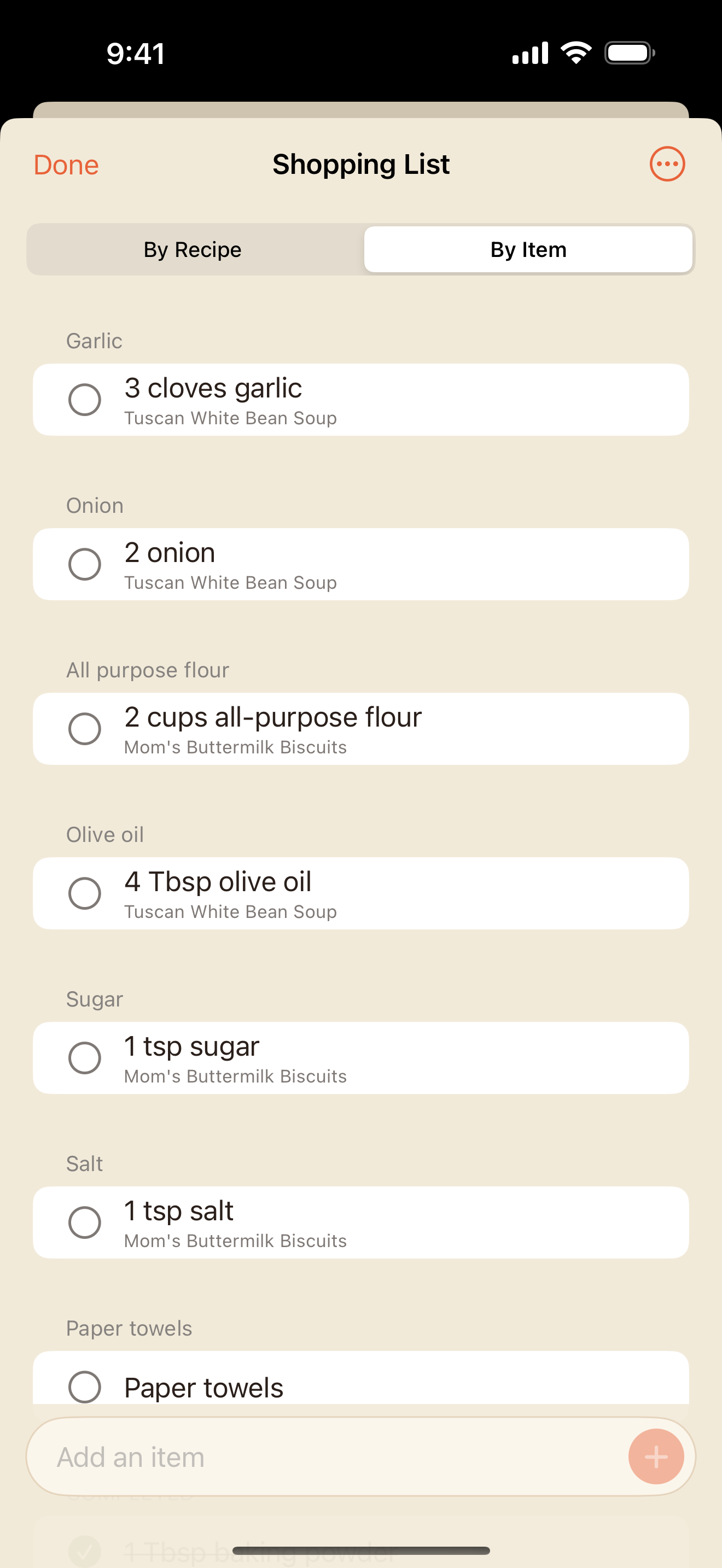
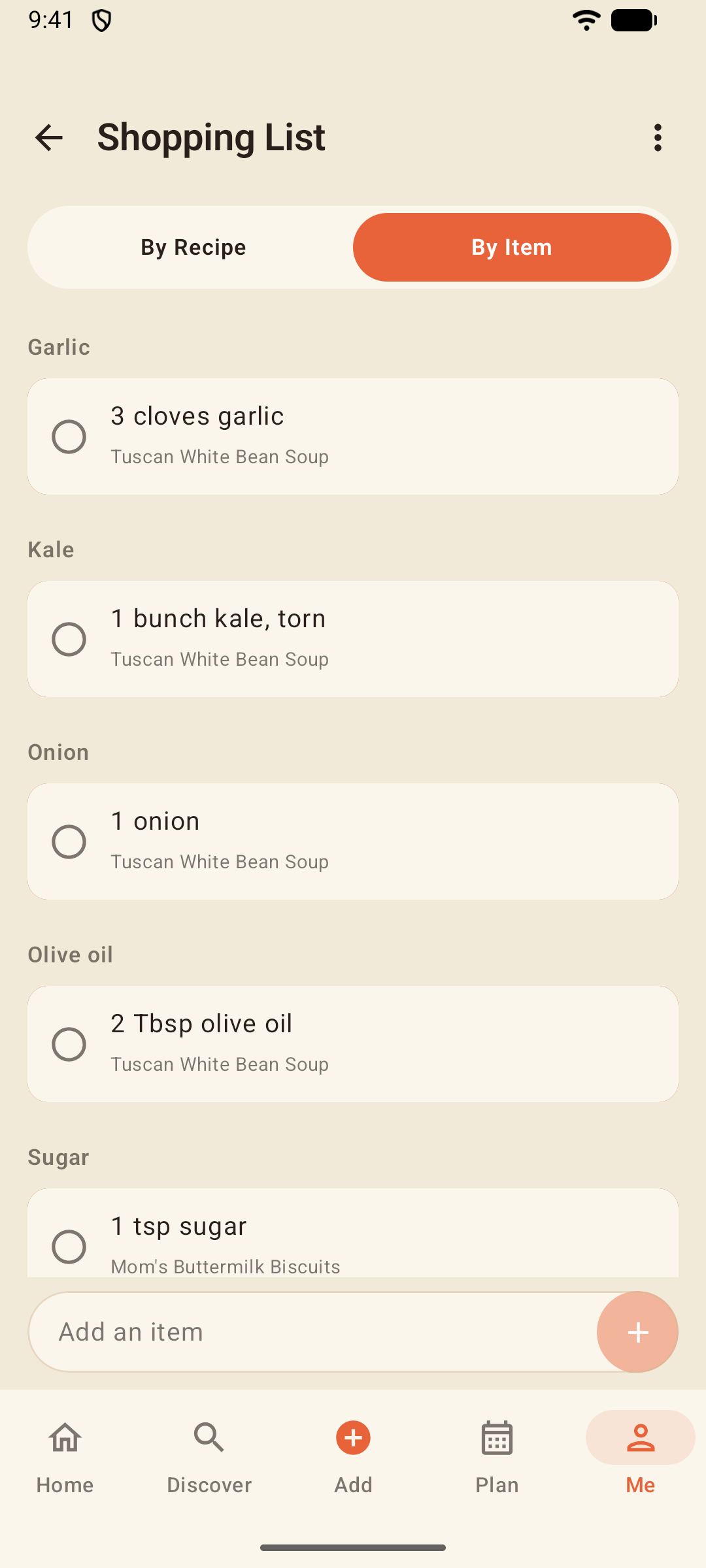
By Item
Flip the toggle to By Item and the same list regroups by ingredient — "Onion" as one entry, with each recipe's amount beneath it. Groups are quietly ordered the way a grocery store is laid out, so produce clusters with produce — whatever language your recipes are written in.
Planning a Meal
The Plan tab turns "what's for dinner Sunday?" into a made decision.
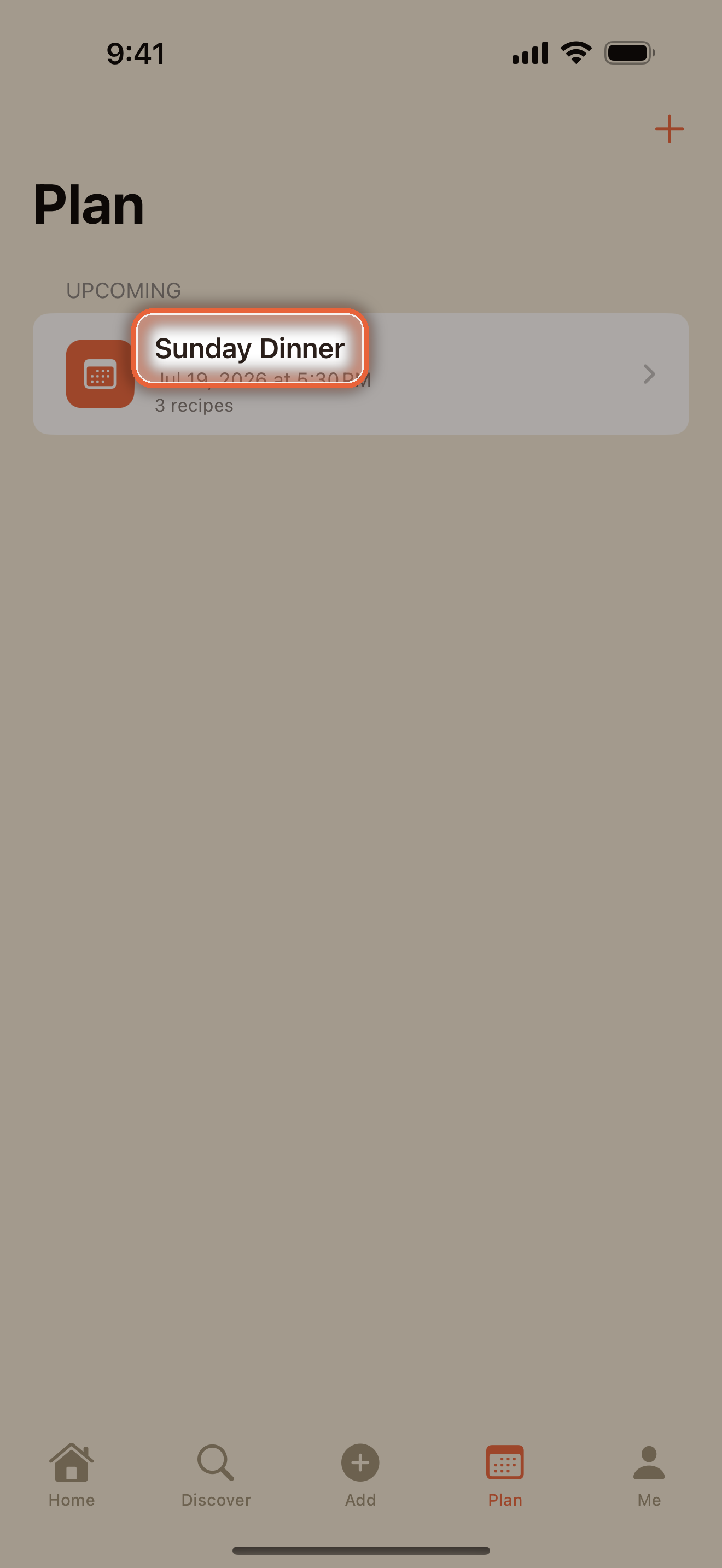
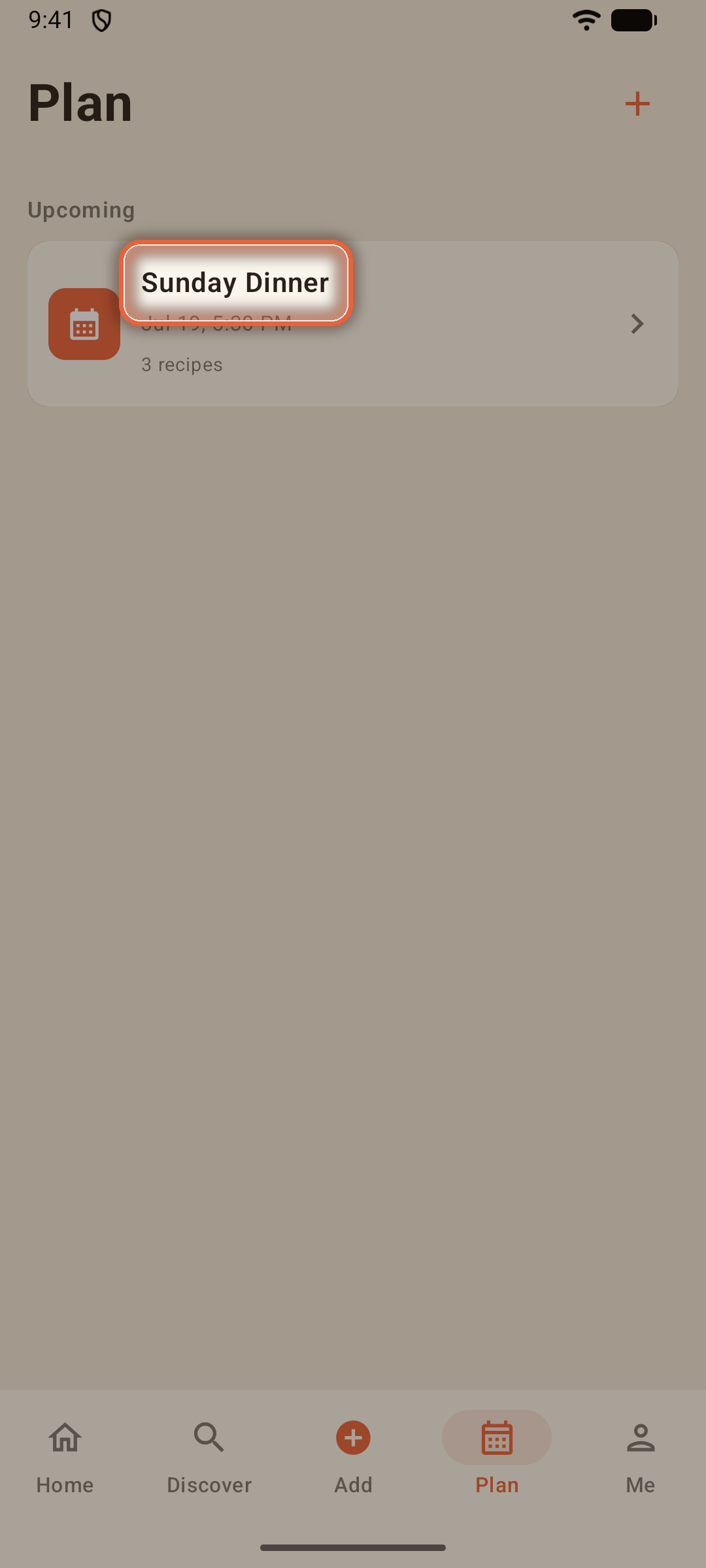
Tap New Meal and everything lives on one screen:
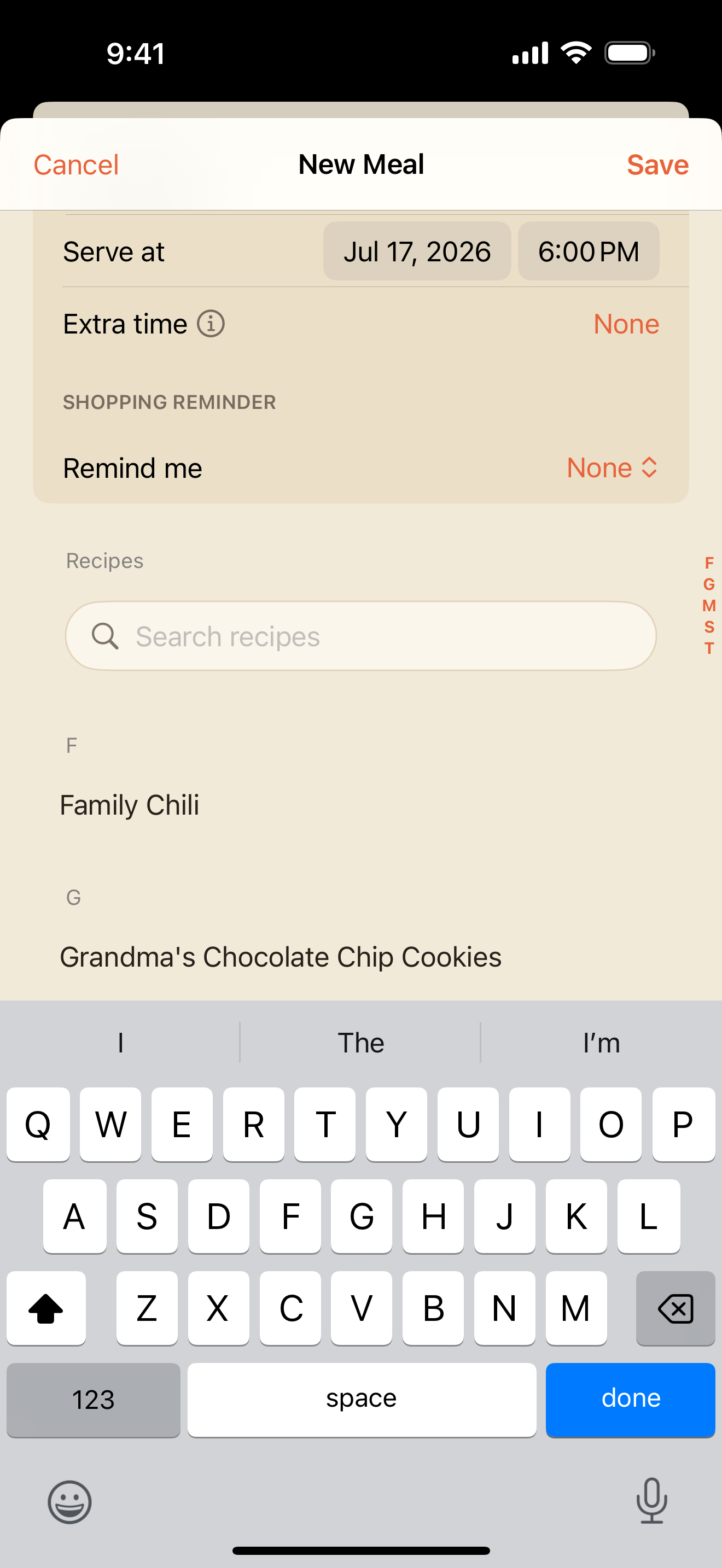
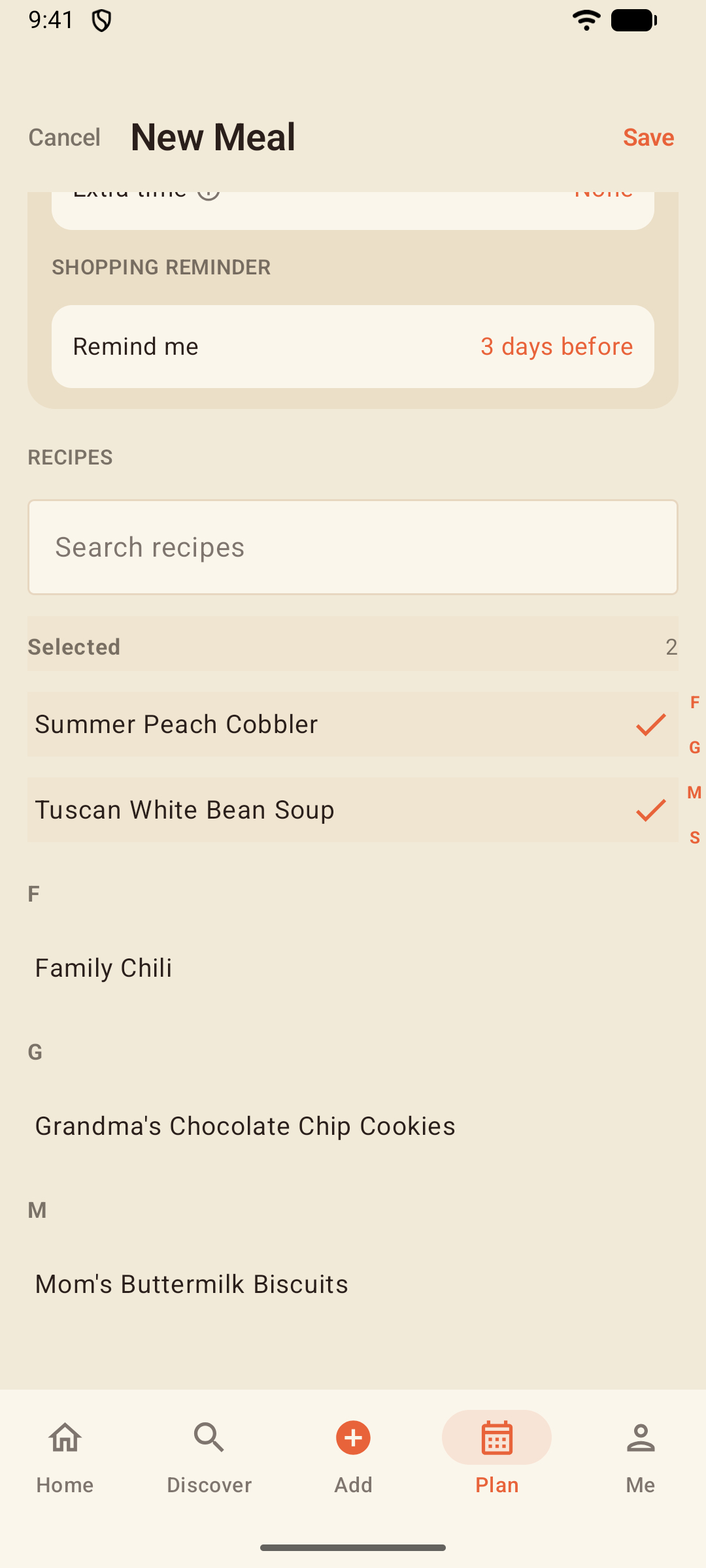
- Name the meal and set Serve at — the moment food should hit the table
- Extra time adds a safety buffer, from 10 minutes up to 2 hours (things never go exactly to plan)
- Under Shopping reminder, Remind me schedules a reminder to shop days before
- Pick the dishes from your box right there — your recipes sit on cards under their first letter; search, or ride the A-Z rail to jump; your picks pin to a Selected group on top
You can also start from a recipe: Plan on any recipe page adds it to an upcoming meal or starts a new one.
The Cooking Timeline
Open a planned meal and Focara has done the arithmetic you usually do on a napkin: it counts backward from serve time and staggers each dish's start so everything lands together.
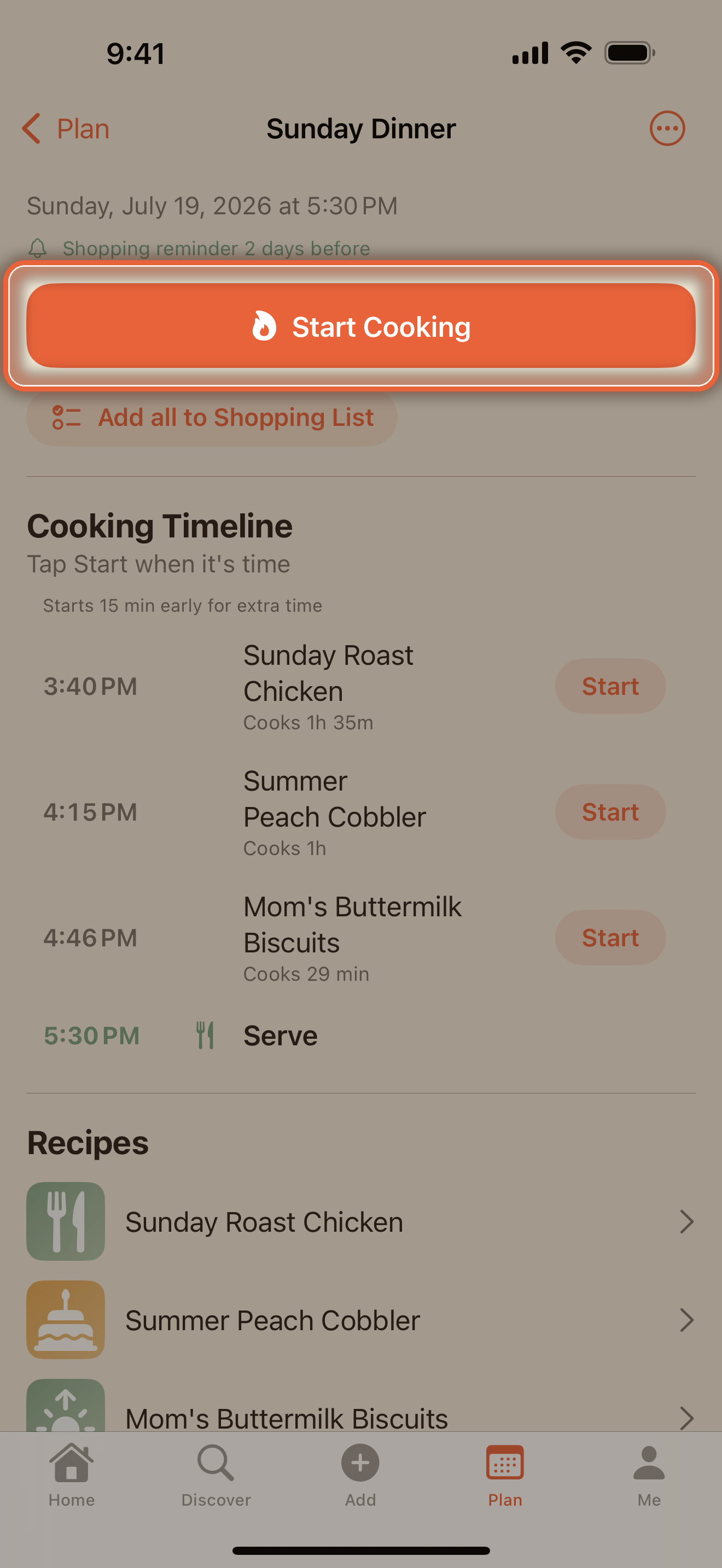
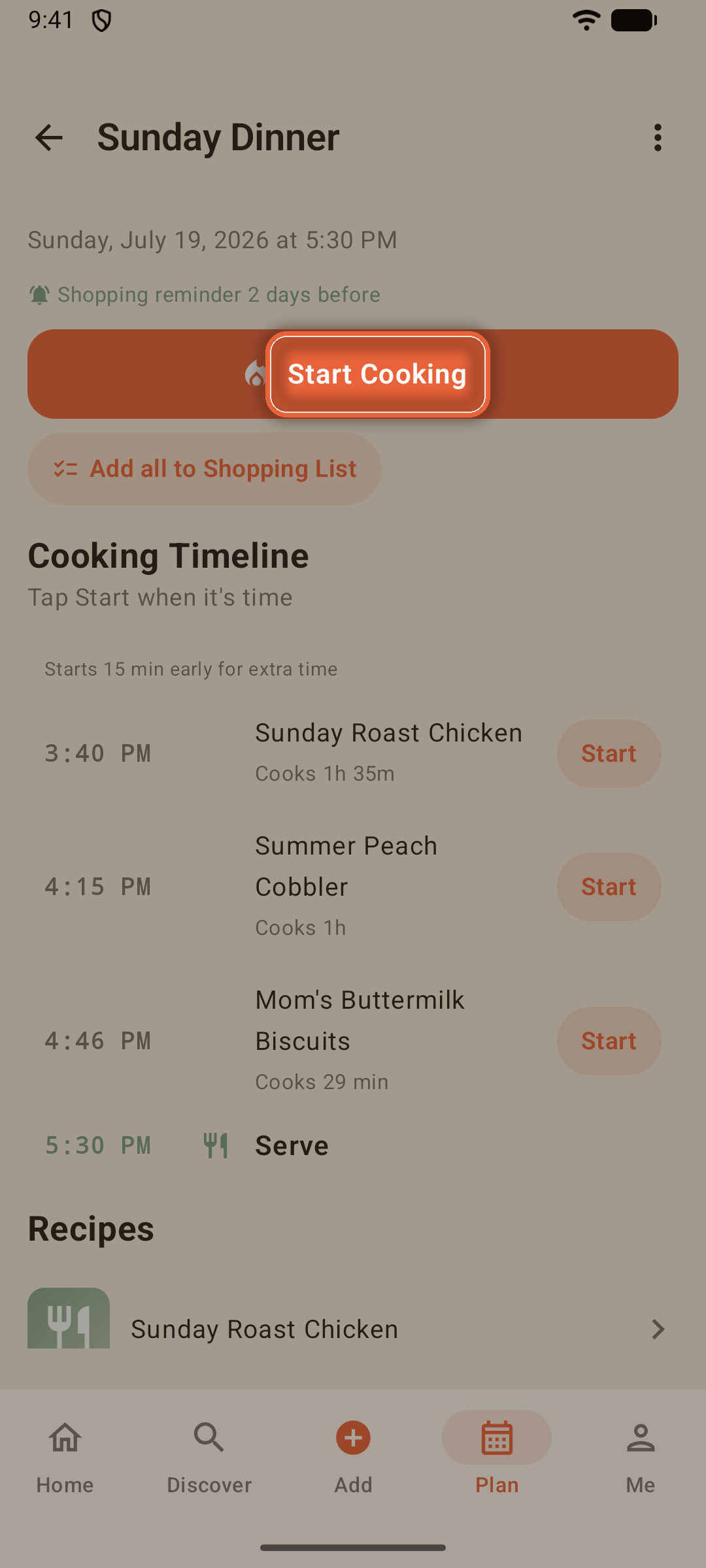
- Each dish shows its start time and cooking span, ending at one shared serve row
- Gave the meal Extra time? A note on the timeline says so — "Starts 1 hr early for extra time" — and every start time moves up to match
- Focara sends a "Time to start" notification when each dish is due — tap it and you're in that dish's Cook Mode. Caught mid-edit somewhere? Focara asks whether to save your draft before it takes you anywhere
- Tap a due dish's row to start its timer; a running row shows the live countdown
- When a dish is due, its row deepens to terracotta and its Start button pulses gently — the dish that needs you is unmissable
- The ⋯ menu prints the whole meal — timeline, recipes, and a tick-box shopping list — as one packet
Cooking a Whole Meal
When it's time, tap Start Cooking on the timeline. You're in normal Cook Mode for the first dish — with one addition: a quick-switch button beside Done Cooking.
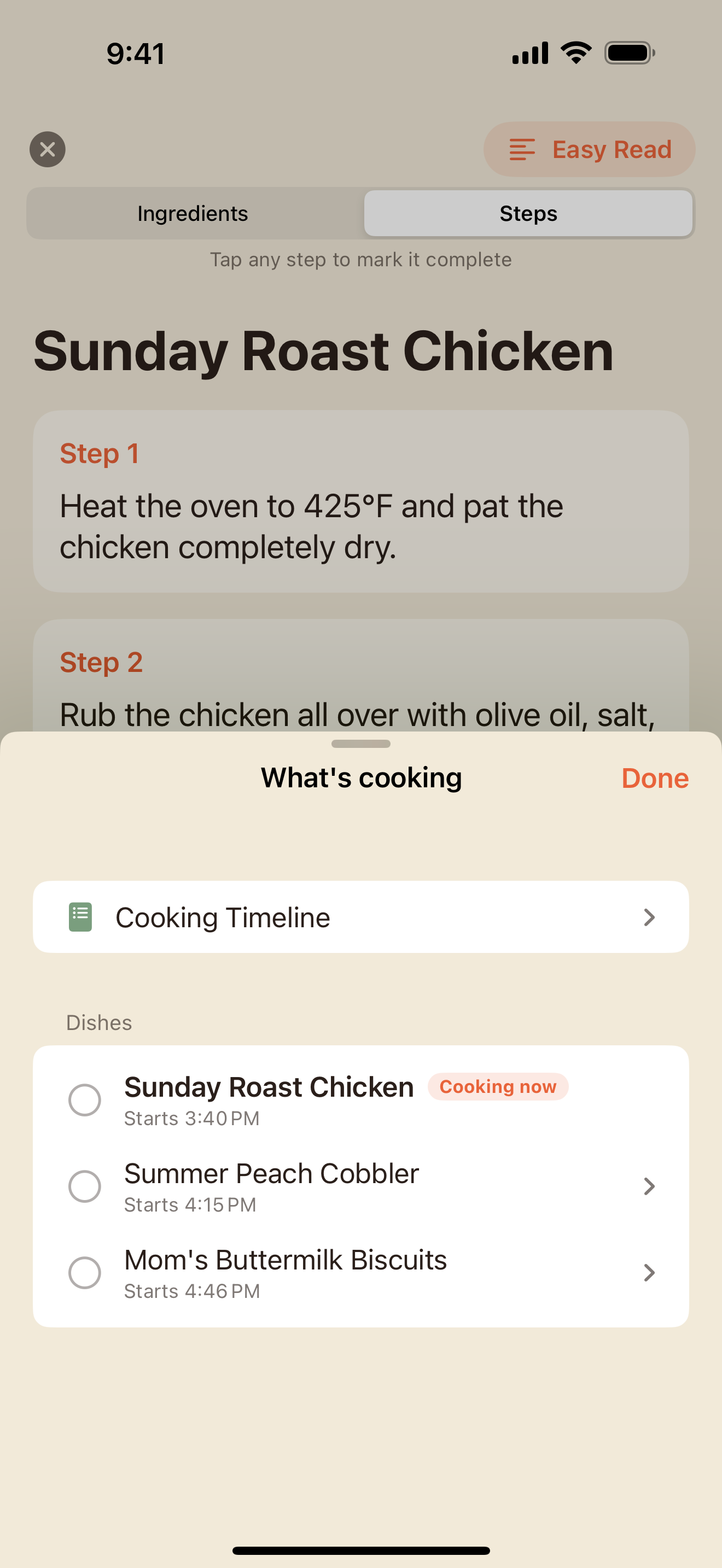
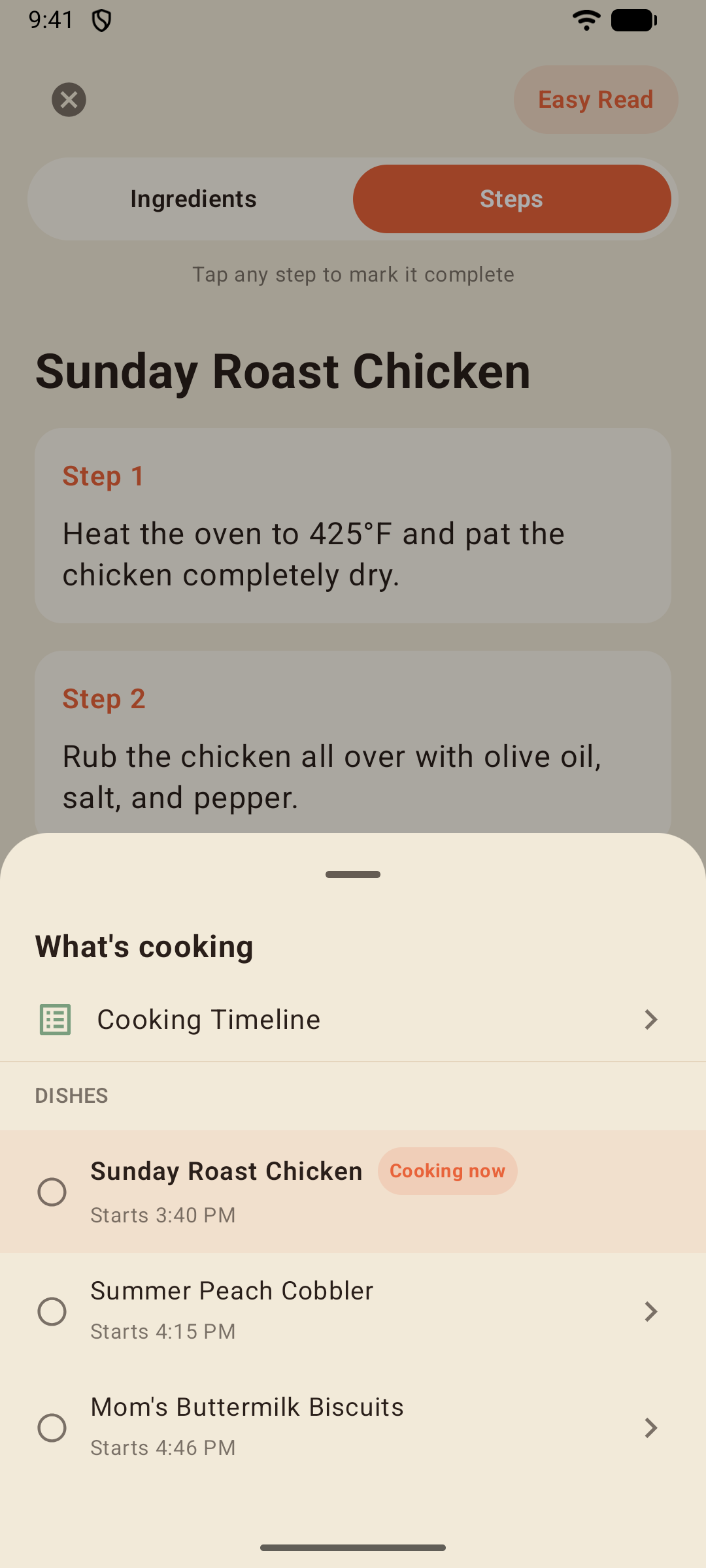
It opens the What's cooking board: every dish with its live state — cooking now, due, upcoming, done. Hop between dishes freely; each one keeps its own struck steps, timers, and Easy Read exactly as you left them.
Discover & Inspiration
The Discover tab is one search across everything — your own box *and* the Focara inspiration library.
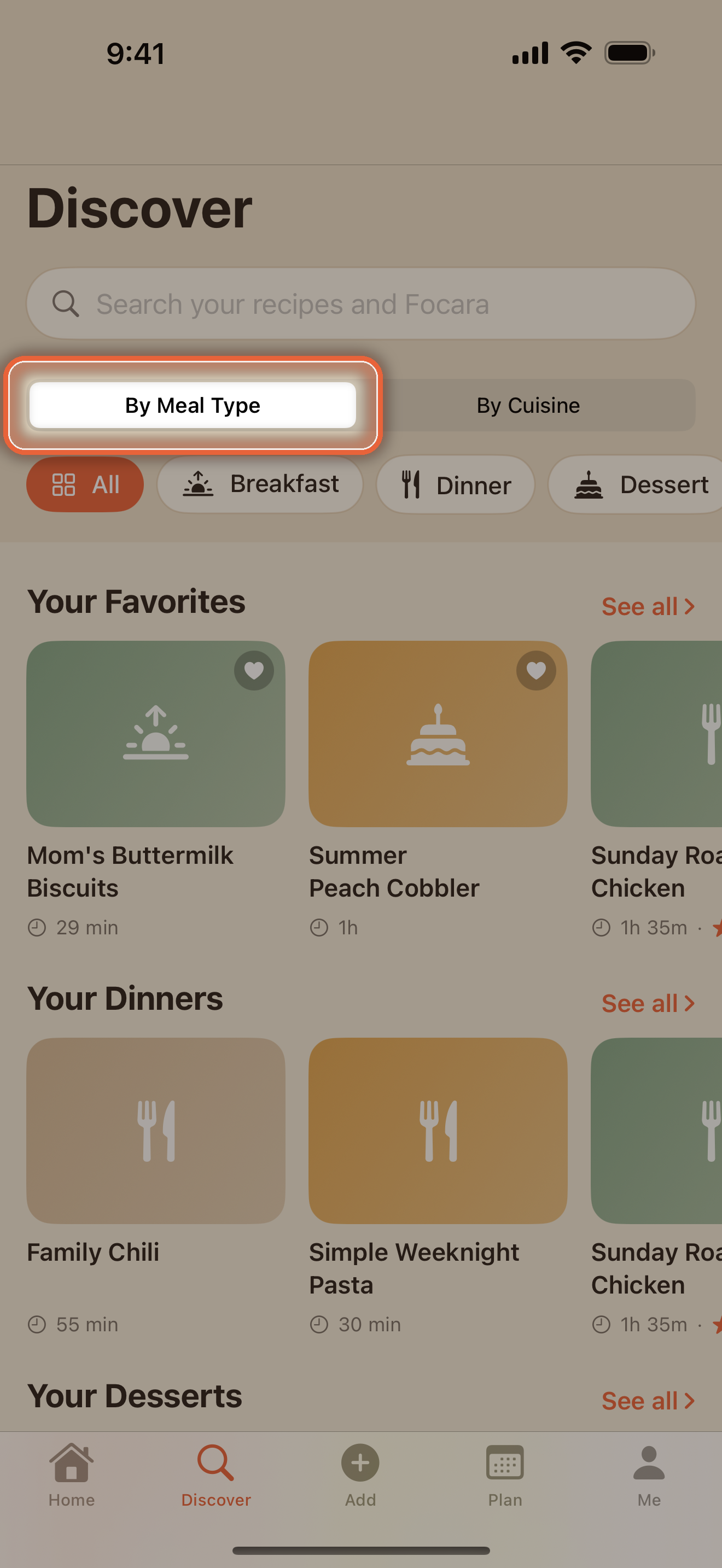
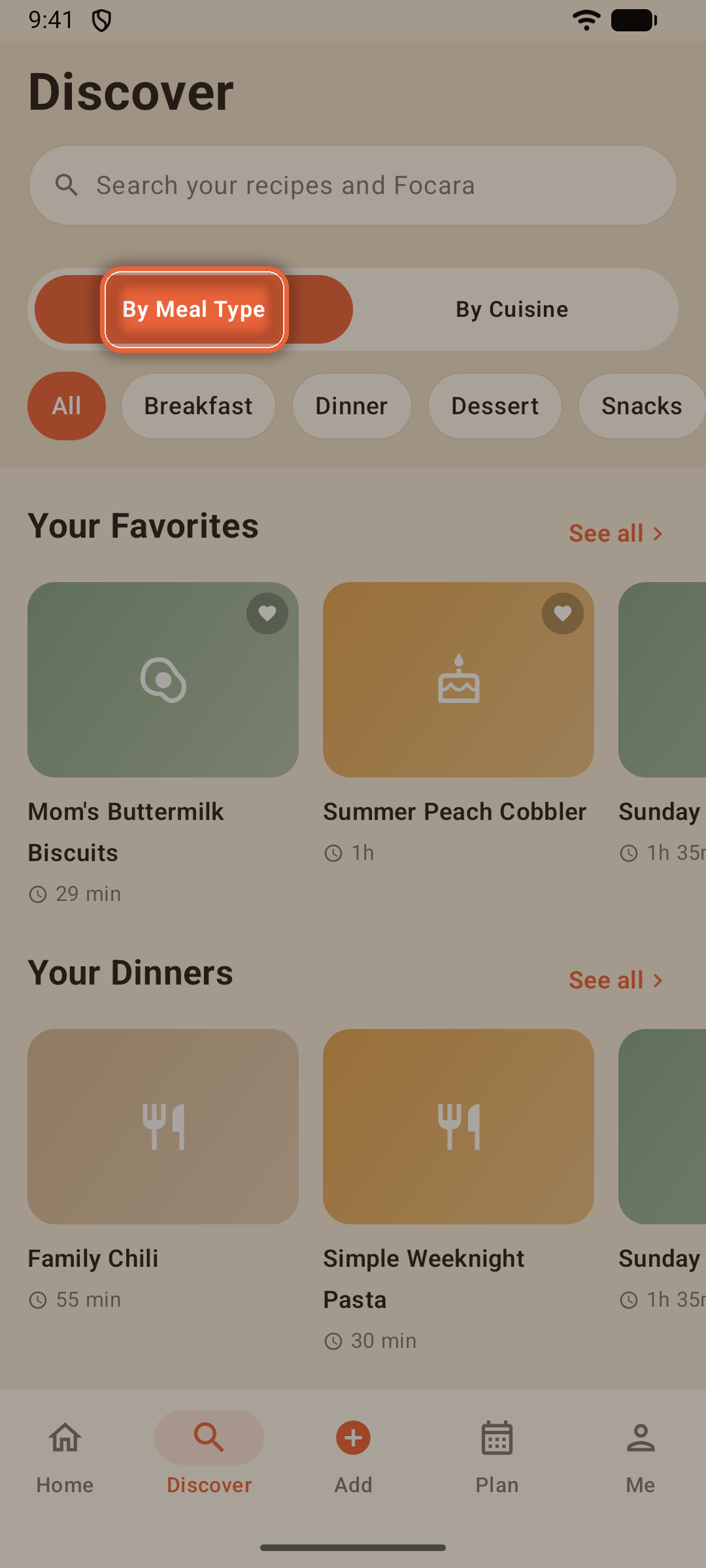
- The toggle at the top reorganizes the shelves by Meal Type, Cuisine, Diet, or Collections — "Your Dinners" one moment, "Your Vegetarian" the next
- On the Collections side, each collection gets a shelf of its own — tap its name to open the whole collection. The New chip starts another, and Edit opens your list of collections
- Tap a chip to narrow to one shelf; Everything else catches whatever's untagged, so nothing is ever unreachable
- See all opens any shelf as a full grid
- Two shelves build themselves from what you've saved: Under 30 Minutes gathers your quick recipes, and Batch Prep the ones that make five servings or more — a week of lunches in one cook
Diet shelves & dietary labels
The Diet shelves come from labels you place yourself: while adding or editing a recipe, tap Dietary Labels and check any of the ten that apply — allergy-aware ones like Gluten Free, Dairy Free, Nut Free, and Egg Free, and ways of eating like Vegetarian, Vegan, or Keto. A labeled recipe wears its labels as chips on its page, and Discover gives each label its own shelf.
Note: Labels are always yours to set — Focara never guesses them from the ingredients, and a recipe shared with you arrives unlabeled. For allergies, always double-check the ingredient list itself.
Try Something New
The Try Something New from Focara shelf is a small curated library for nights when the box feels familiar. Preview one, and if it earns a spot —
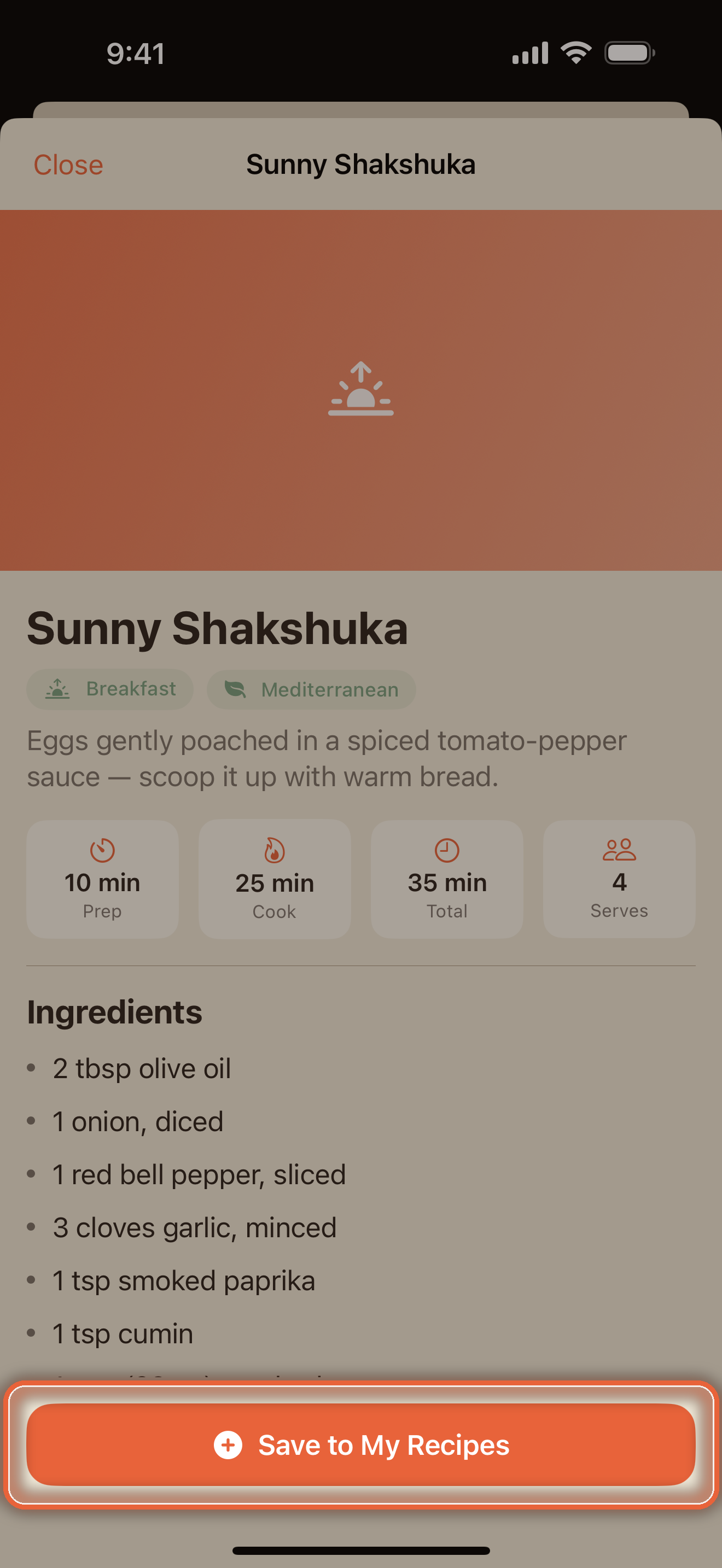
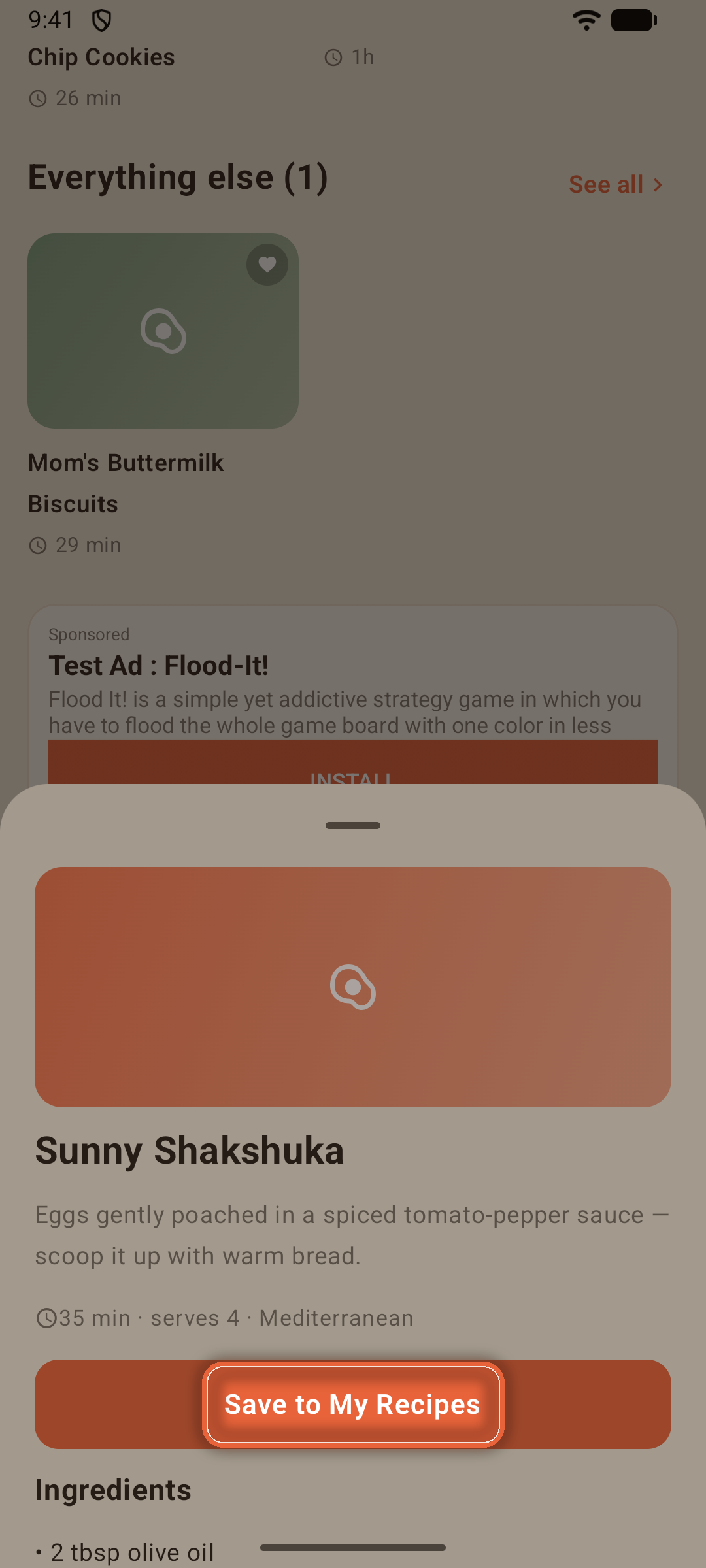
Save to My Recipes makes it fully yours: edit it, version it, plan it, share it.
The shelf follows your region, too: on a device set to a European country, it features a collection of European classics — from a 24-hour Neapolitan pizza dough to a paprika-rich Hungarian goulash — with their ingredients and steps in your language.
Me & Settings
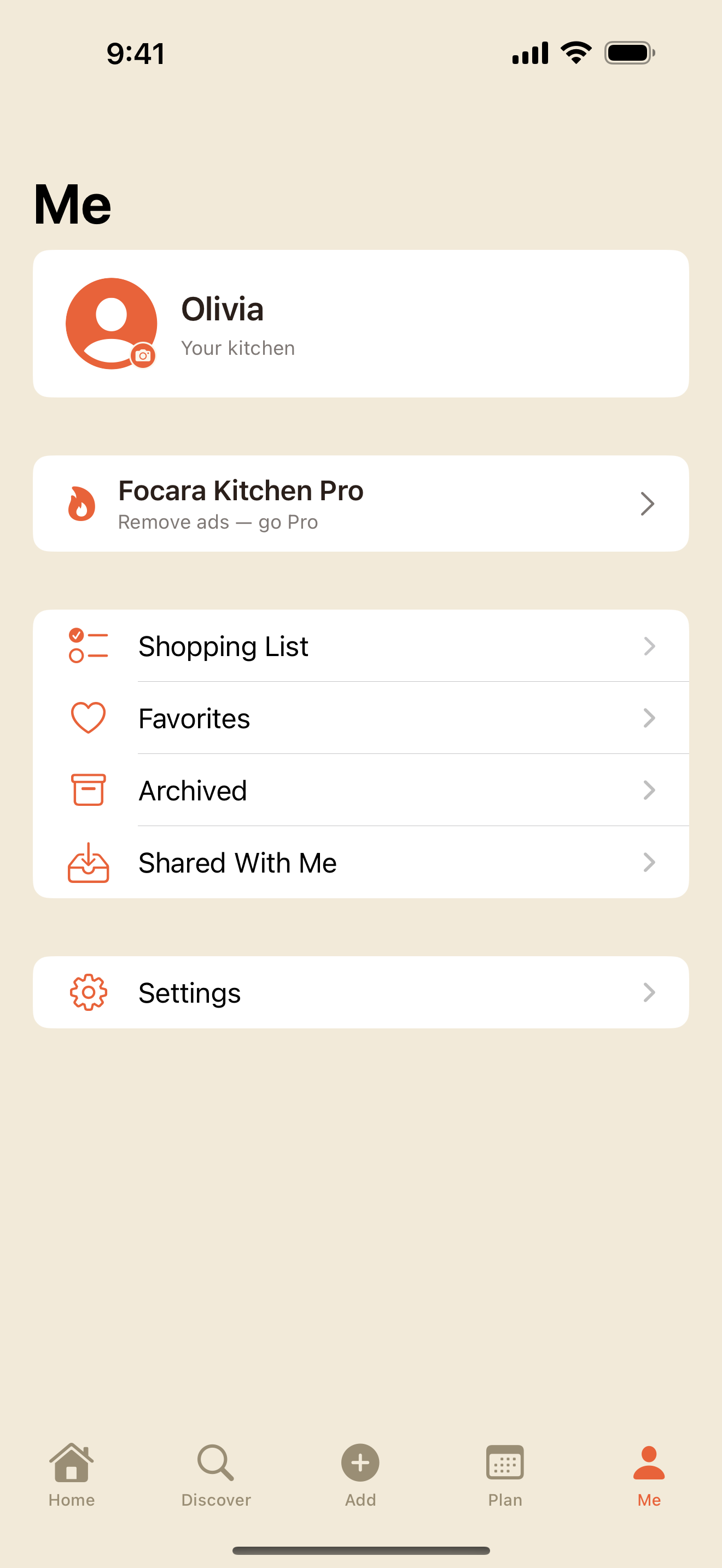
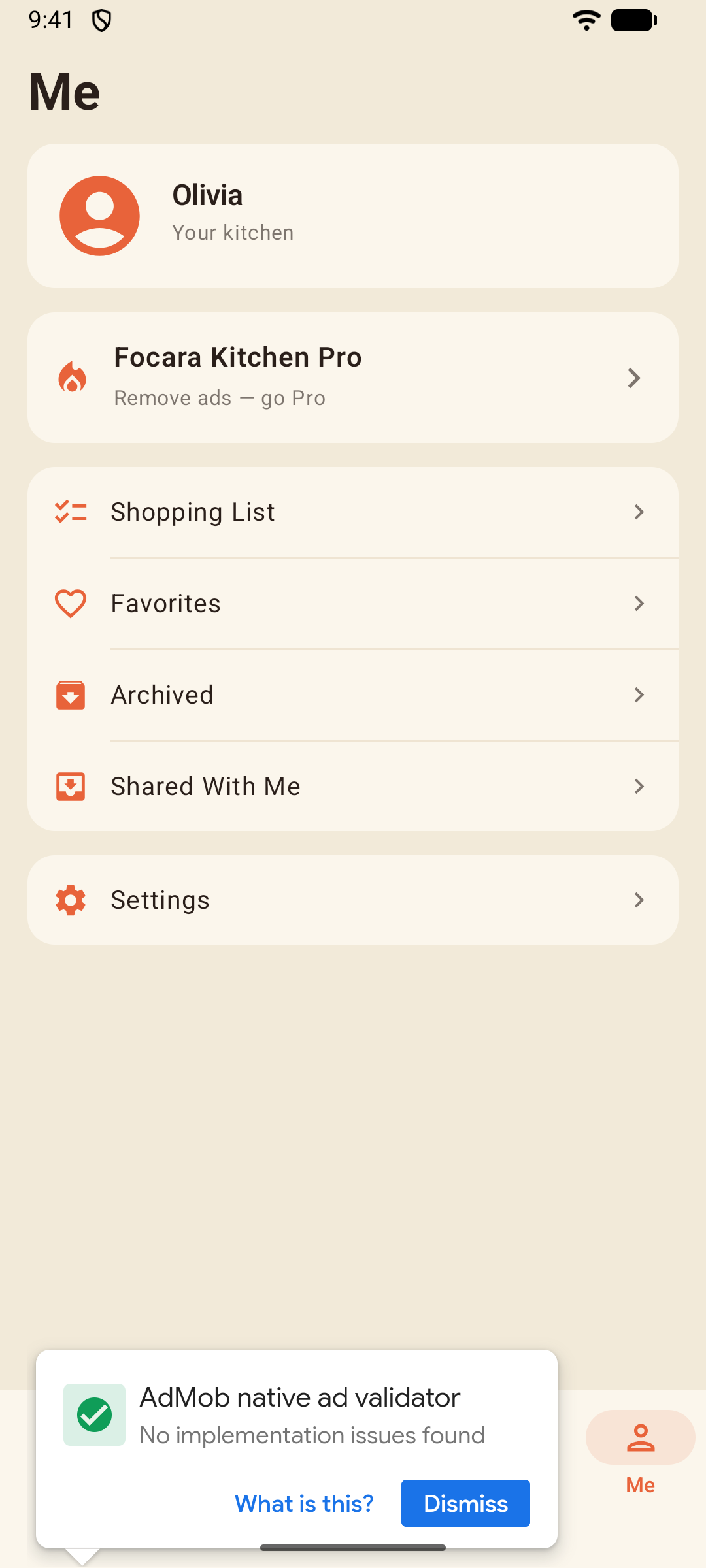
The Me tab is your corner of the kitchen: name and photo, Favorites, Collections, Archived, Shared With Me, the Shopping List, and Settings.
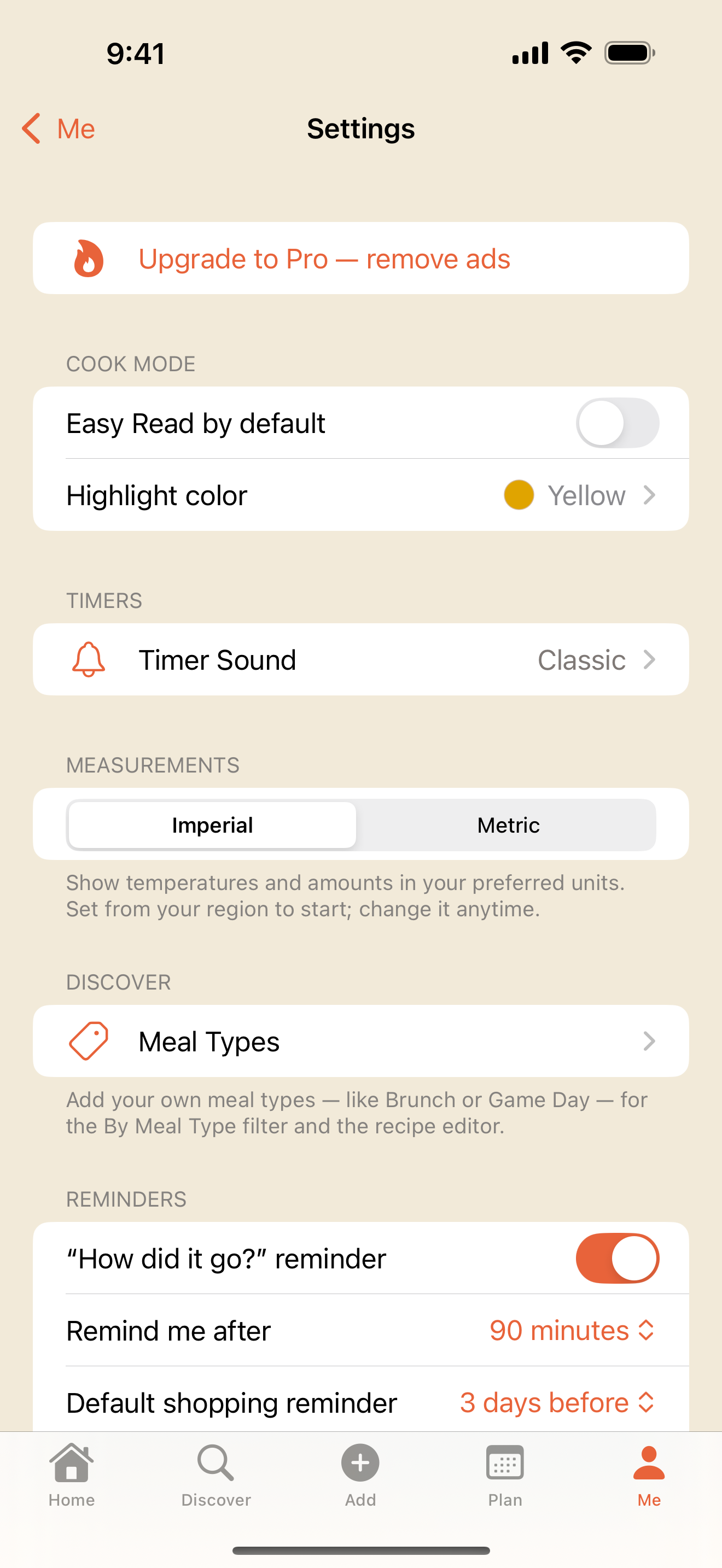
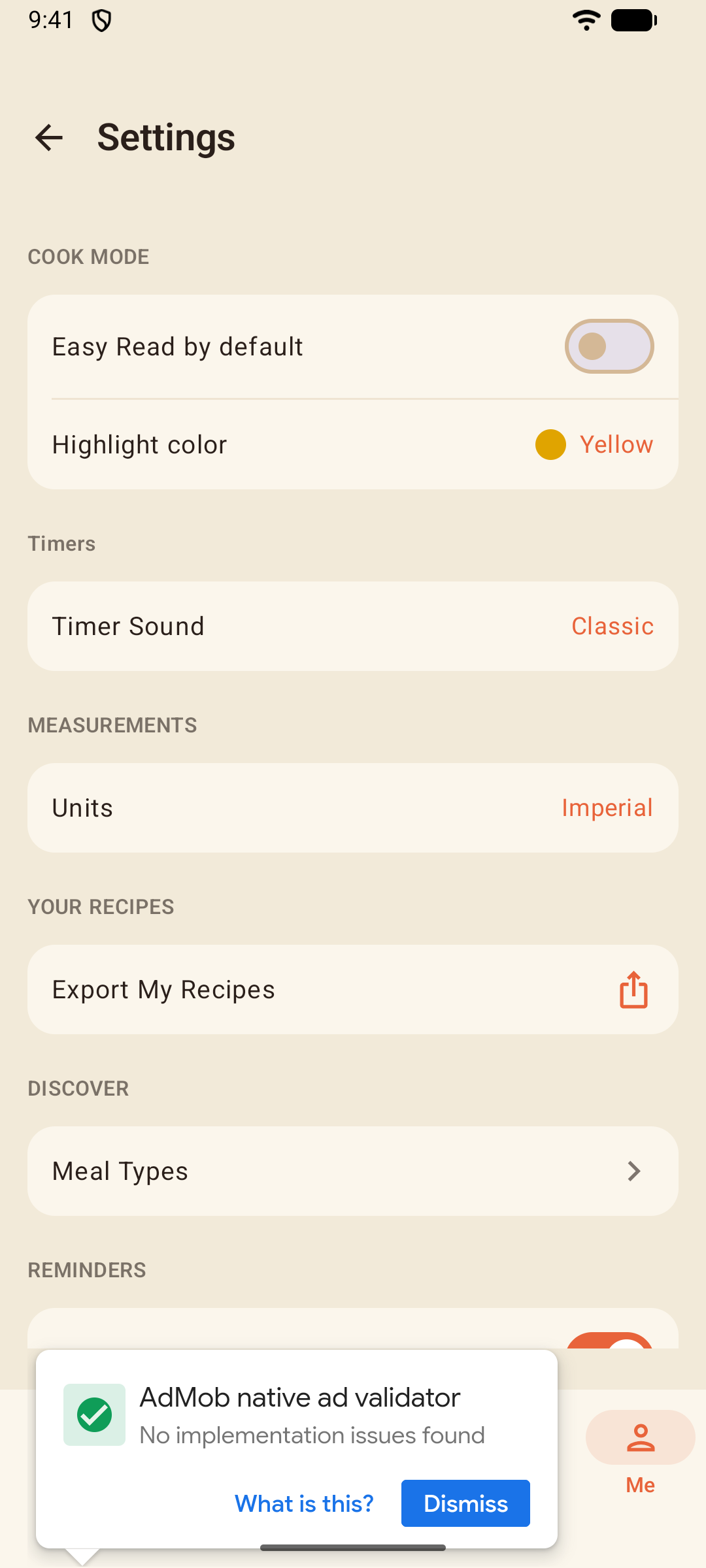
A few settings worth knowing about:
- Cook Mode - Easy Read's default and highlight color
- Timer Sound - five chimes, tap to preview
- Measurements - metric or imperial display, preset from your region
- Meal Types - hide any built-in type you never use — Breakfast, Dinner, Side Dish, Dessert, and the rest — and add your own of up to 20 characters ("Game Day", "Brunch")
- Cuisines - add your own ("Hmong", "Colombian") for the editor and Discover; swipe a built-in to Rename or Hide it — hidden means hidden everywhere until you bring it back — and Reset to defaults restores the originals
- Reminders - the after-cooking check-in and shopping-reminder lead time
- Back Up Recipes and Restore Recipes - your whole box as one file that's yours to keep, and the way to bring it back (more below)
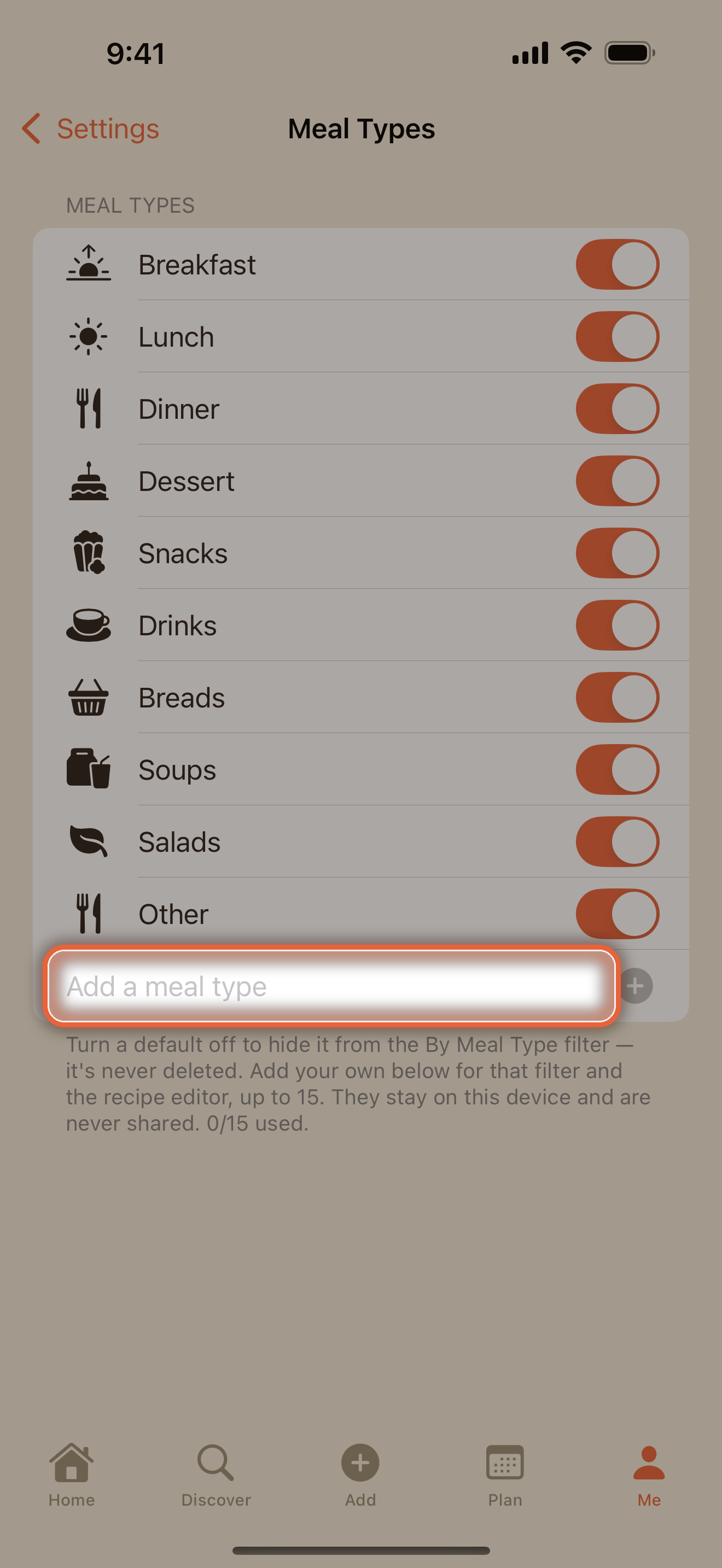
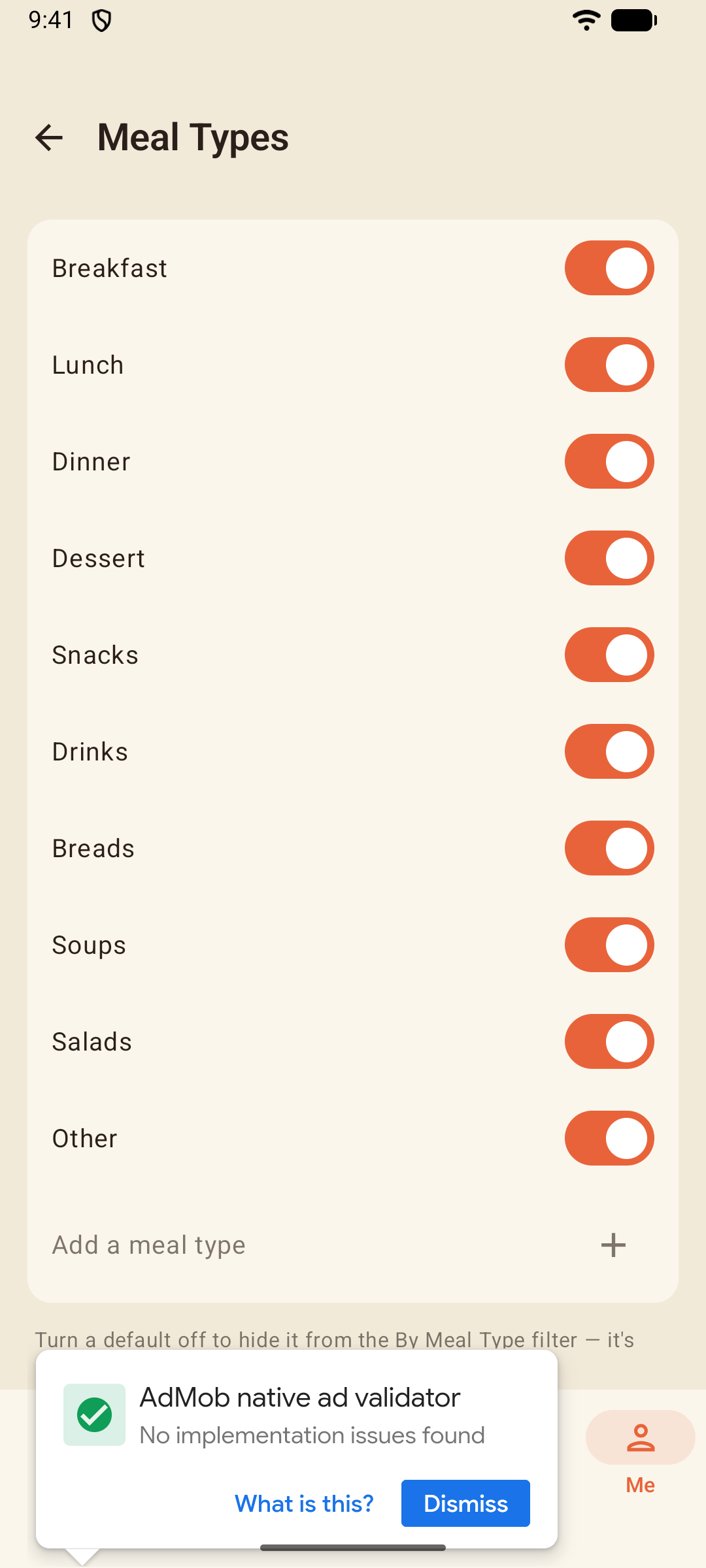
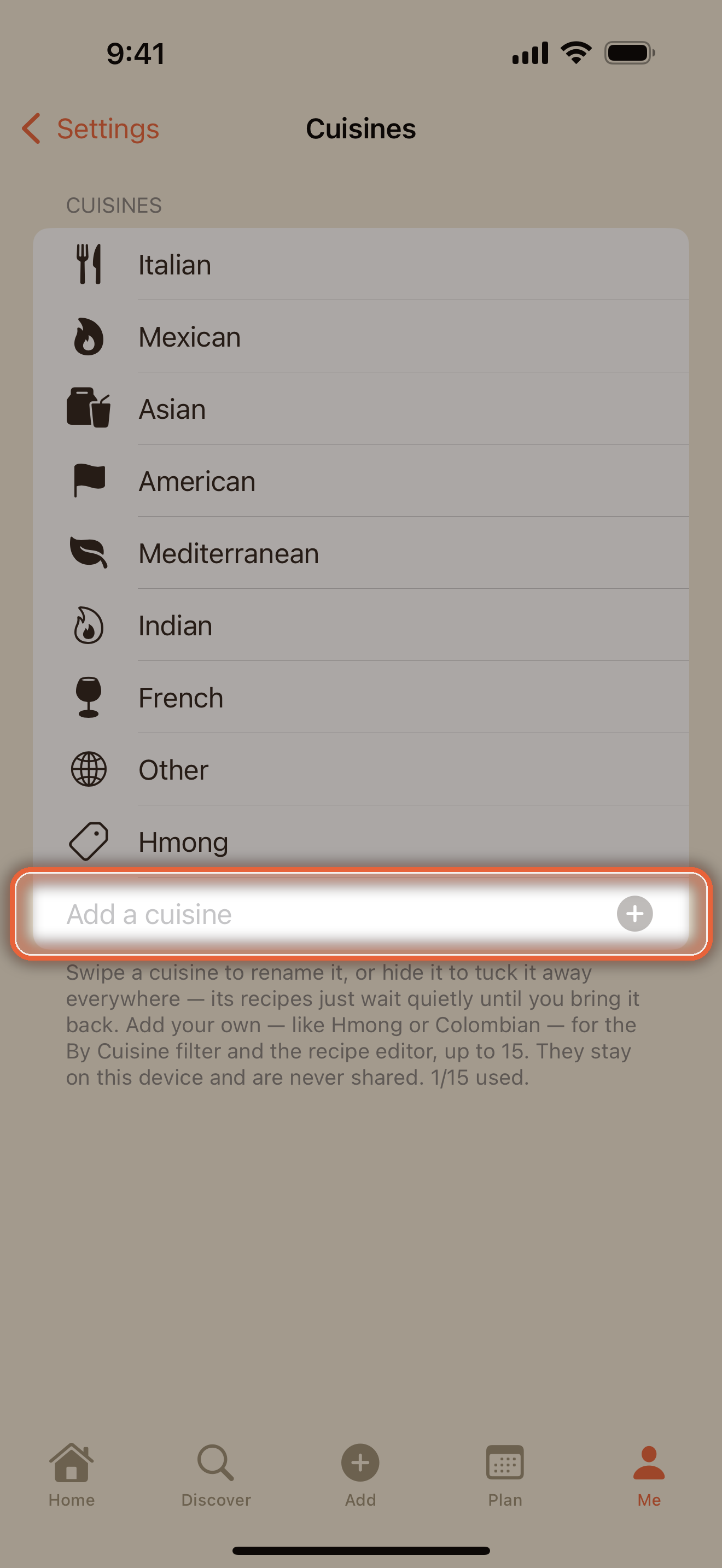
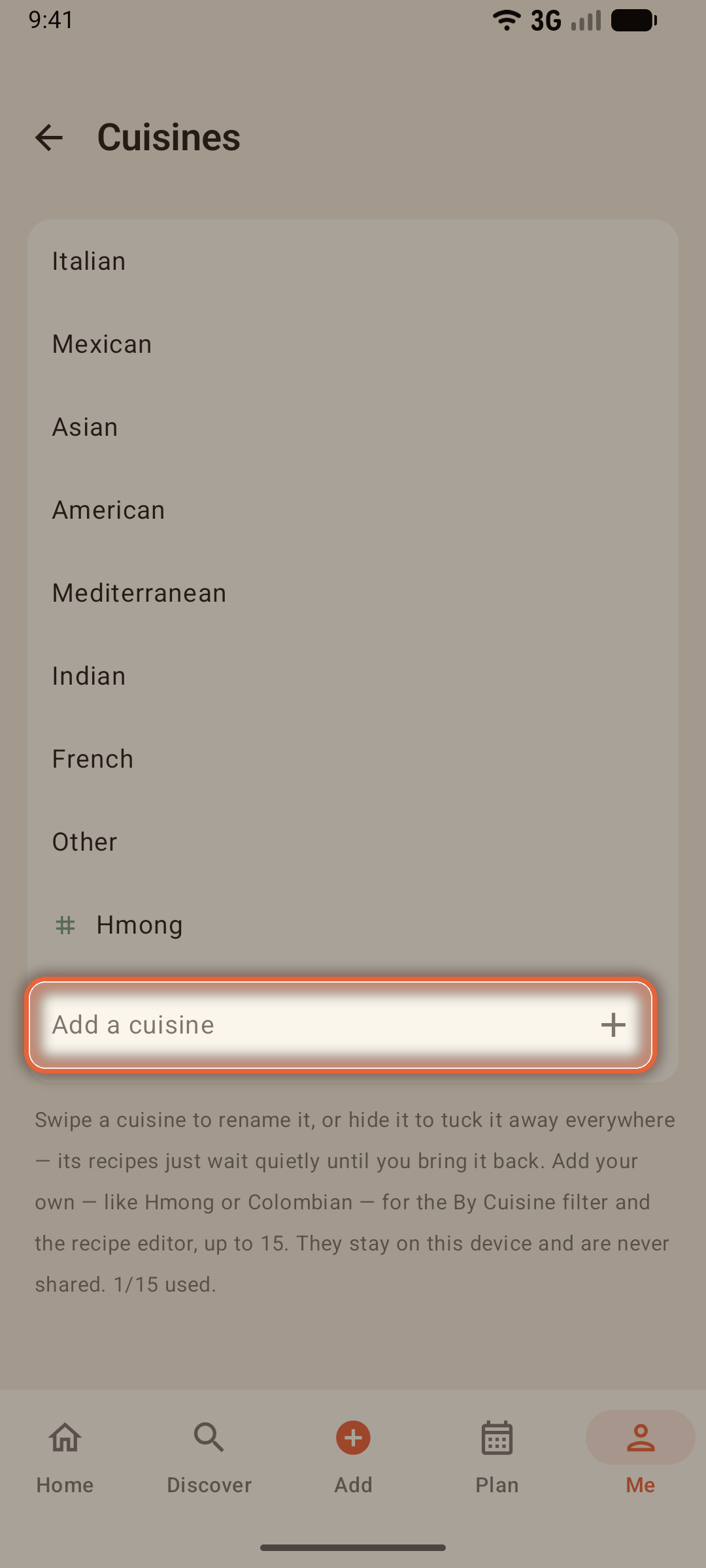
Note: Custom meal types, cuisines, season tags, and dietary labels are yours alone — they never travel with a shared recipe.
Back Up & Restore
Your recipe box lives on your phone. Back Up Recipes, under Your Recipes in Settings, saves all of it as one file — keep it somewhere safe, like your files, a cloud drive, or an email to yourself.
- The backup holds every recipe with all its versions, your journal notes, dietary labels, collections, and your own meal types and cuisines
- Photos, meal plans, the shopping list, and settings aren't part of it
- Restore Recipes brings a backup back — on the same phone or a new one, iPhone or Android, whichever made the file
- Restoring only ever adds: a recipe already in your box is skipped and nothing is changed or replaced, and a collection with the same name simply gains the recipes it was missing
- A file saved with Export My Recipes in an earlier version of the app restores its recipes and their versions too
Focara in Your Language
Focara Kitchen speaks 34 languages — the app, the photo scanning, and this tutorial. It follows your phone's language, so there's nothing to set inside the app.
You can also give Focara its own language, if you'd rather keep your phone in one language and cook in another.
On iPhone: Settings → scroll down to Focara Kitchen → Language, then choose one.
On Android: Settings → Apps → Focara Kitchen → Language, then choose one. On some phones the path is Settings → System → Languages → App languages → Focara Kitchen.
Still in English on Android? That language's text may not have been downloaded when you installed. Add the language to your phone (Settings → System → Languages → Add a language), then close and reopen Focara Kitchen. It doesn't have to be your phone's main language — being in the list is enough.
This tutorial comes in every language the app speaks — use the Language picker at the top of this page.
Focara Pro
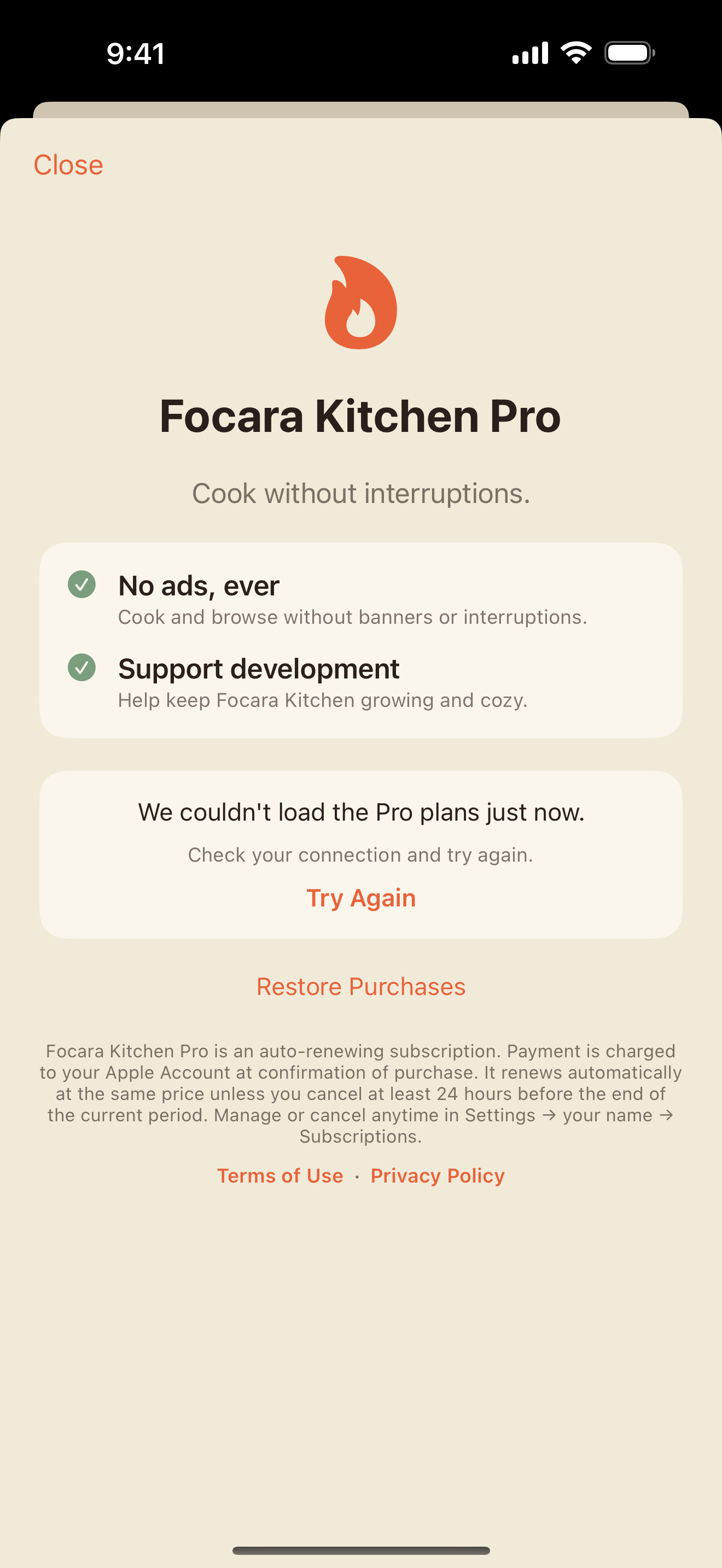
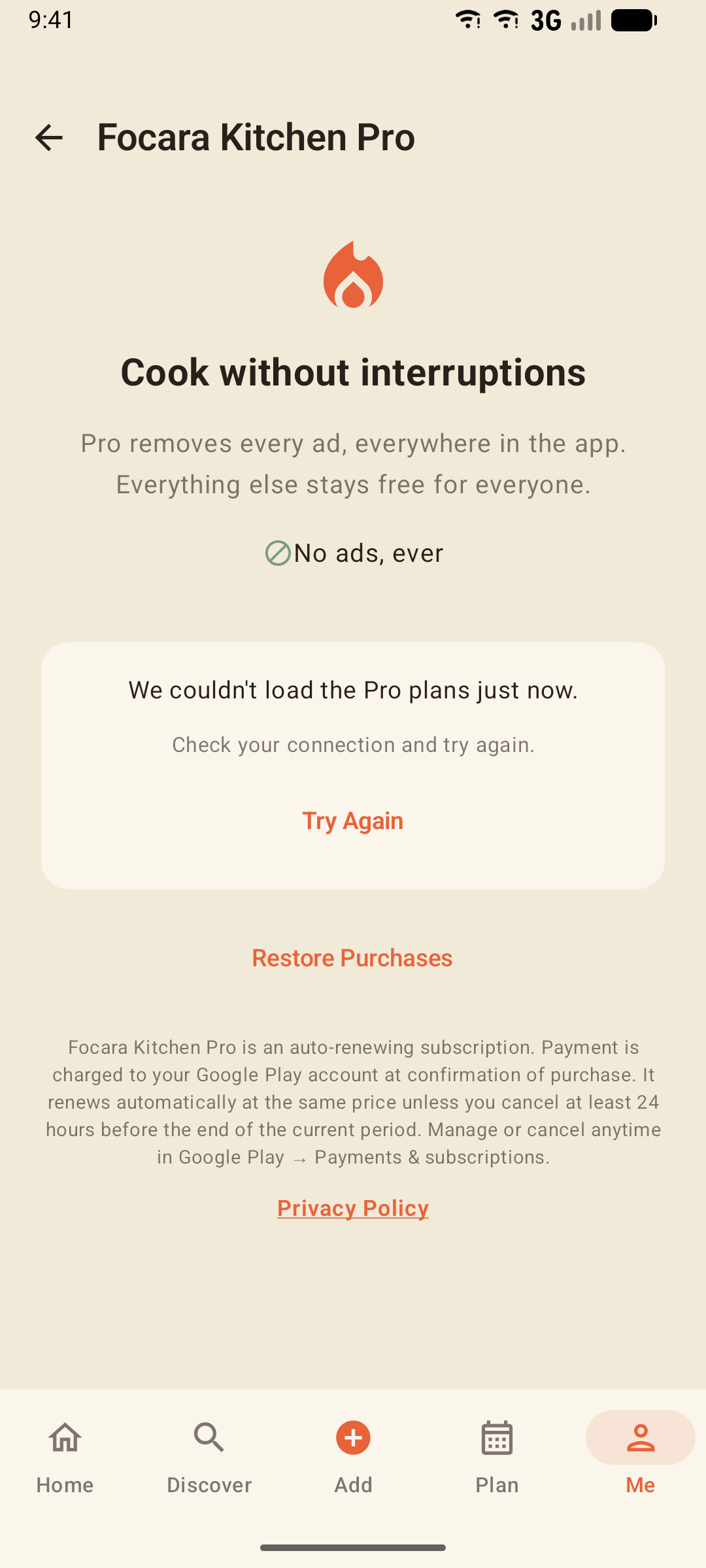
Focara Kitchen is free, supported by ads that keep to the browsing screens. Pro removes every ad — nothing else changes, because nothing else was ever held back.
How to subscribe
- Open Me → Settings and tap Upgrade to Pro
- Choose Monthly or Yearly
- Confirm with your app store
No connection? The Pro screen says so plainly — plans need the internet to load, and your recipe box keeps working offline.
Managing your subscription
On iPhone and iPad, subscriptions are managed by the App Store: open the Settings app, tap your name, then Subscriptions, and choose Focara Kitchen. "Restore Purchases" on the Pro screen brings an existing subscription to a new phone.
On Android, subscriptions are managed by Google Play: open the Play Store app, tap your profile picture, then Payments & subscriptions → Subscriptions, and choose Focara Kitchen.
Tips & Tricks
- Crop tight when you scan - the less clutter in the photo, the cleaner the import
- Scale, then shop - set the servings first, so the shopping list carries the right amounts
- Version the experiments - "Save as Version 2" means the original survives your bright ideas
- Name your kitchen timers - "Pasta water" beats guessing which of three chimes just went off
- Give meals Extra time - the buffer is the difference between "dinner at 6" and dinner at 6
- Write the journal entry - two honest sentences after cooking are gold a year later
- Let the store order the list - By Item groups your list roughly aisle by aisle
- Archive, don't delete - retired recipes keep their history and come back with one tap
- Back up now and then - one file in a safe place keeps your whole box, whatever happens to your phone